 0
comments
Install Ubuntu Server Manager utility in Ubuntu 13.04 Raring/Ubuntu 12.10 Quantal/Ubuntu 12.04 Precise/11.10 Oneiric/11.04/10.10/10.04/Linux Mint
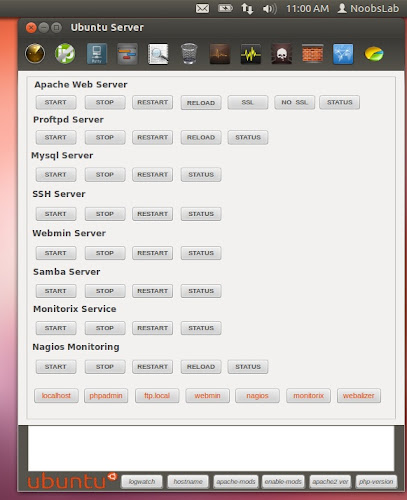
Ubuntu Server Manager is a Graphical-User-Interface to install and manage (Apache 2, MySQL, Proftpd, Samba, Monitorix, SSH, Nagios, Webmin) and to monitor the server log activity.
There are several other options for services like: Net activity viewer, Update dynamic IP, Putty for ssh, Open Ports to see server open connections, Logs, Clear logs option, Localhost scan using Nmap, Perform scan of IP/Domain name using Nmap, RKhunter to check if system is effected with rootkit, Firewall configuration option, Open apache www default folder as root, Webalizer to generate report of site.
This utility only manage local machine.
To install Ubuntu-Server-Manager in Ubuntu/Linux Mint open Terminal (Press Ctrl+Alt+T) and copy the following commands in the Terminal:
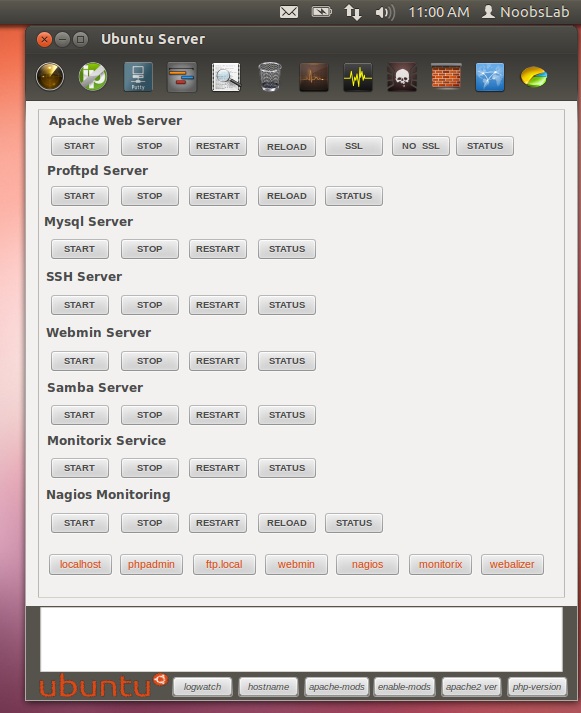
Ubuntu Server Manager is a Graphical-User-Interface to install and manage (Apache 2, MySQL, Proftpd, Samba, Monitorix, SSH, Nagios, Webmin) and to monitor the server log activity.
There are several other options for services like: Net activity viewer, Update dynamic IP, Putty for ssh, Open Ports to see server open connections, Logs, Clear logs option, Localhost scan using Nmap, Perform scan of IP/Domain name using Nmap, RKhunter to check if system is effected with rootkit, Firewall configuration option, Open apache www default folder as root, Webalizer to generate report of site.
This utility only manage local machine.
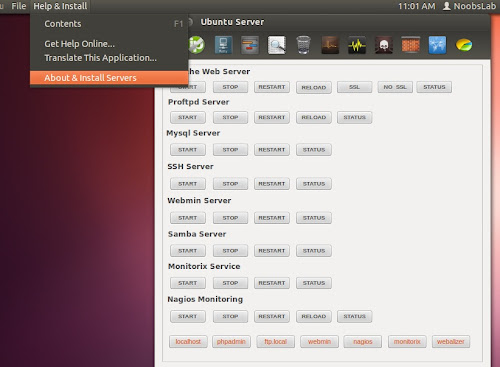
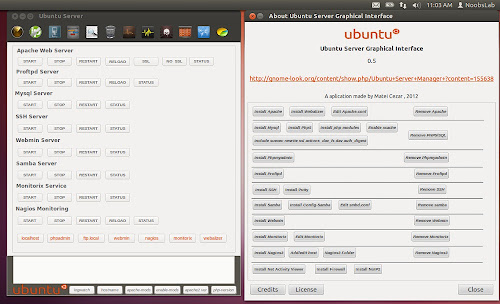
To install services Go to Help & Install > About & Install Servers

Installation and removal of services

To install Ubuntu-Server-Manager in Ubuntu/Linux Mint open Terminal (Press Ctrl+Alt+T) and copy the following commands in the Terminal:
That's it
- wget -O usm.deb http://goo.gl/QECjX
- sudo dpkg -i usm.deb && sudo rm usm.deb
Source: Ubuntu Server Mananger


