Warung Bebas
Showing posts with label grub2. Show all posts

Sunday, 21 October 2012

Install/Recover Grub from Linux Live CD

Install/Recover Grub2 from Linux Live CD/USB after installation of other Operating Systems (Windows xp, Vista, 7, 8) or Grub doesn't load
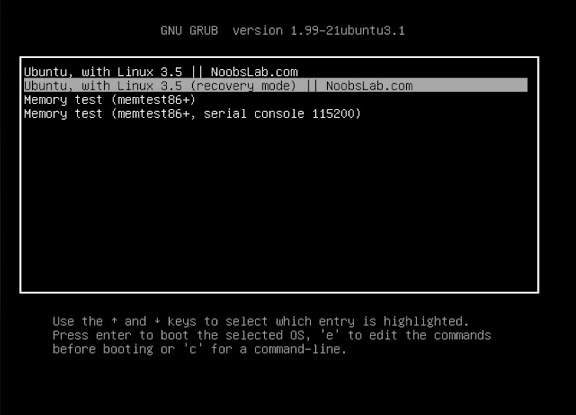
grub

Recommended Live CD's (Ubuntu 12.04/11.10/11.04/10.10/10.04/9.10/9.04/Mint)
Recover/Reinstall/Repair grub2 from Linux Live CD/USB after Windows 7/8/vista/xp or grub doesn't work, It is really easy to install grub.
You just have to follow simple steps after that you will see grub2 in your system again.


First of all Boot your Linux Live CD/USB then open Terminal  and enter following commands:
This command for root permissions:
  • sudo -i
Check the drives number in Partition Manager :
  • sudo fdisk -l
Now select your Linux installed drive and change the number in following commands (Only change 'x' with your drive number) and change (sda) with your hard drive it can be (sdb, sdc, etc) you can see this in Partition Manager:
  • sudo mount /dev/sdax /mnt
  • sudo mount /dev/sdax /mnt/boot
  • sudo mount --bind /dev /mnt/dev/
This command will change mnt directory to root permissions:
  • sudo chroot /mnt
Now grub install command and Change 'a' in "sda" with your hard drive where you want to install grub, check in Partition Manager:
  • grub-install /dev/sda
Now installation finished, Enter following commands to unmount (If these two command doesn't work, then leave them):
  • sudo umount /mnt/dev
  • sudo umount /mnt
Now reboot your pc:
  • sudo reboot 
Your grub is back. That's it.

Saturday, 8 September 2012

Install Grub Customizer 3.0 in Ubuntu/Linux Mint (New Release)

Install Grub Customizer 3.0 in Ubuntu 12.10/Ubuntu 12.04/Ubuntu 11.10/Older Ubuntu Version/Linux Mint 13/12/11 and previous

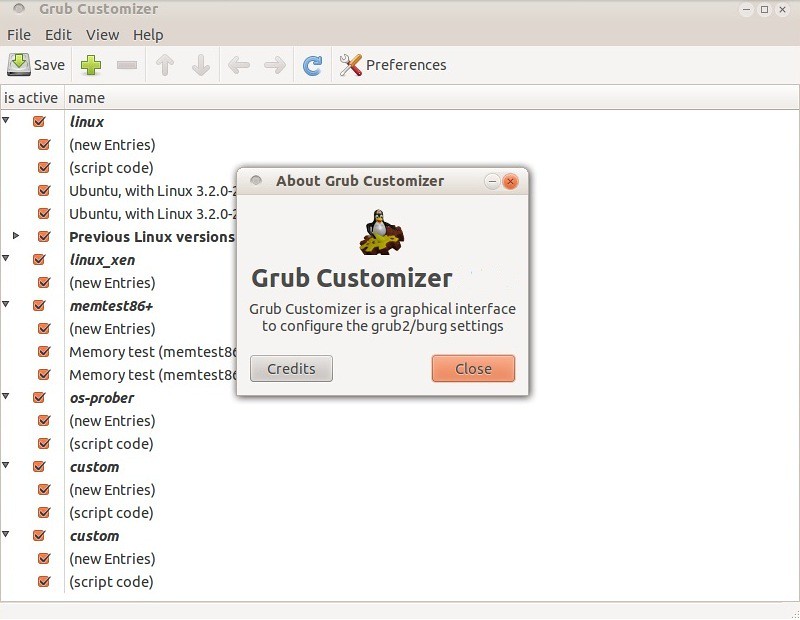
Grub Customizer - a new graphical GRUB 2, You can now select the default boot entry, change the menu visibility and timeout, set kernel parameters, disable recovery entries and change screen resolution (GFX_MODE) - all by using Grub Customizer.


What's new and bugs fixed:
  • add grub customizer to ubuntu official repo
  • few strings not translatable
  • G.C. removed both entries for a kernel when I unchecked only 1
  • Unbuntu Entries Gone from Grub after Ubuntu 11.10 installs updates
  • Won't customize grub2 on flash drive
  • Grub-customizer fails to load configuration when starting application
  • GRUB Customizer 2.5.5 (GC) generates file grub.cfg with error in command gfxmode
  • update-grub#: command not found
  • Can't select non-system partition for grub
  • application does not update; only default grub menu appears
  • Incorrect FSF address in sources
  • gfxmode vga=788 is depreciated

To install Grub-Customizer in Ubuntu/Linux Mint open Terminal (Press Ctrl+Alt+T) and copy the following commands in the Terminal:
  • sudo add-apt-repository ppa:danielrichter2007/grub-customizer
  • sudo apt-get update
  • sudo apt-get install grub-customizer
Download Source Code from here for other Distro's
That's it, Enjoy

Wednesday, 29 February 2012

Password Protect your Grub2 with grubpass on Ubuntu/Linux Mint/Other Linux (Screenshot Tour)

Previous I shared how to Easily Reset your Linux User account password from grub. After that post many people wrote me so Linux is really unsecured (How we can protect this?). So it is not a big issue to secure grub or how to secure your user account in Linux. So I decided to make a tutorial on 'grubpass' utility, which can protect your grub entries. Nobody can bypass grub2 without enter grub username and password. Ya it's looks like awesome utility. Grubpass 1.2 version utility uses password encryption to protect.

So Now we start how to protect grub entries with password. I have uploaded to dropbox so it is easy to download and install. You also can download deb package and tar.gz package from Author Page.

To Install it on Ubuntu/Linux Mint open Terminal (Press Ctrl+Alt+T) and enter the following commands in the Terminal:
  • wget http://dl.dropbox.com/u/53319850/NoobsLab.com/grubpass.deb
  • sudo dpkg -i grubpass.deb
Now start Grubpass with following command:
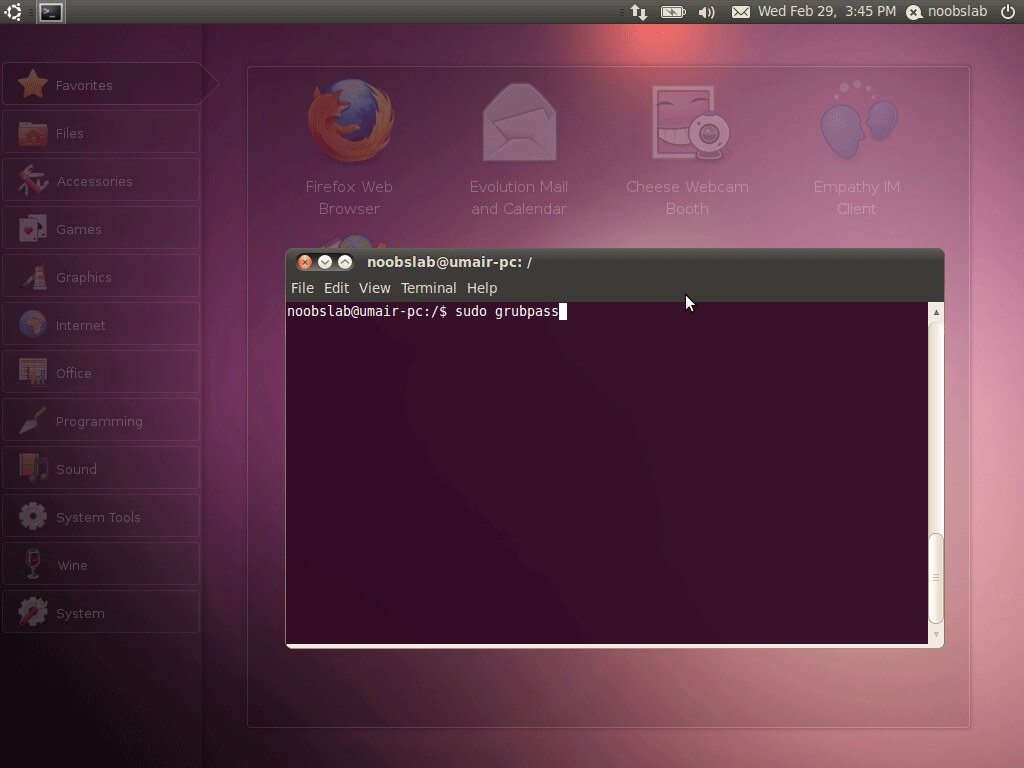
  • sudo grubpass
How to use Grubpass see ScreenShots: (click image to enlarge)

1: Installation Complete
grub2 password

2: Start GrubPass
grub2

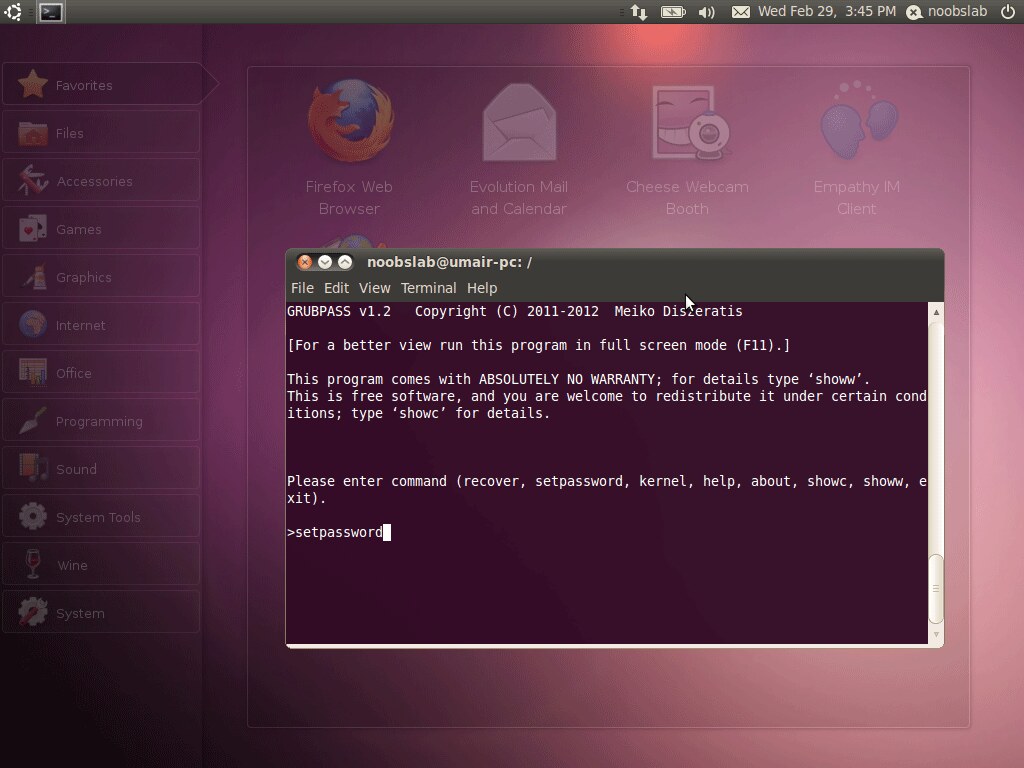
3: How to set password
Protect grub2

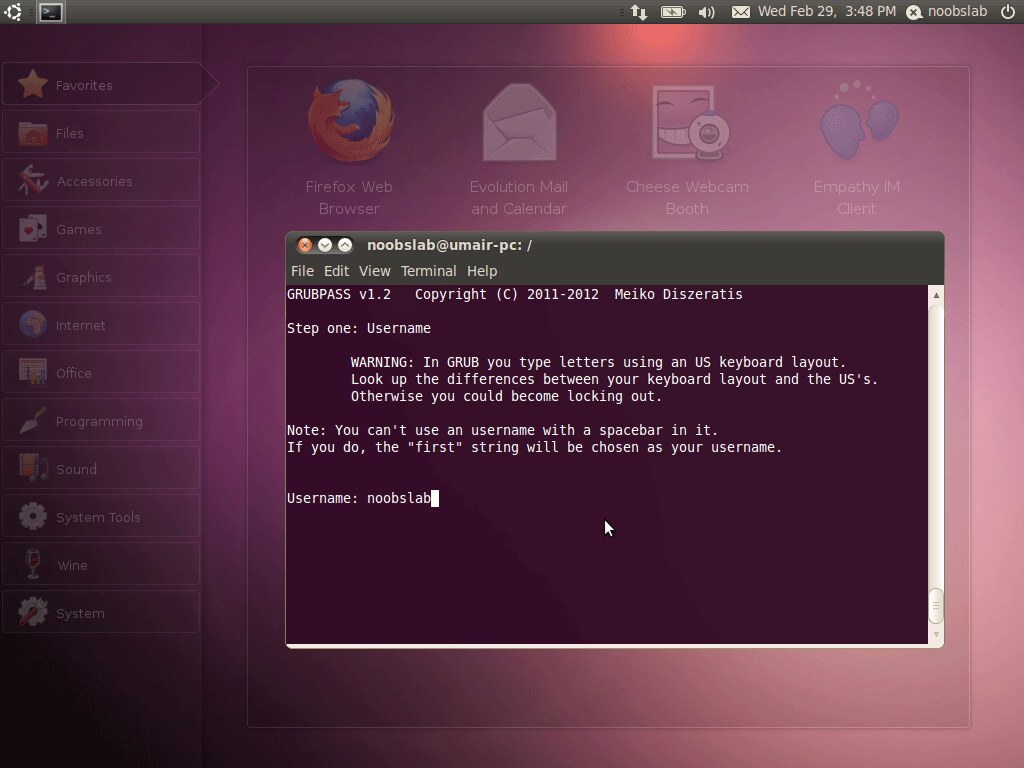
4: Create username for grub
grub2 secure

5: Follow password steps in-order to set password on grub entries
ubuntu grub2

6: Apply password on specific or all grub entries
grub2

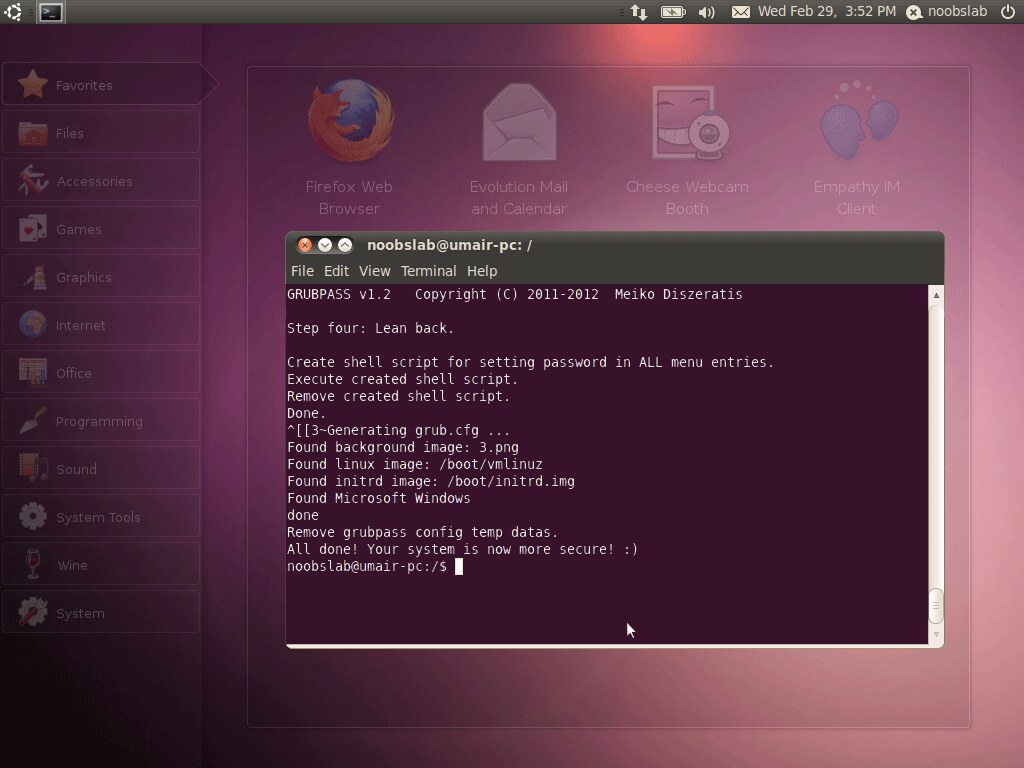
7: Finally you are done
grub2


How to Remove Password from Grub Entries?

It is really easy just enter following command and see ScreenShots.
  • sudo grubpass
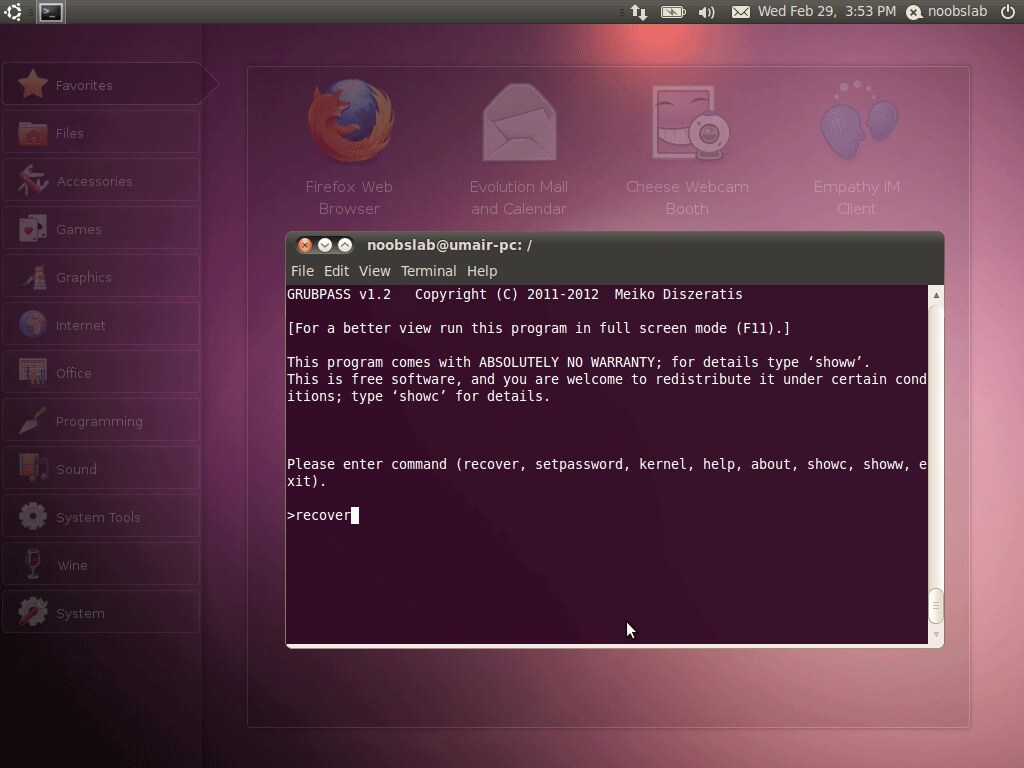
1: Now enter recover (See picture)
grub2

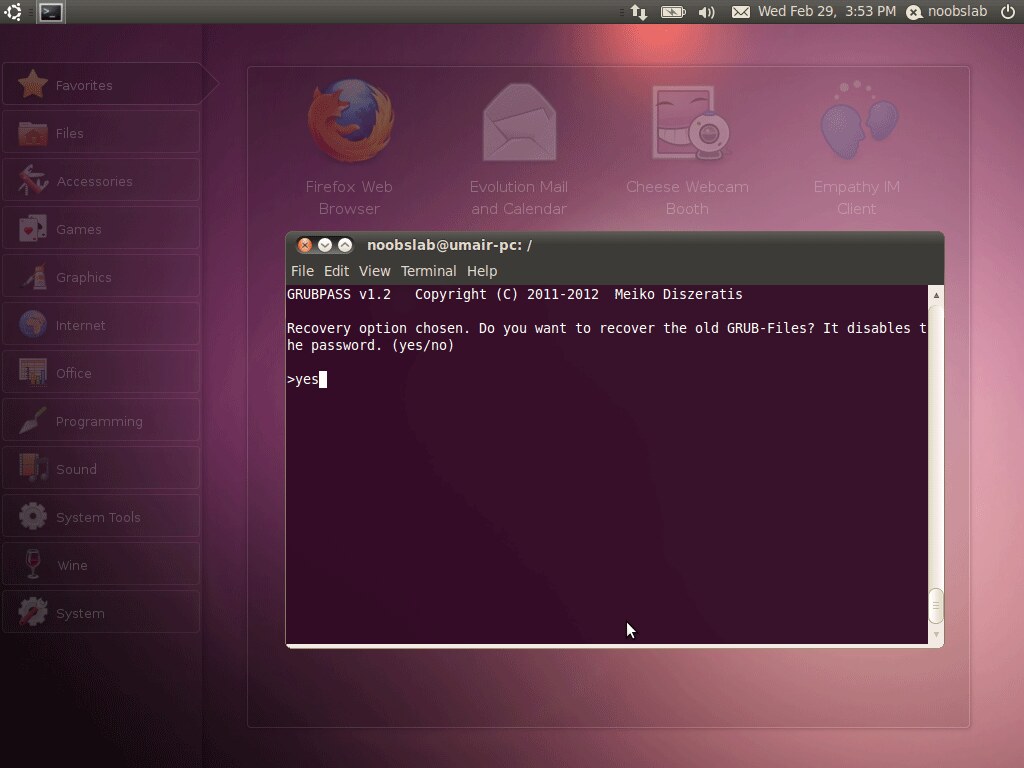
2: Finally enter yes/no
fedora grub

For other Distro's see Author Page.


Just the Life of Eddie Copyright © 2012 Best Celebrity Wallpaper -- Powered by Blogger