Warung Bebas
Showing posts with label linux. Show all posts

Wednesday, 23 January 2013

Install Nemo File Manager in Ubuntu 12.10/12.04/13.04

Install Nemo File Manager in Ubuntu 12.10 Quantal/Ubuntu 12.04 Precise/Ubuntu 13.04 Raring

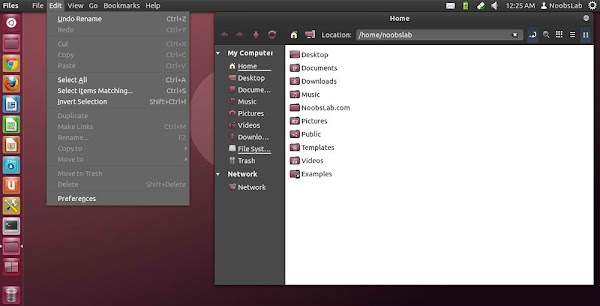
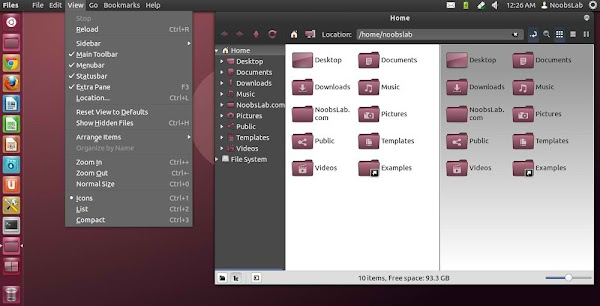
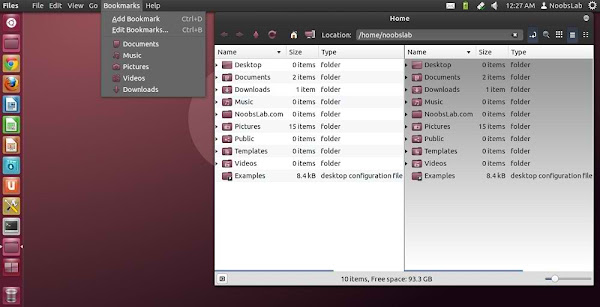
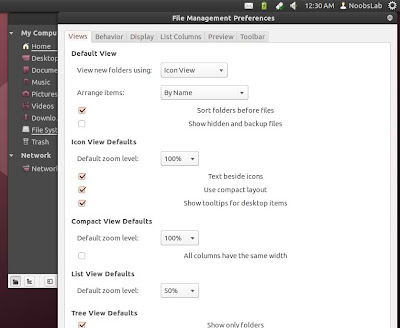
Nemo is a complete fork of Nautilus and its goal is to extend the Cinnamon user experience to desktop and file management. Nemo has features like: compact view, all desktop icons, etc.. which are missing in Nautilus 3.6 version, Open in terminal and open as root, File operation progress while copy/move files shows percentage and details, Has nice GTK bookmarks management, up/forward/back and refresh buttons, Nice proper status bar, better search, better widgets and many more.
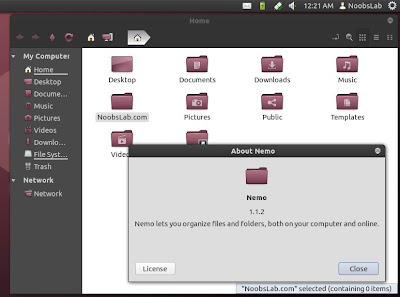
nemo file manager
What Nemo offers:
  • Built in "Open as root" context menu item
  • Detachable tabs
  • Unified, configurable toolbar: you can add/remove the following: up icon, refresh icon, toggle button for the location bar / path bar, home icon, computer icon and search icon.
  • Option to show the full path in the titlebar and tab bars (Preferences > Display)
  • Displays an "elevated privileges" banner when running as root
  • Built in "Open in terminal" context menu item
  • Added "Set as Wallpaper" to the context menu
  • Added GTK bookmarks to the MoveTo/CopyTo context menus
  • Switch view buttons on the toolbar (Grid, List and Compact views)
  • Collapsable sidebar categories
  • Drag and drop support for the bookmarks in the sidebar
  • Sidebar: indicators under each drive, displaying the free/used space
  • Support for sending files via Thunderbird and xdg-email
  • Image properties improvements (merged from Nautilus 3.6)
  • Memory leaks fixes (merged from Nautilus 3.6)
  • and More!
nemo file manager

nemo file manager

nemo file manager

nemo file manager

To install stable Nemo File Manager in Ubuntu 12.10/12.04/13.04 open Terminal (Press Ctrl+Alt+T) and copy the following commands in the Terminal:
  • sudo add-apt-repository ppa:gwendal-lebihan-dev/cinnamon-stable
  • sudo apt-get update
  • sudo apt-get install nemo
To install Nightly Builds of Nemo File Manager in Ubuntu 12.10/12.04/13.04 open Terminal (Press Ctrl+Alt+T) and copy the following commands in the Terminal:
  • sudo add-apt-repository ppa:gwendal-lebihan-dev/cinnamon-nightly
  • sudo apt-get update
  • sudo apt-get install nemo
Install Extra plugins for Nemo File Manager, First add PPA from above then install:
  • sudo apt-get install nemo-compare nemo-dropbox nemo-fileroller nemo-pastebin nemo-seahorse nemo-share
That's it

Install Ubuntu Phone Clock in 0.5 Ubuntu 12.10/12.04/Linux Mint 14/13

Install Ubuntu Phone Clock in 0.5 Ubuntu 12.10 Quantal/Ubuntu 12.04 Precise/Linux Mint 14/13

Ubuntu OS is getting popular day by day and almost all Linux users(Power-User) is waiting for Ubuntu OS to run on their phones. Ubuntu Phone OS has really nice clock on screen which changes color and animation on phone OS. So now Gabriel Barbosa Nascimento made this clock for Ubuntu desktop OS. It looks really fancy & cool and it has classic feature to animate clock and change color after sometime automatically. Also there are clock colors available to choose which is relevant to your wallpaper/theme. It is possible to drag this widget anywhere on your desktop. This has been tested in Ubuntu 12.10/12.04, If you want to try on other Ubuntu or Ubuntu based versions then Go ahead.
ubuntu phone clock

ubuntu os clock

ubuntu clock

To install in Ubuntu 12.10/Linux Mint 14 open Terminal (Press Ctrl+Alt+T) and copy the following commands in the Terminal:
  • sudo add-apt-repository ppa:barbosanascimentogabriel/ubuntu-phone-clock
  • sudo apt-get update
  • sudo apt-get install ubuntu-phone-clock
To install in Ubuntu 12.04/Linux Mint 13/Other Ubuntu versions open Terminal (Press Ctrl+Alt+T) and copy the following commands in the Terminal:
  • wget -O ubuntu-phone-clock.deb http://goo.gl/6b5Cs
  • sudo dpkg -i ubuntu-phone-clock.deb && rm ubuntu-phone-clock.deb
That's it

Thursday, 17 January 2013

Royal-Linux Themes and Icons for Ubuntu 12.04/11.10/Linux Mint (GTK + Gnome Shell + Cinnamon)

Royal-Linux Themes for Ubuntu 12.04 Precise/Ubuntu 11.10 Oneiric/Linux Mint 13/12
Royal-Linux Icons for Ubuntu 13.04 Raring/Ubuntu 12.10 Quantal/Ubuntu 12.04 Precise/Ubuntu 11.10 Oneiric/Linux Mint 14/13/12

Royal-Linux is Ubuntu based distribution, Themes and Icons was from first release of Royal-Linux. Currently themes only compatible with GTK 3.4/3.2 and available for Gnome Shell, Cinnamon, GTK. Probably Royal-Linux Theme will update themes for latest GTK Version. Gnome Shell themes are compatible with all shell versions. These themes and icons are nicely design and looks beautiful on desktop. There is Royal-Linux distribution available for download.
GTK Themes and Icons Screen-Shots
ubuntu themes

GTK themes

GTK themes

ubuntu GTK themes

Cinnamon Themes and Icons Screen-Shots
cinnamon themes

cinnamon themes

ubuntu cinnamon themes

cinnamon themes

Gnome-Shell Themes
Gnome Shell themes

GnomeShell themes

ubuntu Gnome Shell themes

Gnome Shell themes

Download zonColor Wallpapers

To install Royal-Linux Icons in Ubuntu 13.04/12.10/12.04/11.10/Linux Mint 14/13/12 open Terminal (Press Ctrl+Alt+T) and copy the following commands in the Terminal:
  • sudo add-apt-repository ppa:noobslab/icons
  • sudo apt-get update
  • sudo apt-get install royal-linux-icons
To install Royal-Linux Themes in Ubuntu 12.04/11.10/Linux Mint 13/12 open Terminal (Press Ctrl+Alt+T) and copy the following commands in the Terminal:
  • sudo add-apt-repository ppa:noobslab/themes
  • sudo apt-get update
  • sudo apt-get install royal-linux-themes
That's it
Source: Linux Royal

Sunday, 13 January 2013

Install WineHQ 1.5.21 in Ubuntu 12.10/12.04/Linux Mint

Install Wine 1.5.21 in Ubuntu 12.10 Quantal/Ubuntu 12.04 Precise/11.10/11.04/Linux Mint (New Release)

Wine lets you run Windows software on other operating systems. With Wine, you can install and run these applications just like you would in Windows. Wine enables Linux, Mac, FreeBSD, and Solaris users to run Windows applications without a copy of Microsoft Windows. Wine is free software under constant development. Other platforms may benefit as well.
winehq ubuntu
What's new in this release:
  • Beginnings of a netstat built-in program.
  • Support for selecting resolution in the PostScript driver.
  • Various bug fixes.

Install Winehq in Ubuntu/Linux Mint open Terminal (Press Ctrl+Alt+T) and copy the following commands in the Terminal:
  • sudo add-apt-repository ppa:ubuntu-wine/ppa
  • sudo apt-get update
  • sudo apt-get install wine1.5
  • sudo apt-get install winetricks
Here you can download source of Wine 1.5.21 for other Distro's from Source Forge.
Check announcement of Wine 1.5.21 version.
Enjoy

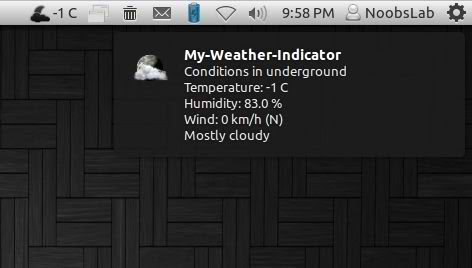
Install My-Weather indicator in Ubuntu 12.10/12.04/13.04/Linux Mint

Install My-Weather indicator in Ubuntu 12.10 Quantal/Ubuntu 12.04 Precise/13.04/11.10/11.04/10.10/10.04/Linux Mint 14/13/12/10/9

It displays weather of location on panel, You can add up-to 2 locations in this indicator. It shows weather in complete details. There is forecast map option to choose location from map.

weather indicator

You can add up to two locations in this indicator, there are option for show temperature on panel and show notifications about weather. Also you can select "Auto location" for Main location, It will auto detect your current location.

There are three weather sources available: Yahoo, Open Weather Map and World Weather Online. You can choose whatever you want.

You change settings of temperature and details for weather.

In General Options you can select "Auto-start" option to start automatically at login. You can change weather refresh time from "Refresh Frequency" and You can choose light or dark icon for panel.

To install My-Weather indicator in Ubuntu/Linux Mint open Terminal (Press Ctrl+Alt+T) and copy the following commands in the Terminal:
  • sudo add-apt-repository ppa:atareao/atareao
  • sudo apt-get update
  • sudo apt-get install my-weather-indicator
That's it, Enjoy
Source: atareao

Install MyPaint 1.1.0 in Ubuntu 12.10/12.04/Linux Mint

Install MyPaint 1.1.0 in Ubuntu 13.04/12.10/12.04/11.10/11.04/10.10/10.04/Linux Mint

MyPaint is a fast and easy open-source graphics application for digital painters. It lets you focus on the art instead of the program. You work on your canvas with minimum distractions, bringing up the interface only when you need it.
MyPaint comes with a large brush collection including charcoal and ink to emulate real media, but the highly configurable brush engine allows you to experiment with your own brushes and with not-quite-natural painting.
  • Designed for pressure sensitive graphics tablets
  • Simple and minimalistic user interface
  • Extensive brush creation and configuration options
  • Unlimited canvas (you never have to re-size)
  • Basic layer support
mypaint

mypaint

mypaint

mypaint

To install MyPaint in Ubuntu/Linux Mint open Terminal (Press Ctrl+Alt+T) and copy the following commands in the Terminal:
  • sudo add-apt-repository ppa:achadwick/mypaint-testing
  • sudo apt-get update
  • sudo apt-get install mypaint mypaint-data-hires
That's it
Source: MyPaint

Saturday, 12 January 2013

New Hardwareinfo Utility for Ubuntu/Linux Mint/Debian

New Hardwareinfo Utility for Ubuntu 12.10/12.04/11.10/11.04/10.10/10.04/Linux Mint/Debian

Hardwareinfo is an new utility to show detail information of your system hardware and software. It is only compatible with Linux and available in deb(Debian Package). It can display Hardware information like: Ram, CPU, Graphics adapter, HDD, CD/DVD, USB Devices, Ethernet/Wireless, Sensors, Motherboard and List of other hardware with details. Also it can display software information like: Kernel modules and version, User info, Distribution, BUS info, HDD Ram and CPU Usage, Network stats, BIOS info, logs and many other info in detail.
hardwareinfo

hardwareinfo

hardwareinfo

To install Hardwareinfo in Ubuntu/Linux Mint open Terminal (Press Ctrl+Alt+T) and copy the following commands in the Terminal:
  • wget -O hardwareinfo.deb http://goo.gl/ulJfL
  • sudo dpkg -i hardwareinfo.deb
  • sudo rm hardwareinfo.deb
That's it
Source: Hardwareinfo

Friday, 11 January 2013

Trimage Image Compressor for Ubuntu/Linux Mint/Debian/Arch

Install Trimage Image compressor in Ubuntu/Linux Mint/Arch/Debian

Trimage is a cross-platform GUI and command-line interface to optimize image files via OptiPNG, Pngcrush, advpng and jpegoptim, depending on the file-type (currently, PNG and JPG files are supported). Trimage was inspired by imageoptim. All image files are losslessly compressed on the highest available compression levels. Trimage gives you various input functions to fit your own workflow: A regular file dialog, dragging and dropping and various command line options.
trimage
trimage

To install Trimage in Ubuntu 12.10/12.04/11.10/11.04/Linux Mint 14/13/11/10/Debian open Terminal (Press Ctrl+Alt+T) and copy the following commands in the Terminal:
  • sudo apt-get install trimage
Install in Ubuntu 10.10/10.04/9.10/Linux Mint 9/8/7 with following commands:
  • sudo add-apt-repository ppa:kilian/trimage
  • sudo apt-get update
  • sudo apt-get install trimage
Install in Arch Linux:
  • yaourt -S trimage-git
That's it
Sources: LaunchPad, Github

Sunday, 30 December 2012

Install Curlew Multi-Converter in Ubuntu/Linux Mint/Any Ubuntu based Distro (New Release)

Install Curlew Multi-Converter in Ubuntu 13.04/12.10/12.04/11.10/11.04/10.10/10.04/Linux Mint/Any Ubuntu based Distro (New Release)

Curlew is multi-converter tool, it is based on ffmpeg. Curlew is easy to use, free and open-source multimedia converter for Linux. Curlew converter can convert to over 117 different formats.
curlew

curlew

curlew

New in this Version:
  • Added tool-tip information about the file when cursor moved over it.
  • Added subtitle delay option, can be negative value.
  • Added Matroska format (mkv container with libvorbis and libvpx).
  • Added double-click in the tree-view (if empty) to add new file(s).
  • Saved last used font name.
  • Removed duplicated formats (vcd, dvd, svcd).
  • Removed version number from title bar.

To install Curlew in Ubuntu/Linux Mint open Terminal (Press Ctrl+Alt+T) and copy the following commands in the Terminal:
  • sudo apt-get install python python-gobject gir1.2-gtk-3.0 ffmpeg mencoder libavcodec-extra-53 xdg-utils
  • wget -O curlew.tar.gz http://goo.gl/WLIXM
  • sudo tar xzvf curlew.tar.gz -C /usr/bin/
  • cd /usr/bin/curlew/
  • sudo ./install
Now create launcher for Curlew, Enter following commands:
  • sudo apt-get install gnome-panel
  • sudo gnome-desktop-item-edit /usr/share/applications/ --create-new
When you enter the last command a dialog box will open then enter (See the following image)
Name : curlew
Command :
/usr/bin/curlew/curlew
curlew
Now open Dash and Search "Curlew"

To uninstall curlew:
  • cd /usr/bin/curlew/ && sudo ./uninstall
  • sudo rm -rf /usr/bin/curlew/
That's it, Enjoy
Source: Curlew

Install SMPlayer 0.8.3 in Ubuntu 12.10/12.04/11.10/Linux Mint

Install SMPlayer 0.8.3 with YouTube and Mplayer support in Ubuntu 12.10/Ubuntu 12.04/11.10/11.04/10.10/10.04/9.10/9.04/All Linux Mint versions

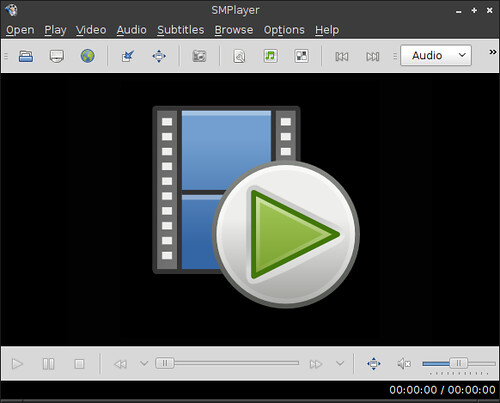
SMPlayer is a complete media player for Windows and Linux. It uses the award-winning MPlayer as playback engine which is capable of playing most video and audio formats (avi, mkv, wmv, mp4, mpeg... see list). It uses its own codecs, so you don't need to install any codec packs.
One of the most interesting features of SMPlayer: it remembers the settings of all files you play. So you start to watch a movie but you have to leave... don't worry, when you open that movie again it will resume at the same point you left it, and with the same settings: audio track, subtitles, volume...
List of Features:
  • Complete preferences dialog, where you can change the key shortcuts, colors and fonts of the subtitles, and many more.
  • Filters. Many video and audio filters are available: deinterlace, postprocessing, denoise... and even a karaoke filter (voice removal).
  • Seeking by mouse wheel. You can use your mouse wheel to go forward or backward in the video. The mouse buttons can also be customized.
  • Video equalizer, allows you to adjust the brightness, contrast, hue, saturation and gamma of the video image.
  • Multiple speed playback. You can play at 2X, 4X... and even in slow motion.
  • Audio and subtitles delay adjustment. Allows you to sync audio and subtitles.
  • Advanced options, such as selecting a demuxer or video & audio codecs.
  • Possibility to search and download subtitles from opensubtitles.org.
  • It can play Youtube videos. A Youtube browser is included, which allows to easily download Youtube videos too.
  • Translations: currently SMPlayer is translated into more than 30 languages, including Spanish, German, French, Italian, Russian, Chinese, Japanese....
  • Possibility to change the style and icon set of the interface.
  • Free and opensource. SMPlayer is under the GPL license.

Fixes in this Release:
  • Fix for YouTube playback.
  • A skinnable interface has been added. Several skins are included.
  • Support for 6.1 and 7.1 audio output.
  • A "Privacy" section in the preferences dialog has been added. You can disable saving the recent files or URLs.
  • The main window can be moved by dragging the video area.

To install SMPlayer in Ubuntu/Linux Mint open Terminal (Press Ctrl+Alt+T) and copy the following commands in the Terminal:
  • sudo add-apt-repository ppa:rvm/smplayer
  • sudo apt-get update
  • sudo apt-get install smplayer smtube smplayer-themes
That's it, Enjoy

Install Wine 1.5.20 in Ubuntu 12.10/12.04/11.10/Linux Mint (New Release)

Install Wine 1.5.20 in Ubuntu 12.10 Quantal/Ubuntu 12.04 Precise/11.10/11.04/Linux Mint (New Release)

Wine lets you run Windows software on other operating systems. With Wine, you can install and run these applications just like you would in Windows.
Wine enables Linux, Mac, FreeBSD, and Solaris users to run Windows applications without a copy of Microsoft Windows. Wine is free software under constant development. Other platforms may benefit as well.
winehq ubuntu
What's new in this release:
  • A bunch of dlls with ugly names for API sets support.
  • More ATL functions implemented.
  • Still more C++ runtime functions.
  • Several text rendering fixes.
  • PostScript driver improvements.
  • Various bug fixes.

Install Winehq in Ubuntu/Linux Mint open Terminal (Press Ctrl+Alt+T) and copy the following commands in the Terminal:
  • sudo add-apt-repository ppa:ubuntu-wine/ppa
  • sudo apt-get update
  • sudo apt-get install wine1.5
  • sudo apt-get install winetricks
Here you can download source of Wine 1.5.20 for other Distro's from Source Forge.
Check announcement of Wine 1.5.20 version.
Enjoy

Thursday, 27 December 2012

Conky Bar for Ubuntu/Linux Mint/Fedora/Other Distributions

Install Bar-Conky in Ubuntu 12.10/12.04/Any Ubuntu Version/Linux Mint/Fedora/Others Distributions (Unity + Gnome Shell + Other Environments)

Conky is free widget for Linux, It can display any information which you want to show on your desktop. Bar-Conky is available for all Linux desktops like (Gnome Shell, Unity, Cinnamon, Gnome Classic, Mate, and others). This conky available in three colors (gray, black and white), You can install relevant to your desktop and Also you can display this conky on top or bottom. Bar-conky shows Cpu usage, Memory usage, HDD usage, Swap Usage, CPU uptime, Net Up/Down Speed and Total Up/Down speed, Kernel Version, Laptop Battery, Local IP, HDD temperature. You can check other conky widgets collection for Linux desktop to make desktop nice.
conky


Install Conky in Ubuntu/Linux Mint open terminal (Press Ctrl+Alt+T) and copy the following commands in the Terminal:
  • sudo apt-get install conky conky-all
  • Install HDD Sensors for Temperature
  • sudo apt-get install lm-sensors hddtemp
Install by yourself in other distro's.

First of all Download Startup script with following commands:
  • wget -O .start-conky http://goo.gl/6RrEw
  • chmod +x .start-conky
Now open Startup Applications > click Add  > New Dialog box will open click on Browse > Now (Press Ctrl+H) see following screenshot.
conky startup

1: Bar-Conky (Black Color)

>> Top Bar Version
ubuntu conky

To install Top-Bar-Conky in Ubuntu/Mint open Terminal (Press Ctrl+Alt+T) and copy the following commands in the Terminal:
  • wget -O conky-top-bbar.zip http://goo.gl/P0H77
  • unzip conky-top-bbar.zip
  • sudo rm conky-top-bbar.zip
>> Bottom Bar Version
linux conky

To install Bottom-Bar-Conky in Ubuntu/Mint open Terminal (Press Ctrl+Alt+T) and copy the following commands in the Terminal:
  • wget -O conky-bottom-bbar.zip http://goo.gl/uDoDY
  • unzip conky-bottom-bbar.zip
  • sudo rm conky-bottom-bbar.zip

2: Bar-Conky (White Color)

>> Top Bar Version
bar conky

To install Top-Bar-Conky in Ubuntu/Mint open Terminal (Press Ctrl+Alt+T) and copy the following commands in the Terminal:
  • wget -O conky-top-wbar.zip http://goo.gl/ftkRA
  • unzip conky-top-wbar.zip
  • sudo rm conky-top-wbar.zip
>> Bottom Bar Version
ubuntu conky

To install Bottom-Bar-Conky in Ubuntu/Mint open Terminal (Press Ctrl+Alt+T) and copy the following commands in the Terminal:
  • wget -O conky-bottom-wbar.zip http://goo.gl/tHccW
  • unzip conky-bottom-wbar.zip
  • sudo rm conky-bottom-wbar.zip

3: Bar-Conky (Gray Color)

>> Top Bar Version
conky

To install Top-Bar-Conky in Ubuntu/Mint open Terminal (Press Ctrl+Alt+T) and copy the following commands in the Terminal:
  • wget -O conky-top-gbar.zip http://goo.gl/MlKWk
  • unzip conky-top-gbar.zip
  • sudo rm conky-top-gbar.zip
>> Bottom Bar Version
ubuntu conky

To install Bottom-Bar-Conky in Ubuntu/Mint open Terminal (Press Ctrl+Alt+T) and copy the following commands in the Terminal:
  • wget -O conky-bottom-gbar.zip http://goo.gl/QJklx
  • unzip conky-bottom-gbar.zip
  • sudo rm conky-bottom-gbar.zip
That's it, Enjoy
Source: conky gray
 

Just the Life of Eddie Copyright © 2012 Best Celebrity Wallpaper -- Powered by Blogger