Warung Bebas
Showing posts with label ubuntu conky. Show all posts

Saturday, 26 January 2013

Install Basic-conky in Ubuntu/Linux Mint/Debian/Fedora/Other

Install Basic-Conky in Ubuntu 12.10/12.04/Any Ubuntu Version/Linux Mint/Fedora/Others Distributions (Unity + Gnome Shell + Other Environments)

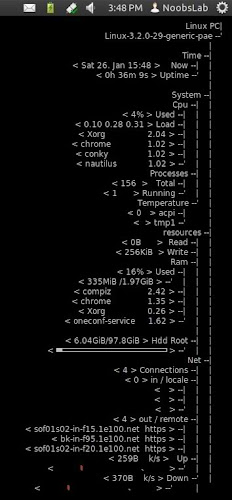
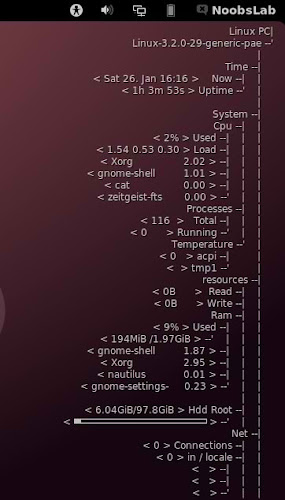
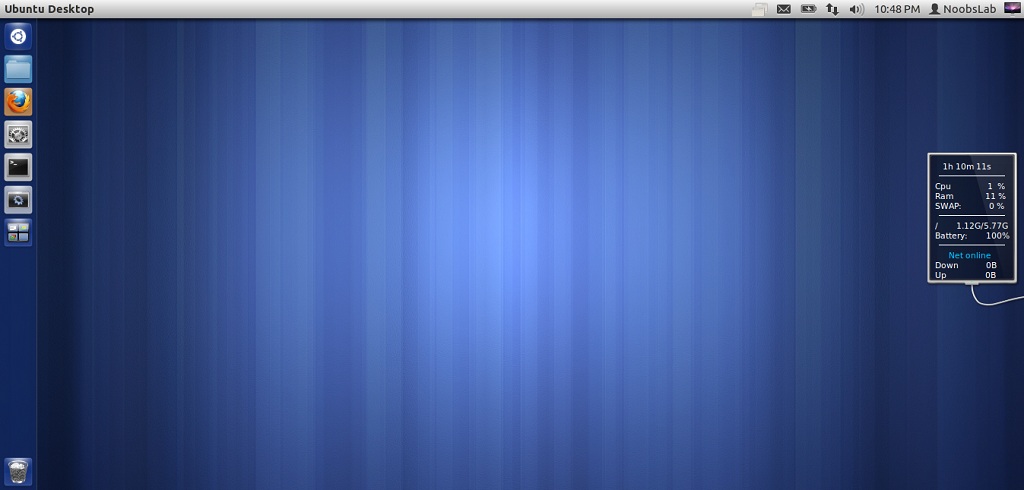
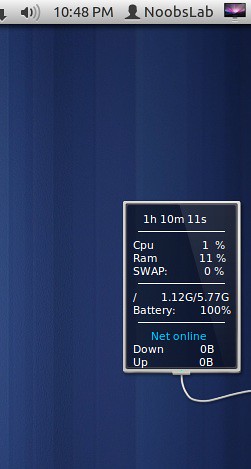
Conky is free widget for Linux, It can display any information whatever you want to show on your desktop. This conky gadget has no name, So NoobsLab just gave name Basic-conky. Basic-Conky was available for some environments but NoobsLab provides after modification for all Linux desktops like (Gnome Shell, Unity, Cinnamon, Gnome Classic, Mate, and others). Basic-conky shows CPU usage, Memory usage, HDD usage, Net Up/Down Speed and Network details, CPU up-time  Linux kernel and version, Day, Date, Time. You can check other conky widgets collection for Linux desktop to make desktop nice.
basic conky

Install Conky in Ubuntu/Linux Mint open terminal (Press Ctrl+Alt+T) and copy the following commands in the Terminal:
  • sudo apt-get install conky conky-all
Install by yourself in other distro's.

First of all Download Startup script with following commands:
  • wget -O .start-conky http://goo.gl/6RrEw
  • chmod +x .start-conky
Now open Startup Applications > click Add  > New Dialog box will open click on Browse > Now (Press Ctrl+H) see following screenshot.
conky startup

1: Basic-Conky for Ethernet
basic conky

>> For Unity, Gnome Classic, Mate, and Others
To install Basic-Conky in Ubuntu/Mint open Terminal (Press Ctrl+Alt+T) and copy the following commands in the Terminal:
  • wget -O basic-conky-eth-u.zip http://goo.gl/n0Jlg
  • unzip basic-conky-eth-u.zip
  • sudo rm basic-conky-eth-u.zip
>> For Gnome Shell, Cinnamon
To install Basic-Conky in Ubuntu/Mint open Terminal (Press Ctrl+Alt+T) and copy the following commands in the Terminal:
  • wget -O basic-conky-eth-gs.zip http://goo.gl/hOKZk
  • unzip basic-conky-eth-gs.zip
  • sudo rm basic-conky-eth-gs.zip

2: Basic-Conky for WiFi
basic conky

>> For Unity, Gnome Classic, Mate, and Others
To install Basic-Conky in Ubuntu/Mint open Terminal (Press Ctrl+Alt+T) and copy the following commands in the Terminal:
  • wget -O basic-conky-wlan-u.zip http://goo.gl/elD4z
  • unzip basic-conky-wlan-u.zip
  • sudo rm basic-conky-wlan-u.zip
>> For Gnome Shell, Cinnamon
To install Basic-Conky in Ubuntu/Mint open Terminal (Press Ctrl+Alt+T) and copy the following commands in the Terminal:
  • wget -O basic-conky-wlan-gs.zip http://goo.gl/2py72
  • unzip basic-conky-wlan-gs.zip
  • sudo rm basic-conky-wlan-gs.zip
That's it.

Thursday, 27 December 2012

Conky Bar for Ubuntu/Linux Mint/Fedora/Other Distributions

Install Bar-Conky in Ubuntu 12.10/12.04/Any Ubuntu Version/Linux Mint/Fedora/Others Distributions (Unity + Gnome Shell + Other Environments)

Conky is free widget for Linux, It can display any information which you want to show on your desktop. Bar-Conky is available for all Linux desktops like (Gnome Shell, Unity, Cinnamon, Gnome Classic, Mate, and others). This conky available in three colors (gray, black and white), You can install relevant to your desktop and Also you can display this conky on top or bottom. Bar-conky shows Cpu usage, Memory usage, HDD usage, Swap Usage, CPU uptime, Net Up/Down Speed and Total Up/Down speed, Kernel Version, Laptop Battery, Local IP, HDD temperature. You can check other conky widgets collection for Linux desktop to make desktop nice.
conky


Install Conky in Ubuntu/Linux Mint open terminal (Press Ctrl+Alt+T) and copy the following commands in the Terminal:
  • sudo apt-get install conky conky-all
  • Install HDD Sensors for Temperature
  • sudo apt-get install lm-sensors hddtemp
Install by yourself in other distro's.

First of all Download Startup script with following commands:
  • wget -O .start-conky http://goo.gl/6RrEw
  • chmod +x .start-conky
Now open Startup Applications > click Add  > New Dialog box will open click on Browse > Now (Press Ctrl+H) see following screenshot.
conky startup

1: Bar-Conky (Black Color)

>> Top Bar Version
ubuntu conky

To install Top-Bar-Conky in Ubuntu/Mint open Terminal (Press Ctrl+Alt+T) and copy the following commands in the Terminal:
  • wget -O conky-top-bbar.zip http://goo.gl/P0H77
  • unzip conky-top-bbar.zip
  • sudo rm conky-top-bbar.zip
>> Bottom Bar Version
linux conky

To install Bottom-Bar-Conky in Ubuntu/Mint open Terminal (Press Ctrl+Alt+T) and copy the following commands in the Terminal:
  • wget -O conky-bottom-bbar.zip http://goo.gl/uDoDY
  • unzip conky-bottom-bbar.zip
  • sudo rm conky-bottom-bbar.zip

2: Bar-Conky (White Color)

>> Top Bar Version
bar conky

To install Top-Bar-Conky in Ubuntu/Mint open Terminal (Press Ctrl+Alt+T) and copy the following commands in the Terminal:
  • wget -O conky-top-wbar.zip http://goo.gl/ftkRA
  • unzip conky-top-wbar.zip
  • sudo rm conky-top-wbar.zip
>> Bottom Bar Version
ubuntu conky

To install Bottom-Bar-Conky in Ubuntu/Mint open Terminal (Press Ctrl+Alt+T) and copy the following commands in the Terminal:
  • wget -O conky-bottom-wbar.zip http://goo.gl/tHccW
  • unzip conky-bottom-wbar.zip
  • sudo rm conky-bottom-wbar.zip

3: Bar-Conky (Gray Color)

>> Top Bar Version
conky

To install Top-Bar-Conky in Ubuntu/Mint open Terminal (Press Ctrl+Alt+T) and copy the following commands in the Terminal:
  • wget -O conky-top-gbar.zip http://goo.gl/MlKWk
  • unzip conky-top-gbar.zip
  • sudo rm conky-top-gbar.zip
>> Bottom Bar Version
ubuntu conky

To install Bottom-Bar-Conky in Ubuntu/Mint open Terminal (Press Ctrl+Alt+T) and copy the following commands in the Terminal:
  • wget -O conky-bottom-gbar.zip http://goo.gl/QJklx
  • unzip conky-bottom-gbar.zip
  • sudo rm conky-bottom-gbar.zip
That's it, Enjoy
Source: conky gray

Wednesday, 5 December 2012

Install HGM-Hudnet Conky in Ubuntu/Linux Mint/Fedora/Other Distro

Install HGM-Hudnet-Conky in Ubuntu 12.10/12.04/Any Ubuntu Version/Linux Mint/Fedora/Others Distributions (Unity + Gnome Shell + Other Environments)

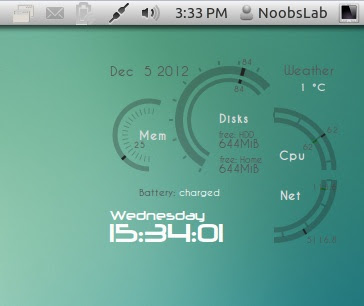
Conky is free widget for Linux, It can display any information which you want to show on your desktop. HGM-Hudnet-Conky was available for some environments but NoobsLab provides after modification for all Linux desktops like (Gnome Shell, Unity, Cinnamon, Gnome Classic, Mate, and others). This conky is only looks good on light wallpapers. HGM-Hudnet-conky shows Cpu usage, Memory usage, HDD usage, Net Up/Down Speed, Laptop Battery, Day, Date, Time and Weather. You can check other conky widgets collection for linux desktop to make desktop nice.
conky hgm hudnet

Install Conky in Ubuntu/Linux Mint open terminal (Press Ctrl+Alt+T) and copy the following commands in the Terminal:
  • sudo apt-get install conky conky-all
Install by yourself in other distro's.

First of all Download Startup script with following commands:
  • wget -O .start-conky http://goo.gl/6RrEw
  • chmod +x .start-conky
Now open Startup Applications > click Add  > New Dialog box will open click on Browse > Now (Press Ctrl+H) see following screenshot.
conky startup

Scroll to the end to see this conky Weather setup.

1: HGM-Hudnet-Conky (For Unity, Gnome Classic, Mate, and Others)
conky

To install HGM-Hudnet-Conky in Ubuntu/Mint open Terminal (Press Ctrl+Alt+T) and copy the following commands in the Terminal:
  • wget -O conky-hgm-hudnet-u.zip http://goo.gl/Kpwbh
  • unzip conky-hgm-hudnet-u.zip
  • sudo rm conky-hgm-hudnet-u.zip

2: HGM-Hudnet-Conky (For Gnome Shell, Cinnamon)
conky

To install HGM-Hudnet-Conky in Ubuntu/Mint open Terminal (Press Ctrl+Alt+T) and copy the following commands in the Terminal:
  • wget -O conky-hgm-hudnet-gs.zip http://goo.gl/W4rI8
  • unzip conky-hgm-hudnet-gs.zip
  • sudo rm conky-hgm-hudnet-gs.zip

>> Setup Weather:
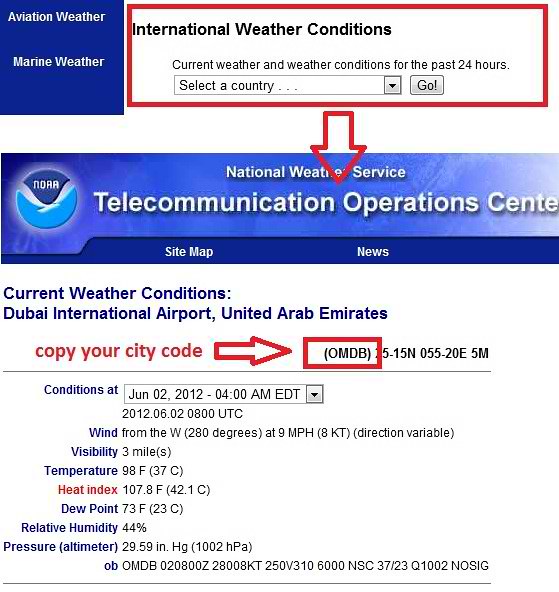
First Go to This link: http://weather.noaa.gov , Here you will select your country and city than it will show current weather situation of your country. You will see code in red, just copy four word code.
conky weather

Now enter following command in terminal, it will open file in text editor. Go to line 73 and change code of Weather:
  • sudo gedit ~/.conkyrc
Paste the four word code before temperature word. See the following image
conky

Save and close.
That's it, Enjoy

Monday, 6 August 2012

Install Reloj-Conky in Ubuntu/Linux Mint/Fedora/Other Distro

Install Reloj-Conky in Ubuntu 12.10/12.04/any Ubuntu Version/Linux Mint/Fedora/Other Distro

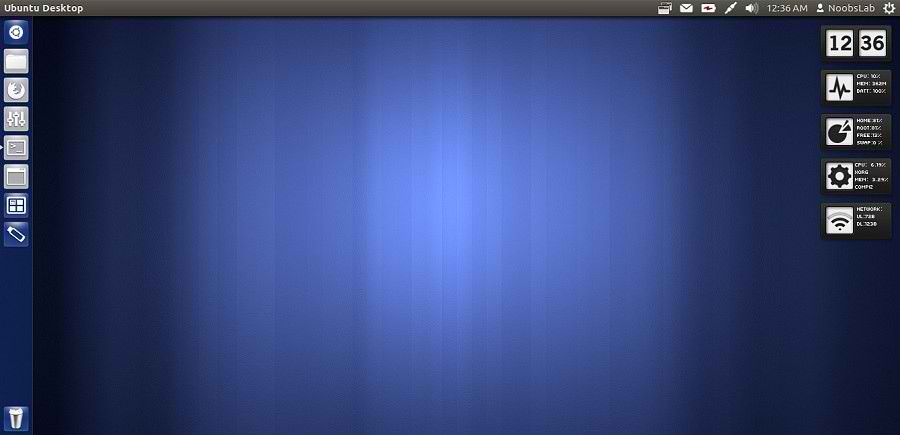
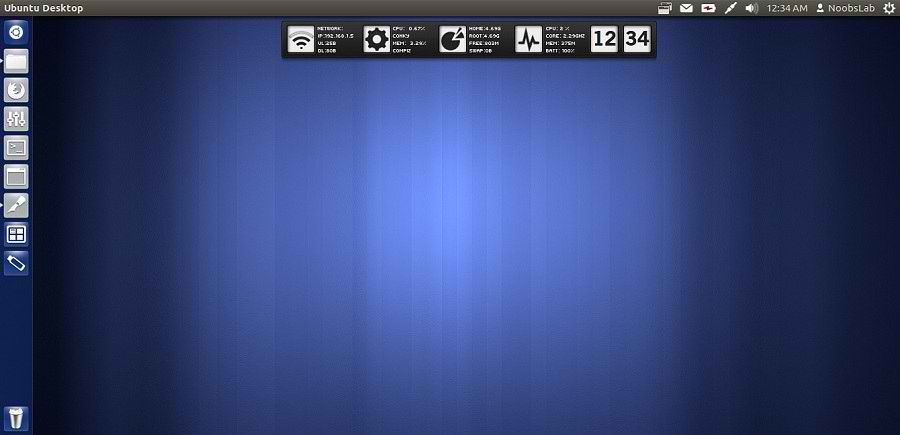
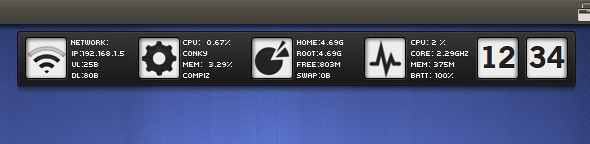
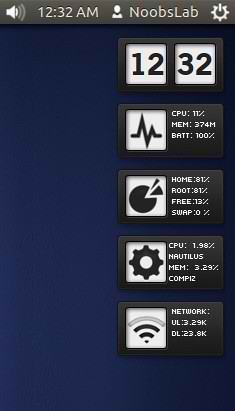
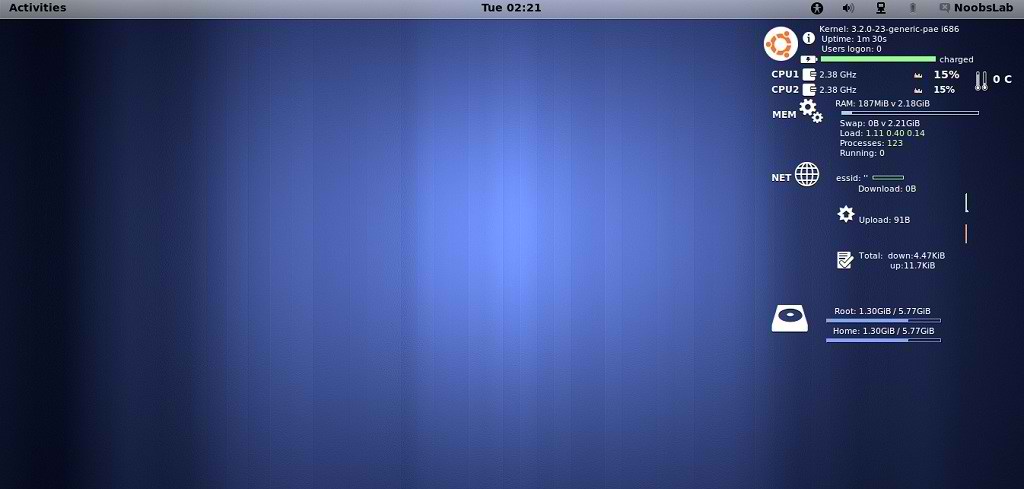
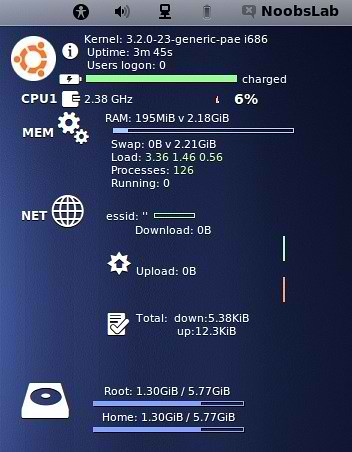
Previously NoobsLab shared other conky widgets for linux desktop to make desktop nice. So today brings Reloj conky for you, Basically this conky is available in three versions but NoobsLab provide only two versions after modification. This conky is available in vertical bar and in horizontal bar. NoobsLab make this conky available for all linux environments like (Gnome Shell, Unity, Cinnamon, Gnome Classic, Mate, and others), also made this available for wifi and ethernet. Reloj conky shows Cpu usage, Memory usage, Root and Home usage, Network upload and download speed, and Current pc Time.
conky

conky

Install Conky in Ubuntu/Linux Mint open terminal (Press Ctrl+Alt+T) and copy the following commands in the Terminal:
  • sudo apt-get install conky conky-all
Install by yourself in other distro's.

First of all Download Startup script with following commands:
  • wget -O .start-conky http://goo.gl/6RrEw
  • chmod +x .start-conky
Now open Startup Applications > click Add  > New Dialog box will open click on Browse > Now (Press Ctrl+H) see following screenshot.
conky startup


1: Conky-Reloj Horizontal Bar
conky

for (Unity, Gnome Classic, Mate, and other):
To install Conky-Reloj in Ubuntu/Mint open Terminal (Press Ctrl+Alt+T) and copy the following commands in the Terminal:
  • wget -O reloj-bar-wlan-u.zip http://goo.gl/MKRAO
  • unzip reloj-bar-wlan-u.zip
  • sudo rm reloj-bar-wlan-u.zip
for (Gnome Shell and Cinnamon):
To install Conky-Reloj in Ubuntu/Mint open Terminal (Press Ctrl+Alt+T) and copy the following commands in the Terminal:
  • wget -O reloj-bar-wlan-gs.zip http://goo.gl/7Lnq8
  • unzip reloj-bar-wlan-gs.zip
  • sudo rm reloj-bar-wlan-gs.zip

2: Conky-Reloj Vertical Bar
conky

for (Unity, Gnome Classic, Mate, and other):
To install Conky-Reloj in Ubuntu/Mint open Terminal (Press Ctrl+Alt+T) and copy the following commands in the Terminal:
  • wget -O reloj-ver-wlan-u.zip http://goo.gl/uwlTu
  • unzip reloj-ver-wlan-u.zip
  • sudo rm reloj-ver-wlan-u.zip
for (Gnome Shell and Cinnamon):
To install Conky-Reloj in Ubuntu/Mint open Terminal (Press Ctrl+Alt+T) and copy the following commands in the Terminal:
  • wget -O reloj-ver-wlan-gs.zip http://goo.gl/kK1Pe
  • unzip reloj-ver-wlan-gs.zip
  • sudo rm reloj-ver-wlan-gs.zip
That's it, Enjoy
Source: Reloj-Conky

Friday, 27 July 2012

Install Conky-Two Gadget in Ubuntu/Linux Mint/Fedora/Any Distro

Install Conky-Two in Ubuntu 12.10/Ubuntu 12.04/Ubuntu 11.10/any Ubuntu Version/Linux Mint/Fedora/Any Linux Distro

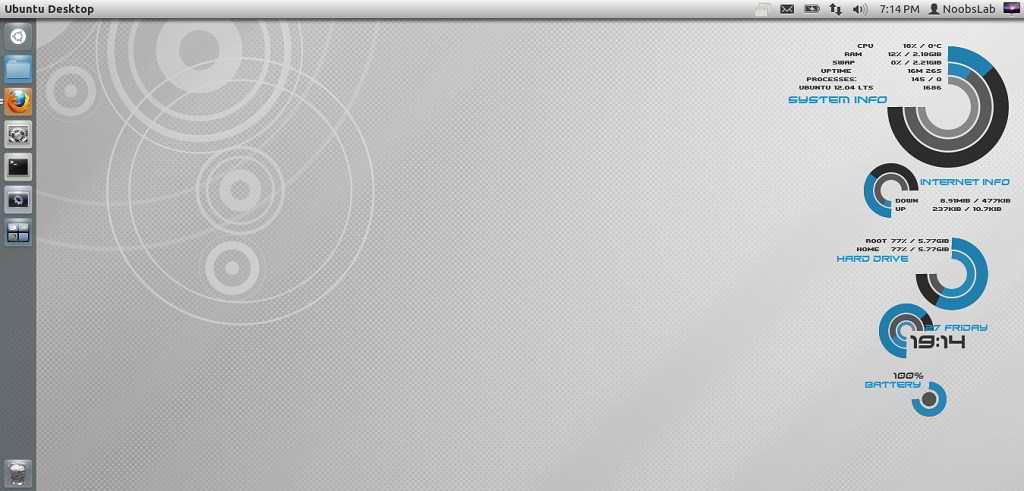
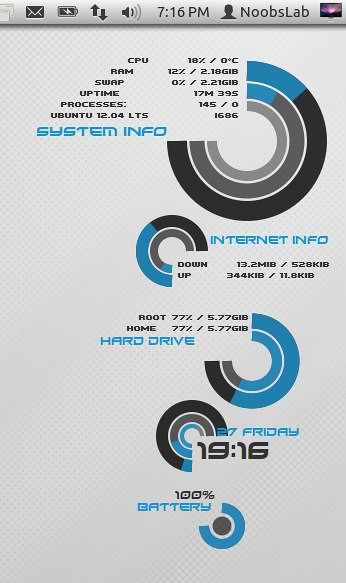
NoobsLab have Conky Collection for Linux Distro's. This Conky-Two is really beautiful desktop gadget, NoobsLab modified this gadget and make this available for wifi and ethernet. It support all Linux environments (Gnome Shell, Unity, Cinnamon, Gnome Classic, Mate, and others). It shows System Info (Cpu, Ram, Swap, System Uptime, Processes, Linux Version), Hard Drive Usage (Root, Home), Network (Count Received/Sent data, Shows current up/down speed), Time, Day, Date, Laptop Battery.
conky

Install Conky in Ubuntu/Linux Mint open terminal (Press Ctrl+Alt+T) and copy the following commands in the Terminal:
  • sudo apt-get install conky conky-all
Install by yourself in other distro's.

First of all Download Startup script with following commands:
  • wget -O .start-conky http://goo.gl/6RrEw
  • chmod +x .start-conky
Now open Startup Applications > click Add  > New Dialog box will open click on Browse > Now (Press Ctrl+H) see following screenshot.
conky startup

1: Conky-Two for Wifi
conky

for (Unity, Gnome Classic, Mate, and other):
To install Conky-Two in Ubuntu/Mint open Terminal (Press Ctrl+Alt+T) and copy the following commands in the Terminal:
  • wget -O conky-two-wlan-u.zip http://goo.gl/Ov6b1
  • unzip conky-two-wlan-u.zip
  • sudo rm conky-two-wlan-u.zip
for (Gnome Shell and Cinnamon):
To install Conky-Two in Ubuntu/Mint open Terminal (Press Ctrl+Alt+T) and copy the following commands in the Terminal:
  • wget -O conky-two-wlan-gs.zip http://goo.gl/4F9Qq
  • unzip conky-two-wlan-gs.zip
  • sudo rm conky-two-wlan-gs.zip
2: Conky-Two for Ethernet
conky

for (Unity, Gnome Classic, Mate, and other):
To install Conky-Two in Ubuntu/Mint open Terminal (Press Ctrl+Alt+T) and copy the following commands in the Terminal:
  • wget -O conky-two-eth-u.zip http://goo.gl/vquIX
  • unzip conky-two-eth-u.zip
  • sudo rm conky-two-eth-u.zip
for (Gnome Shell and Cinnamon):
To install Conky-Two in Ubuntu/Mint open Terminal (Press Ctrl+Alt+T) and copy the following commands in the Terminal:
  • wget -O conky-two-eth-gs.zip http://goo.gl/uwlTu
  • unzip conky-two-eth-gs.zip
  • sudo rm conky-two-eth-gs.zip
That's it, Enjoy
Source: Conky Two

Sunday, 22 July 2012

Install Conky Tab in Ubuntu/Linux Mint/Fedora/Any Linux Distro

Install Conky Tab in Ubuntu 12.10/Ubuntu 12.04/Ubuntu 11.10/any Ubuntu Version/Linux Mint/Fedora/Any Linux Distro

Here you can find Conky Collection for Linux Distro's. This conky gadget is really simple and beautiful. It shows Cpu up-time  Cpu usage, Ram Usage, Swap Usage, Root Hdd usage, Laptop Battery, Network up-speed and down-speed  NoobsLab totally modified this gadget, and made available for all environments like (Gnome Shell, Unity, Cinnamon, Gnome Classic, Mate, and others). Also this conky is available for Wifi and Ethernet.
conky

Install Conky in Ubuntu/Linux Mint open terminal (Press Ctrl+Alt+T) and copy the following commands in the Terminal:
  • sudo apt-get install conky conky-all
Install by yourself in other distro's.

First of all Download Startup script with following commands:
  • wget -O .start-conky http://goo.gl/6RrEw
  • chmod +x .start-conky
Now open Startup Applications > click Add  > New Dialog box will open click on Browse > Now (Press Ctrl+H) see following screenshot.
conky startup

1: Conky Tab for Wifi
Ubuntu conky

for (Unity, Gnome Classic, Mate, and other):
To install conky tab in Ubuntu/Mint open Terminal (Press Ctrl+Alt+T) and copy the following commands in the Terminal:
  • wget -O conky-tab-wlan-u.zip http://goo.gl/vk7lp
  • unzip conky-tab-wlan-u.zip
  • sudo rm conky-tab-wlan-u.zip
for (Gnome Shell and Cinnamon):
To install conky tab in Ubuntu/Mint open Terminal (Press Ctrl+Alt+T) and copy the following commands in the Terminal:
  • wget -O conky-tab-wlan-gs.zip http://goo.gl/pn1Q1
  • unzip conky-tab-wlan-gs.zip
  • sudo rm conky-tab-wlan-gs.zip

2: Conky Tab for Ethernet
conky

for (Unity, Gnome Classic, Mate, and other):
To install conky tab in Ubuntu/Mint open Terminal (Press Ctrl+Alt+T) and copy the following commands in the Terminal:
  • wget -O conky-tab-eth-u.zip http://goo.gl/q4u8X
  • unzip conky-tab-eth-u.zip
  • sudo rm conky-tab-eth-u.zip
for (Gnome Shell and Cinnamon):
To install conky tab in Ubuntu/Mint open Terminal (Press Ctrl+Alt+T) and copy the following commands in the Terminal:
  • wget -O conky-tab-eth-gs.zip http://goo.gl/0QrX4
  • unzip conky-tab-eth-gs.zip
  • sudo rm conky-tab-eth-gs.zip
That's it, Enjoy
Source: Conky Tab

Thursday, 19 July 2012

Install Conky Hardy in Ubuntu/Linux Mint/Fedora/Other Linux Versions

Install Conky Hardy in Ubuntu 12.10/Ubuntu 12.04/Ubuntu 11.10/Any Ubuntu Version/Linux Mint/Fedora/Other Linux Versions

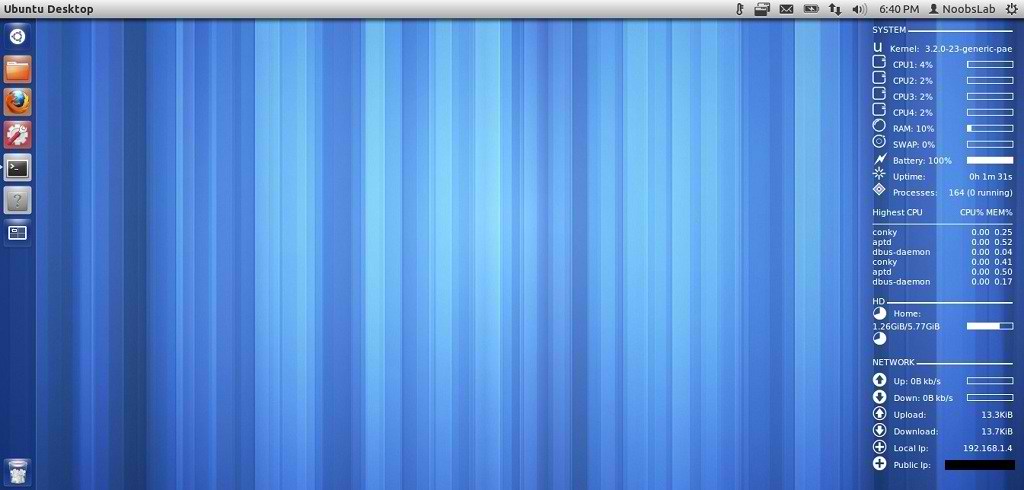
Previous NoobsLab shared many conky versions for Linux Desktop. NoobsLab made available this conky gadgets for all environments (Unity, Gnome Shell, Cinnamon, Mate, Gnome Shell and others) and Linux distributions.
This conky version released in 2009 and updated in 2009. It has no name, So I gave name Conky Hardy. This conky is modified by NoobsLab but credit goes to original author, I made this conky for 1-CPU, 2-Dual CPU, 4-Quad CPU and also available for all environments (Unity, Gnome Shell, Cinnamon, Mate, Gnome Shell and others) and also added Ethernet + Wifi support added. This conky hardy shows (CPU usage, Kernel Version, Ram usage, Swap, Laptop Battery, OS Up-time, Count Processes, HDD usage, Network info)
ubuntu conky

Install Conky in Ubuntu/Linux Mint open terminal (Press Ctrl+Alt+T) and copy the following commands in the Terminal:
  • sudo apt-get install conky conky-all
Install by yourself in other distro's.

First of all Download Startup script with following commands:
  • wget -O .start-conky http://goo.gl/6RrEw
  • chmod +x .start-conky
Now open Startup Applications > click Add  > New Dialog box will open click on Browse > Now (Press Ctrl+H) see following screenshot.
conky startup

Lets Start Conky Hardy Installation
conky

1: Conky Hardy for 1-CPU
conky

for (Unity, Gnome Classic, Mate, and other):
To install conky hardy in Ubuntu/Mint open Terminal (Press Ctrl+Alt+T) and copy the following commands in the Terminal:
  • wget -O conky-hardy-u-1.zip http://goo.gl/7UVEY
  • unzip conky-hardy-u-1.zip
  • sudo rm conky-hardy-u-1.zip
for (Gnome Shell and Cinnamon):
To install conky hardy in Ubuntu/Mint open Terminal (Press Ctrl+Alt+T) and copy the following commands in the Terminal:
  • wget -O conky-hardy-gs-1.zip http://goo.gl/bJp91
  • unzip conky-hardy-gs-1.zip
  • sudo rm conky-hardy-gs-1.zip

2: Conky Hardy for 2-Dual Core CPU
conky

for (Unity, Gnome Classic, Mate, and other):
To install conky hardy in Ubuntu/Mint open Terminal (Press Ctrl+Alt+T) and copy the following commands in the Terminal:
  • wget -O conky-hardy-u-2.zip http://goo.gl/iZ6QM
  • unzip conky-hardy-u-2.zip
  • sudo rm conky-hardy-u-2.zip
for (Gnome Shell and Cinnamon):
To install conky hardy in Ubuntu/Mint open Terminal (Press Ctrl+Alt+T) and copy the following commands in the Terminal:
  • wget -O conky-hardy-gs-2.zip http://goo.gl/QIDnm
  • unzip conky-hardy-gs-2.zip
  • sudo rm conky-hardy-gs-2.zip

3: Conky Hardy for 4-Quad Core CPU
conky

for (Unity, Gnome Classic, Mate, and other):
To install conky hardy in Ubuntu/Mint open Terminal (Press Ctrl+Alt+T) and copy the following commands in the Terminal:
  • wget -O conky-hardy-u-4.zip http://goo.gl/Upn7q
  • unzip conky-hardy-u-4.zip
  • sudo rm conky-hardy-u-4.zip
for (Gnome Shell and Cinnamon):
To install conky hardy in Ubuntu/Mint open Terminal (Press Ctrl+Alt+T) and copy the following commands in the Terminal:
  • wget -O conky-hardy-gs-4.zip http://goo.gl/1l6xL
  • unzip conky-hardy-gs-4.zip
  • sudo rm conky-hardy-gs-4.zip
That's it, Enjoy
Source: Conky Hardy

Monday, 16 July 2012

Install Conky Patch in Ubuntu/Linux Mint/Fedora/Other Linux Distributions

Install Conky Patch in Ubuntu 12.10/Ubuntu 12.04/Ubuntu 11.10/Any Ubuntu Version/Linux Mint/Fedora/Other Linux Distributions

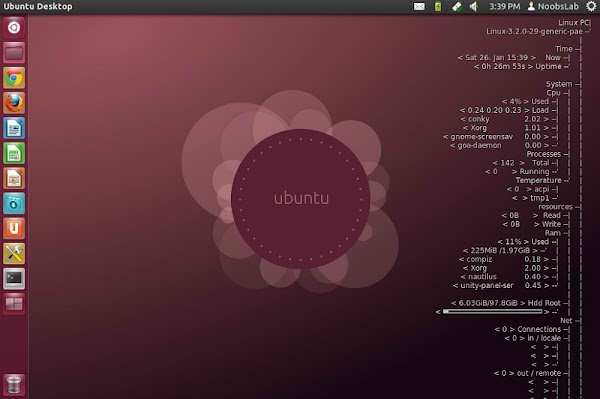
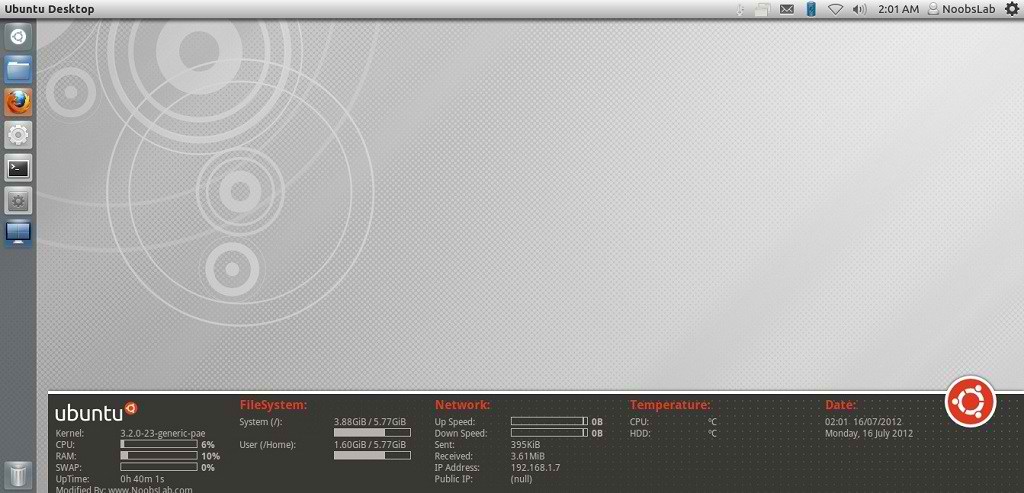
NoobsLab have Conky Collection for you. Conky beautify the linux desktop. This Conky Patch is really nice, it shows kernel, uptime, cpu usage, memory usage, net, drive usage, cpu temperature (If you have sensors). This Conky Patch gadget is available for single Cpu and Dual Cpu, you can install this gadget on 4 Cpu pc without any problem. NoobsLab made this gadget available for all environments like: Gnome Shell, Unity, Mate, Gnome Classic, Cinnamon, and others.
conky

Install Conky in Ubuntu/Linux Mint open terminal (Press Ctrl+Alt+T) and copy the following commands in the Terminal:
  • sudo apt-get install conky conky-all
Install by yourself in other distro's.

First of all Download Startup script with following commands:
  • wget -O .start-conky http://goo.gl/6RrEw
  • chmod +x .start-conky
Now open Startup Applications > click Add  > New Dialog box will open click on Browse > Now (Press Ctrl+H) see following screenshot.
conky startup


1: Conky Patch for 1-CPU
Ubuntu conky

for (Unity, Gnome Classic, Mate, and other):
To install conky gray in Ubuntu/Mint open Terminal (Press Ctrl+Alt+T) and copy the following commands in the Terminal:
  • wget -O patch-cpu1-u.zip http://goo.gl/okeFm
  • unzip patch-cpu1-u.zip
  • sudo rm patch-cpu1-u.zip
for (Gnome Shell and Cinnamon):
To install conky gray in Ubuntu/Mint open Terminal (Press Ctrl+Alt+T) and copy the following commands in the Terminal:
  • wget -O patch-cpu1-gs.zip http://goo.gl/Bl5ke
  • unzip patch-cpu1-gs.zip
  • sudo rm patch-cpu1-gs.zip

2: Conky Patch for Dual 2-CPU
conky

for (Unity, Gnome Classic, Mate, and other):
To install conky gray in Ubuntu/Mint open Terminal (Press Ctrl+Alt+T) and copy the following commands in the Terminal:
  • wget -O patch-cpu2-u.zip http://goo.gl/kXvSZ
  • unzip patch-cpu2-u.zip
  • sudo rm patch-cpu2-u.zip
for (Gnome Shell and Cinnamon):
To install conky gray in Ubuntu/Mint open Terminal (Press Ctrl+Alt+T) and copy the following commands in the Terminal:
  • wget -O patch-cpu2-gs.zip http://goo.gl/VdajA
  • unzip patch-cpu2-gs.zip
  • sudo rm patch-cpu2-gs.zip
That's it, Enjoy

Sunday, 15 July 2012

Install Conky Lucid in Ubuntu/Linux Mint/Fedora/Any Distro

Install Conky Lucid in Ubuntu 12.10/12.04/11.10/11.04/Any Ubuntu Version/Linux Mint (Unity, Gnome Shell, Gnome Classic, Cinnamon, Mate)

Preciously NoobsLab shared many conky versions, users really like those versions. So today brings new conky for you with easy installation. Conky collection page will be available soon.
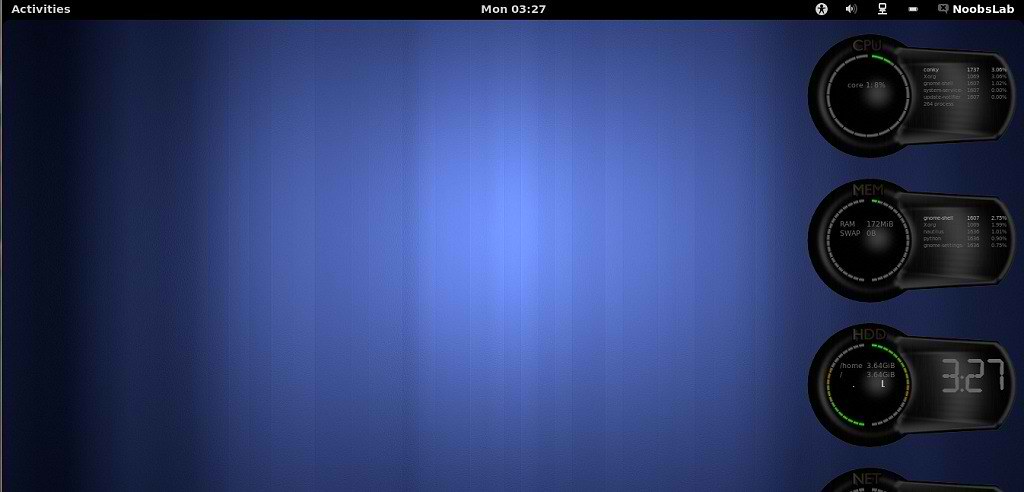
Conky Lucid was made in 2010 after that author never updated this conky widget. It is available in only Spanish Language but NoobsLab provide this widget in English language and Also added support for Gnome shell and Cinnamon. For Gnome Shell this widget transparency is not compatible, So it will cover bottom area. This Conky Lucid shows Cpu, Ram, Swap, Uptime, File Systems, Network Monitor, Cpu Temperature (If you have sensors), and Date.
conky

Install Conky in Ubuntu/Linux Mint open terminal (Press Ctrl+Alt+T) and copy the following commands in the Terminal:
  • sudo apt-get install conky conky-all
Install by yourself in other distro's.

First of all Download Startup script with following commands:
  • wget -O .start-conky http://goo.gl/6RrEw
  • chmod +x .start-conky
Now open Startup Applications > click Add  > New Dialog box will open click on Browse > Now (Press Ctrl+H) see following screenshot.
conky startup


Conky Lucid
ubuntu conky

To install conky lucid in Ubuntu/Mint open Terminal (Press Ctrl+Alt+T) and copy the following commands in the Terminal:
  • wget -O conky-lucid-gs.zip http://goo.gl/9Asqw
  • unzip conky-lucid-gs.zip
  • sudo rm conky-lucid-gs.zip
That's it, Enjoy

Sunday, 24 June 2012

Install Cores Conky in Ubuntu/Linux Mint (New Desktop Gadget)

Install Cores Conky in Ubuntu 12.04/11.10/11.04/any Ubuntu Version/Linux Mint (New Desktop Gadget)

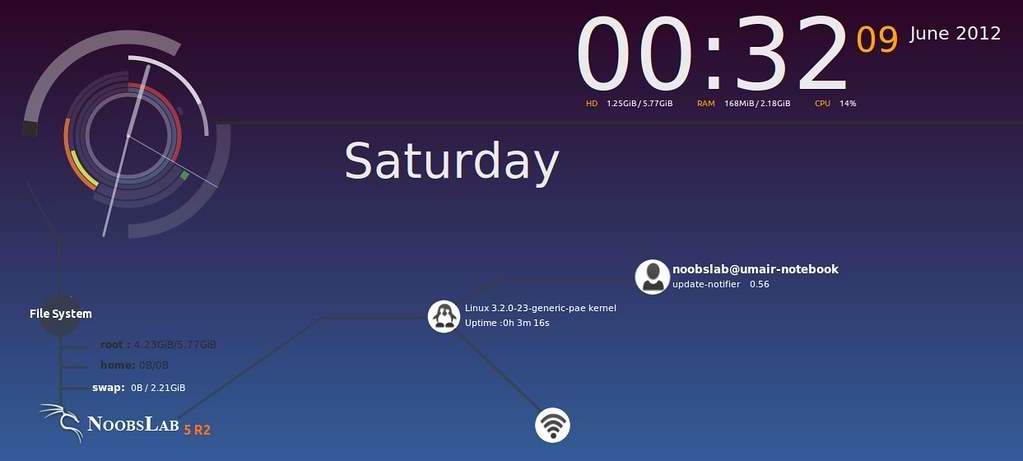
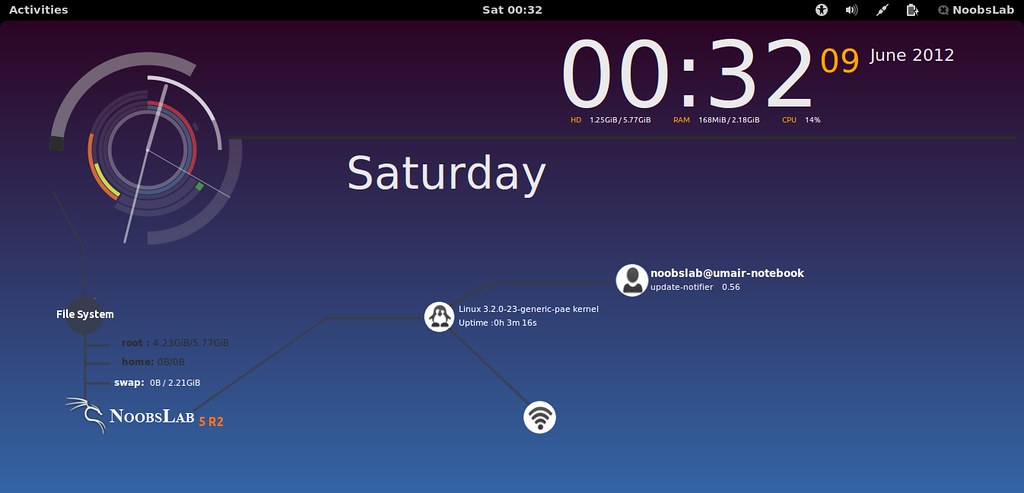
Previous NoobsLab shared many conky versions infinity, tron, lua, People really like those versions. So now brought to you this conky version. It was available only for 2 cores and only some desktop support but I make it available for all Cpu and for all Desktops. It has name 2 cores but I am wondering which name should write for this conky.
conky cores

Install Conky in Ubuntu/Linux Mint open terminal (Press Ctrl+Alt+T) and copy the following commands in the Terminal:
  • sudo apt-get install conky conky-all
Install by yourself in other distro's.

First of all Download Startup script with following commands:
  • wget -O .start-conky http://goo.gl/6RrEw
  • chmod +x .start-conky
Now open Startup Applications > click Add  > New Dialog box will open click on Browse > Now (Press Ctrl+H) see following screenshot.
conky startup


1: Cores Conky for (Unity, Gnome Classic, Mate, and other):
Ubuntu conky

To install Cores Conky on Ubuntu/Linux Mint open Terminal (Press Ctrl+Alt+T) and copy the following commands in the Terminal:
  • wget -O cores-conky-u.zip http://goo.gl/mNNgF
  • unzip cores-conky-u.zip && sudo rm cores-conky-u.zip

2: Cores Conky for (Gnome Shell and Cinnamon):
linux conky

To install Cores Conky on Ubuntu/Linux Mint open Terminal (Press Ctrl+Alt+T) and copy the following commands in the Terminal:
  • wget -O cores-conky-gs.zip http://goo.gl/SgTwH
  • unzip cores-conky-gs.zip && sudo rm cores-conky-gs.zip
That's it, Enjoy
Source: conky cores

Friday, 8 June 2012

Install Infinity Conky in Ubuntu/Linux Mint (New Gadget)

Install Infinity Conky in Ubuntu/Linux Mint/Other Distro's

Previously shared Conky Lua, Conky Tron users really like that. This Gadget was only for two or more than two cpus, it was not working for 1 cpu. So I decided to make it for all processors. Now it is working on all environments: Unity, XFCE, Mate, Gnome Classic and also added support by NoobsLab for Gnome Shell, Cinnamon, Unity, Gnome Classic, Mate and others.
conky

Install Conky in Ubuntu/Linux Mint open terminal (Press Ctrl+Alt+T) and copy the following commands in the Terminal:
  • sudo apt-get install conky conky-all
Install by yourself in other distro's.

First of all Download Startup script with following commands:
  • wget -O .start-conky http://goo.gl/6RrEw
  • chmod +x .start-conky
Now open Startup Applications > click Add  > New Dialog box will open click on Browse > Now (Press Ctrl+H) see following screenshot.
conky startup


1: Infinity Conky for (Unity, Gnome Classic, Mate, and other):
infinity conky

To Install Infinity-Conky open Terminal and enter following commands:
  • wget -O conky-infinity-unity-1.zip http://goo.gl/eORZl
  • unzip conky-infinity-unity-1.zip && sudo rm conky-infinity-unity-1.zip

2: Infinity Conky for (Gnome Shell and Cinnamon):
ubuntu conky

To Install Infinity-Conky open Terminal and enter following commands:
  • wget -O conky-infinity-gs-1.zip http://goo.gl/G4M0s
  • unzip conky-infinity-gs-1.zip && sudo rm conky-infinity-gs-1.zip

>> If gadget doesn't adjust in your screen, you can change size in line 40, 41.
Enter Following command to open file in text editor and change size:
  • sudo gedit ~/.conkyrc
That's it, Enjoy.
Thanks to Mist for tip to fix text problem.
 

Just the Life of Eddie Copyright © 2012 Best Celebrity Wallpaper -- Powered by Blogger