0
comments
0
comments
Install Conky Tab in Ubuntu 12.10/Ubuntu 12.04/Ubuntu 11.10/any Ubuntu Version/Linux Mint/Fedora/Any Linux Distro
Here you can find Conky Collection for Linux Distro's. This conky gadget is really simple and beautiful. It shows Cpu up-time Cpu usage, Ram Usage, Swap Usage, Root Hdd usage, Laptop Battery, Network up-speed and down-speed NoobsLab totally modified this gadget, and made available for all environments like (Gnome Shell, Unity, Cinnamon, Gnome Classic, Mate, and others). Also this conky is available for Wifi and Ethernet.

Install Conky in Ubuntu/Linux Mint open terminal (Press Ctrl+Alt+T) and copy the following commands in the Terminal:
First of all Download Startup script with following commands:

1: Conky Tab for Wifi

for (Unity, Gnome Classic, Mate, and other):
To install conky tab in Ubuntu/Mint open Terminal (Press Ctrl+Alt+T) and copy the following commands in the Terminal:
To install conky tab in Ubuntu/Mint open Terminal (Press Ctrl+Alt+T) and copy the following commands in the Terminal:
2: Conky Tab for Ethernet
for (Unity, Gnome Classic, Mate, and other):
To install conky tab in Ubuntu/Mint open Terminal (Press Ctrl+Alt+T) and copy the following commands in the Terminal:
To install conky tab in Ubuntu/Mint open Terminal (Press Ctrl+Alt+T) and copy the following commands in the Terminal:
Here you can find Conky Collection for Linux Distro's. This conky gadget is really simple and beautiful. It shows Cpu up-time Cpu usage, Ram Usage, Swap Usage, Root Hdd usage, Laptop Battery, Network up-speed and down-speed NoobsLab totally modified this gadget, and made available for all environments like (Gnome Shell, Unity, Cinnamon, Gnome Classic, Mate, and others). Also this conky is available for Wifi and Ethernet.
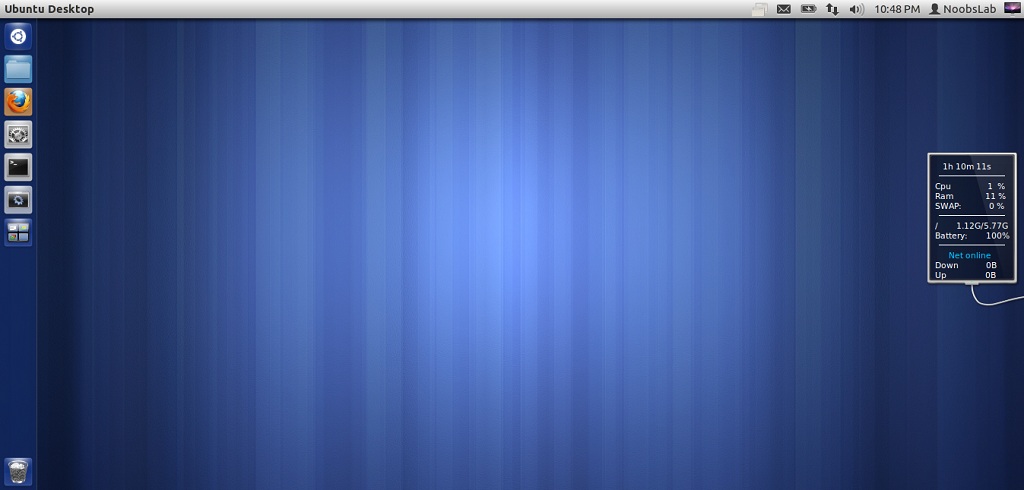
Install Conky in Ubuntu/Linux Mint open terminal (Press Ctrl+Alt+T) and copy the following commands in the Terminal:
Install by yourself in other distro's.
- sudo apt-get install conky conky-all
First of all Download Startup script with following commands:
Now open Startup Applications > click Add > New Dialog box will open click on Browse > Now (Press Ctrl+H) see following screenshot.
- wget -O .start-conky http://goo.gl/6RrEw
- chmod +x .start-conky

1: Conky Tab for Wifi
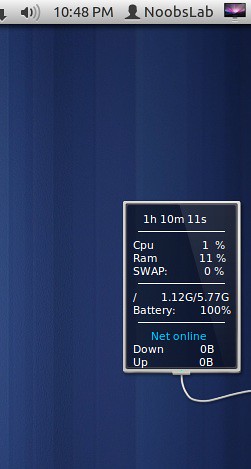
for (Unity, Gnome Classic, Mate, and other):
To install conky tab in Ubuntu/Mint open Terminal (Press Ctrl+Alt+T) and copy the following commands in the Terminal:
for (Gnome Shell and Cinnamon):
- wget -O conky-tab-wlan-u.zip http://goo.gl/vk7lp
- unzip conky-tab-wlan-u.zip
- sudo rm conky-tab-wlan-u.zip
To install conky tab in Ubuntu/Mint open Terminal (Press Ctrl+Alt+T) and copy the following commands in the Terminal:
- wget -O conky-tab-wlan-gs.zip http://goo.gl/pn1Q1
- unzip conky-tab-wlan-gs.zip
- sudo rm conky-tab-wlan-gs.zip
2: Conky Tab for Ethernet
for (Unity, Gnome Classic, Mate, and other):
To install conky tab in Ubuntu/Mint open Terminal (Press Ctrl+Alt+T) and copy the following commands in the Terminal:
for (Gnome Shell and Cinnamon):
- wget -O conky-tab-eth-u.zip http://goo.gl/q4u8X
- unzip conky-tab-eth-u.zip
- sudo rm conky-tab-eth-u.zip
To install conky tab in Ubuntu/Mint open Terminal (Press Ctrl+Alt+T) and copy the following commands in the Terminal:
That's it, Enjoy
- wget -O conky-tab-eth-gs.zip http://goo.gl/0QrX4
- unzip conky-tab-eth-gs.zip
- sudo rm conky-tab-eth-gs.zip
Source: Conky Tab