Warung Bebas
Showing posts with label image. Show all posts

Friday, 11 January 2013

Trimage Image Compressor for Ubuntu/Linux Mint/Debian/Arch

Install Trimage Image compressor in Ubuntu/Linux Mint/Arch/Debian

Trimage is a cross-platform GUI and command-line interface to optimize image files via OptiPNG, Pngcrush, advpng and jpegoptim, depending on the file-type (currently, PNG and JPG files are supported). Trimage was inspired by imageoptim. All image files are losslessly compressed on the highest available compression levels. Trimage gives you various input functions to fit your own workflow: A regular file dialog, dragging and dropping and various command line options.
trimage
trimage

To install Trimage in Ubuntu 12.10/12.04/11.10/11.04/Linux Mint 14/13/11/10/Debian open Terminal (Press Ctrl+Alt+T) and copy the following commands in the Terminal:
  • sudo apt-get install trimage
Install in Ubuntu 10.10/10.04/9.10/Linux Mint 9/8/7 with following commands:
  • sudo add-apt-repository ppa:kilian/trimage
  • sudo apt-get update
  • sudo apt-get install trimage
Install in Arch Linux:
  • yaourt -S trimage-git
That's it
Sources: LaunchPad, Github

Saturday, 25 August 2012

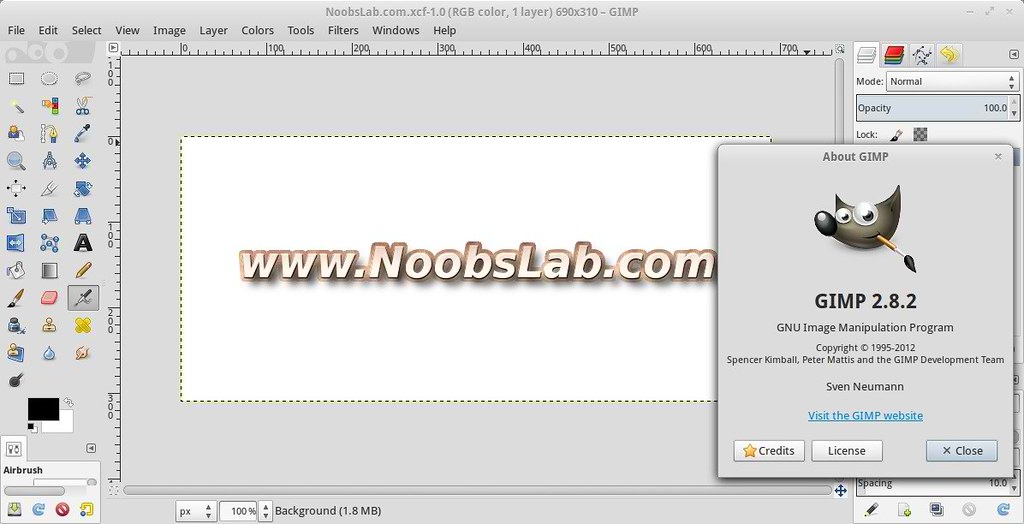
Install Latest Gimp 2.8.2 in Ubuntu 12.10/12.04/11.10/Linux Mint 13/12

Install Gimp 2.8.2 in Ubuntu 12.10 Quantal/Ubuntu 12.04 Precise Pangolin/Ubuntu 11.10 Oneiric/Linux Mint 13/12
gimp
GIMP is the GNU Image Manipulation Program. It is a freely distributed piece of software for such tasks as photo retouching, image composition and image authoring. It works on many operating systems, in many languages.

gimp

gimp

Release notes in GIMP 2.8.2:
  • Mention that the image was exported in the close warning dialog
  • Fix the visibility logic of the export/overwrite menu items
  • Remove all "Use GEGL" menu items, they only add bugs and zero function
  • Improve performance of display filters, especially color management
  • Fix the image window title to comply with the save/export spec and use the same image name everywhere, not only in the title
  • Fix positioning of pasted/dropped stuff to be more reasonable
  • Fix remembering of JPEG load/save defaults
  • Lots of bug fixes
  • List of translation updates

To install Gimp 2.8 on Ubuntu 12.04 Precise open Terminal (Press Ctrl+Alt+T) and copy the following commands in the Terminal:
  • sudo add-apt-repository ppa:otto-kesselgulasch/gimp
  • sudo apt-get update
  • sudo apt-get install gimp
  • sudo apt-get install gimp-plugin-registry
Install Resynthesizer Plugin with following command (It is not from above PPA):
  • sudo apt-get install gimp-resynthesizer
or install from source

To install Gimp 2.8.2 in Ubuntu/Linux Mint open Terminal (Press Ctrl+Alt+T) and copy the following commands in the Terminal:
  • sudo add-apt-repository ppa:noobslab/ppa-gimp
  • sudo apt-get update
  • sudo apt-get install libgegl-0.2-0 libgegl-0.2-0-dbg libgegl-dev libgegl-doc gegl
  • sudo apt-get install libbabl-0.1-0 libbabl-0.1-0-dbg libbabl-dev libbabl-doc
  • sudo apt-get build-dep gimp
Now Gimp Installation
  • export PATH=/opt/gimp-2.8.2/bin:$PATH
  • export PKG_CONFIG_PATH=/opt/gimp-2.8.2/lib/pkgconfig
  • export LD_LIBRARY_PATH=/opt/gimp-2.8.2/lib
  • wget -O gimp-2.8.2.tar.bz2 http://dl.dropbox.com/u/53319850/NoobsLab.com/apps/gimp-2.8.2.tar.bz2
  • tar -xjvf gimp-2.8.2.tar.bz2
  • sudo rm gimp-2.8.2.tar.bz2
  • cd gimp-2.8.2/
  • ./configure --prefix=/opt/gimp-2.8.2
  • make -j5
  • sudo make install -j5
Make desktop Shortcut
  • ln -s /opt/gimp-2.8.2/bin/gimp ~/Desktop
Install Resynthesizer and Plugin Registry with following command:
  • sudo apt-get install gimp-resynthesizer
  • sudo apt-get install gimp-plugin-registry
That's it. Enjoy.
Source: Gimp
 

Just the Life of Eddie Copyright © 2012 Best Celebrity Wallpaper -- Powered by Blogger