0
comments
0
comments
Indicators Collection for Ubuntu 12.10 Quantal/Ubuntu 12.04 Precise/Ubuntu 11.10 Oneiric/11.04/10.10/10.04/Linux Mint 14/13/12/11/10/9
Indicators are really useful for best user experience in Linux GUI Desktop. So again I collected some useful indicators from different sources and made available for your Ubuntu desktop. These are fully compatible with Unity + Gnome and indicators are checked on Ubuntu 12.10/12.04/11.10 before release to you guys. NoobsLab didn't checked these indicators on Linux Mint but I think these indicators should work with Linux Mint because Mint is based on Ubuntu. It is mentioned that which indicator available for which Ubuntu version.
1: Brightness Indicator
If you install Ubuntu/Mint on your laptop then this indicator can be useful for you to control your laptop display brightness with indicator.
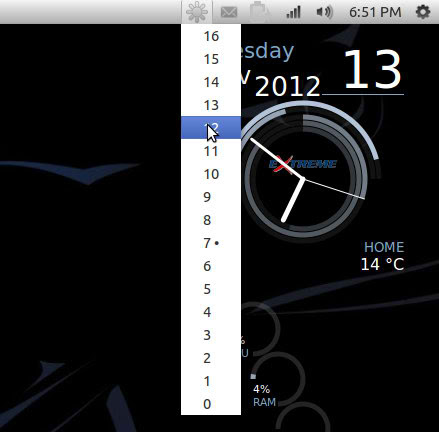 Note: Brightness indicator is available for Ubuntu 13.04/12.10/12.04/11.10
To install brightness-indicator in Ubuntu/Linux Mint open Terminal (Press Ctrl+Alt+T) and copy the following commands in the Terminal:
2: Sensors Indicator
Sensors Indicators display your PC sensors information. In order to use this indicator, your PC must have sensors.
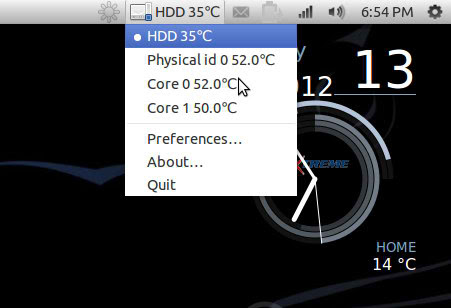 Note: Sensors indicator is available for Ubuntu 12.10/12.04/11.10
To install sensors-indicator in Ubuntu/Linux Mint open Terminal (Press Ctrl+Alt+T) and copy the following commands in the Terminal:
3: Caffeine Indicator
With Caffeine indicator you can temporary disable screensaver, Also there is option to add program in list to disable screensaver permanently for that program.
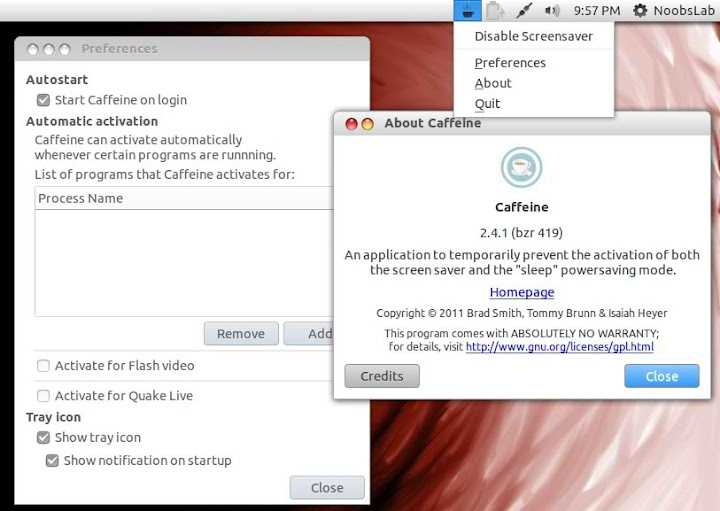 Note: Caffeine indicator is available for Ubuntu 12.10/12.04/11.10/10.04
To install caffeine-indicator in Ubuntu/Linux Mint open Terminal (Press Ctrl+Alt+T) and copy the following commands in the Terminal:
4: Calendar Indicator
Calendar indicator is linked with Google Calendar, You can access your Google account calendar via this indicator and get notifications directly on your desktop.
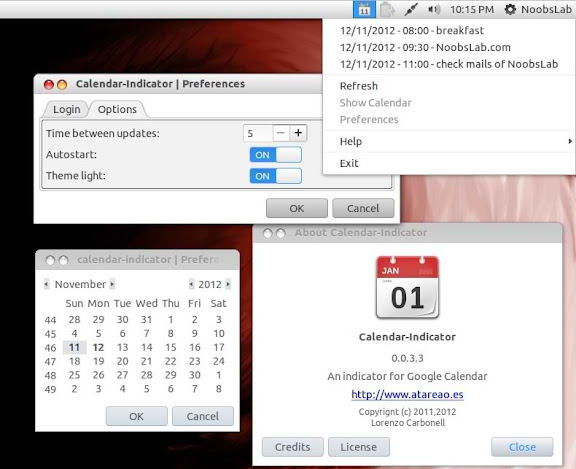 Note: Calendar indicator is available for Ubuntu 12.10/12.04/11.10
To install calendar-indicator in Ubuntu/Linux Mint open Terminal (Press Ctrl+Alt+T) and copy the following commands in the Terminal:
5: Catch Indicator
Catch indicator links your catch account to indicator, you can access and manage your catch notes via this indicator.
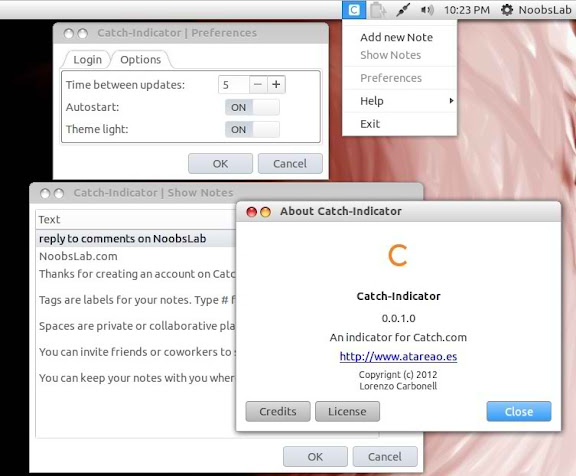 Note: Catch indicator is available for Ubuntu 12.10/12.04/11.10
To install catch-indicator in Ubuntu/Linux Mint open Terminal (Press Ctrl+Alt+T) and copy the following commands in the Terminal:
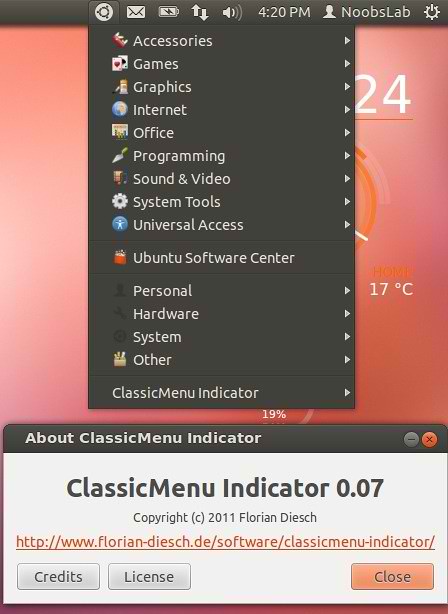
6: Classic Menu Indicator
Classic Menu indicator shows classic menu on Ubuntu panel
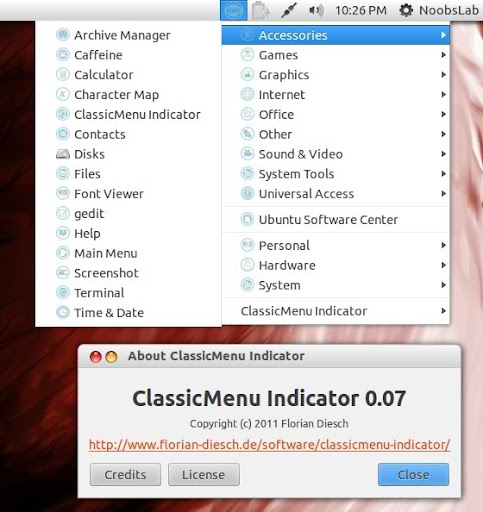 Note: Classic Menu indicator is available for Ubuntu 12.10/12.04/11.10/11.04
To install ClassicMenu-indicator in Ubuntu/Linux Mint open Terminal (Press Ctrl+Alt+T) and copy the following commands in the Terminal:
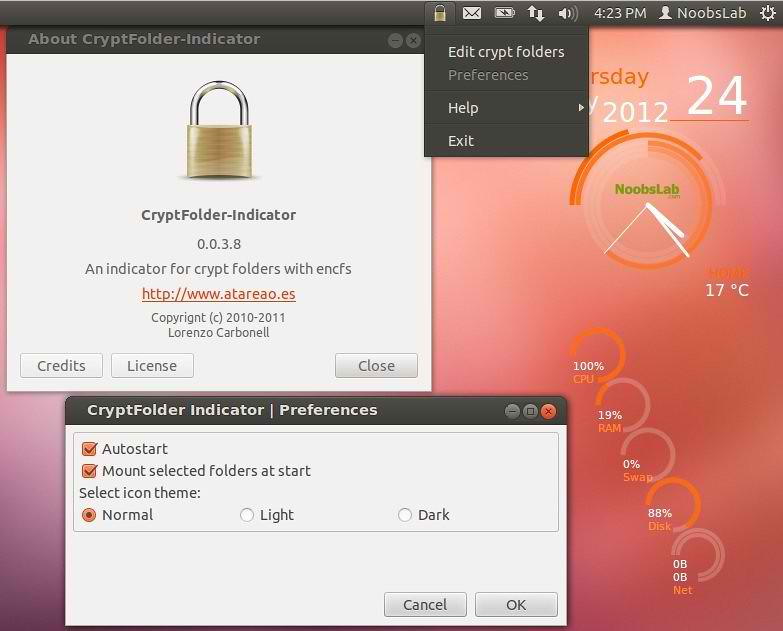
7: Crypt Folder Indicator
With Crypt-Folder you can manage EncFS folders via this indicator, You can mount, unmount EncFS folders, create new EncFS folders, stores the password in Gnome Key-ring and mounts it at login, change existing EncFS folders password.
 Note: Crypt Folder indicator is available for Ubuntu 12.10/12.04/11.10
To install CryptFolder-indicator in Ubuntu/Linux Mint open Terminal (Press Ctrl+Alt+T) and copy the following commands in the Terminal:
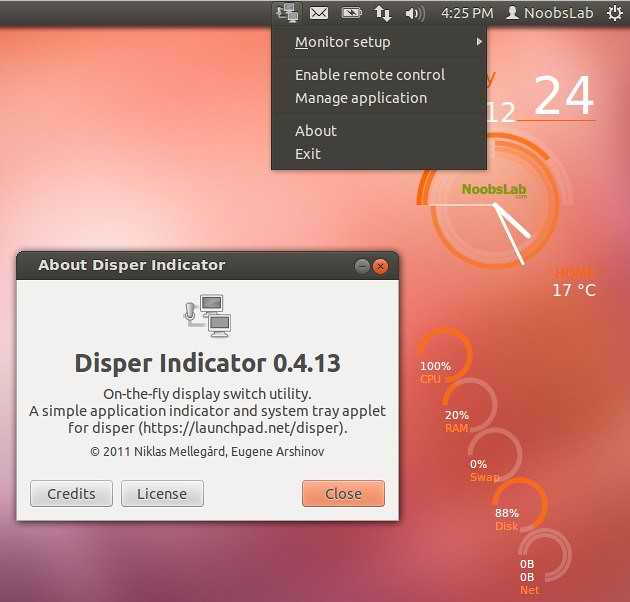
8: Disper Indicator
Disper-indicator is use to switch display. This indicator also detects which monitors are currently in use and shows option to enable single screen, clone or extended screen configurations for NVIDIA cards.
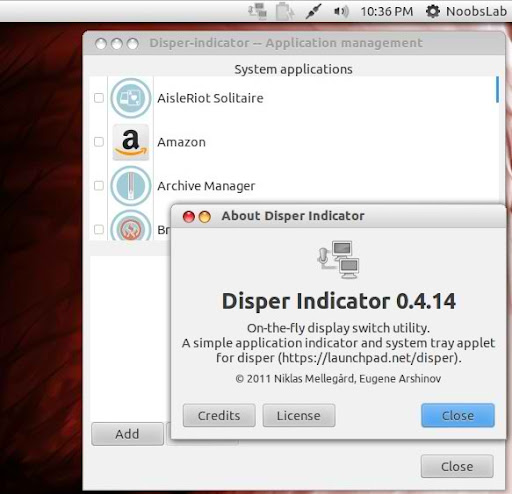 Note: Disper indicator is available for Ubuntu 12.10/12.04/11.10
To install Disper-indicator in Ubuntu/Linux Mint open Terminal (Press Ctrl+Alt+T) and copy the following commands in the Terminal:
9: FluxGui Indicator
Flux is a small but very useful indicator: It fades your screens to a warmer color temperature in the evening. This is pleasant for your eyes and won�t leave you wide awake at 2am because your computer monitors are so bright.
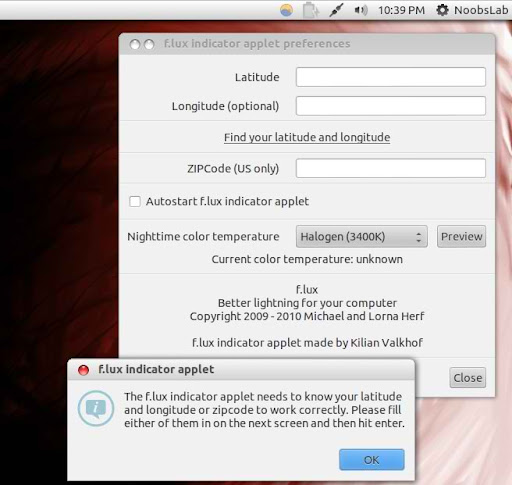 Note: FluxGui indicator is available for Ubuntu 12.10/12.04/11.10/10.04
To install FluxGui-indicator in Ubuntu/Linux Mint open Terminal (Press Ctrl+Alt+T) and copy the following commands in the Terminal:
10: Lookit Indicator
Lookit indicator screenshot utility for your desktop, it has several options for capture screenshot.
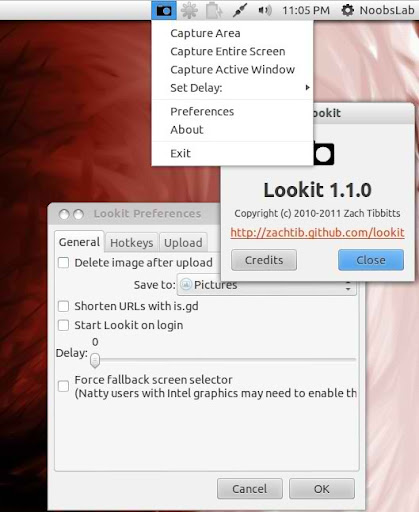 Note: Lookit indicator is available for Ubuntu 12.10/12.04/11.10/10.04
To install Lookit-indicator in Ubuntu/Linux Mint open Terminal (Press Ctrl+Alt+T) and copy the following commands in the Terminal:
11: Multi-Load Indicator
Multi-Load indicator displays information about your system resources.
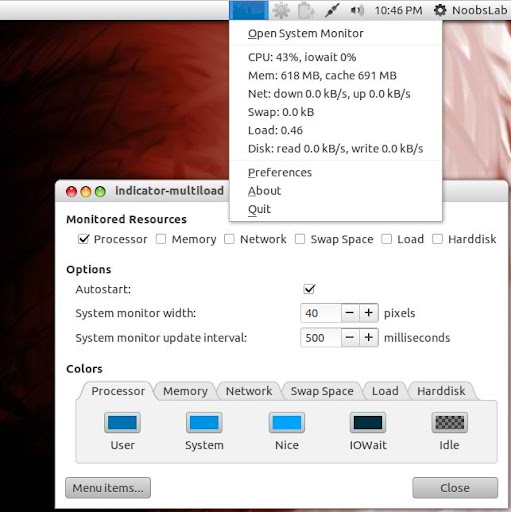 Note: Multi-Load indicator is available for Ubuntu 12.10/12.04/11.10/11.04
To install MultiLoad-indicator in Ubuntu/Linux Mint open Terminal (Press Ctrl+Alt+T) and copy the following commands in the Terminal:
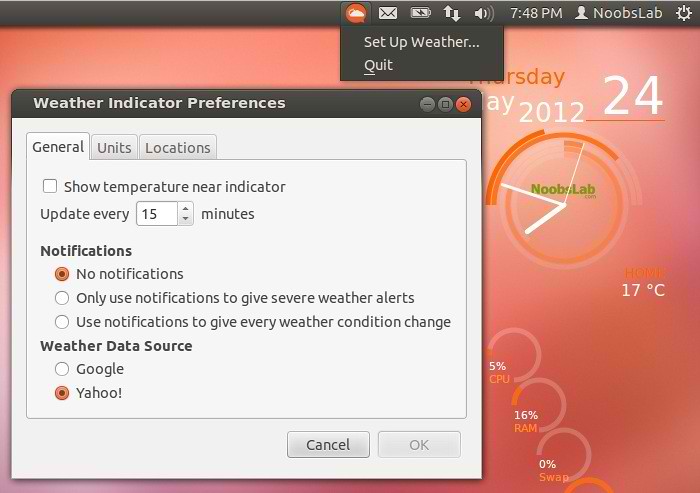
12: My-Weather Indicator
It displays weather of location on panel, You can add up-to 2 locations in this indicator. It displays complete details about location weather.
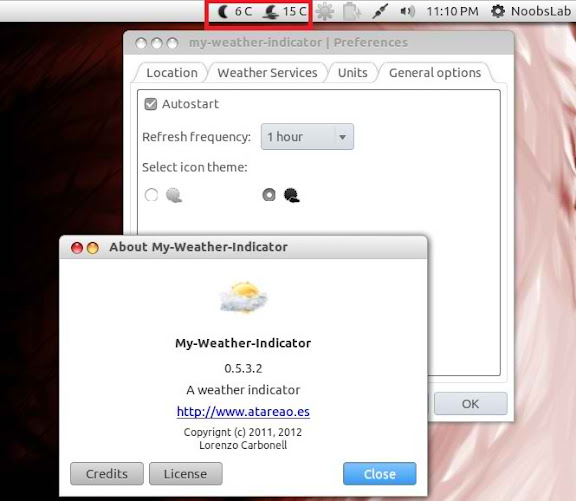 Note: My-Weather indicator is available for Ubuntu 12.10/12.04/11.10/11.04/10.10/10.04
To install My-Weather-indicator in Ubuntu/Linux Mint open Terminal (Press Ctrl+Alt+T) and copy the following commands in the Terminal:
13: Sticky Notes Indicator
This indicator is really useful, You can write notes on your desktop with sticky notes.
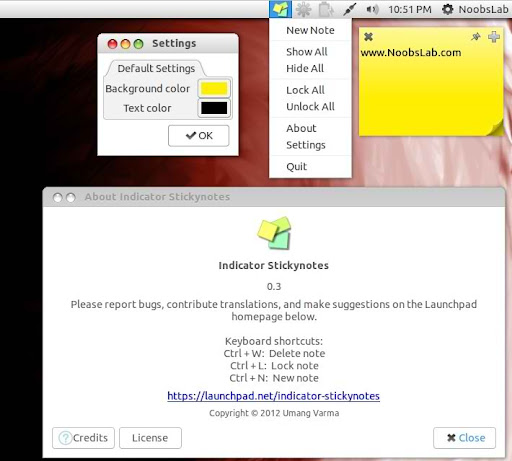 Note: Sticky Notes indicator is available for Ubuntu 12.10/12.04
To install StickyNotes-indicator in Ubuntu/Linux Mint open Terminal (Press Ctrl+Alt+T) and copy the following commands in the Terminal:
14: System Monitor Indicator
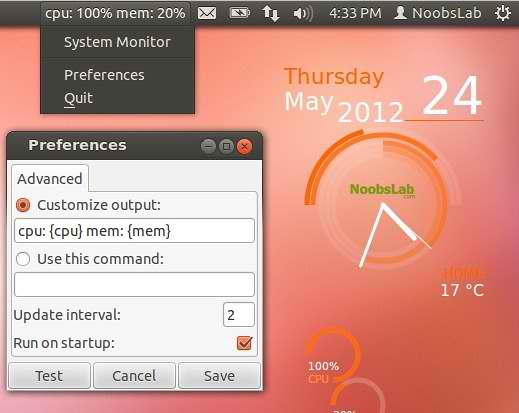
System Monitor display CPU and memory usage on panel, Also you can access system monitor from this indicator.
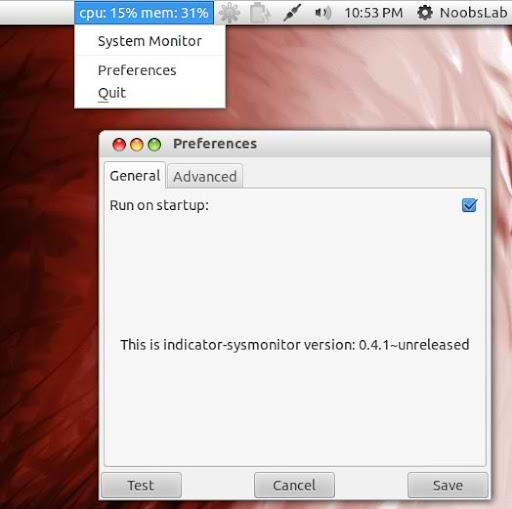 Note: System Monitor indicator is available for Ubuntu 12.10/12.04/11.10/10.04
To install SysMonitor-indicator in Ubuntu/Linux Mint open Terminal (Press Ctrl+Alt+T) and copy the following commands in the Terminal:
15: Touch-pad Indicator
With touch-pad indicator you can enable/disable your laptop touch-pad.
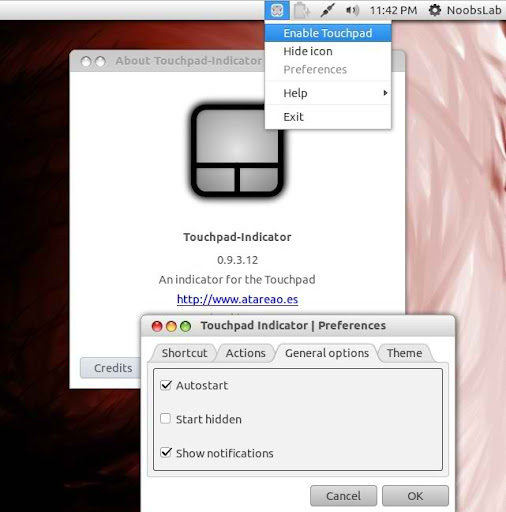 Note: Touch-pad indicator is available for Ubuntu 12.10/12.04/11.10/10.04
To install Touchpad-indicator in Ubuntu/Linux Mint open Terminal (Press Ctrl+Alt+T) and copy the following commands in the Terminal:
16: VirtualBox Indicator
VirtualBox indicator shows VirtualBox OS in indicator, you can easily run them from indicator.
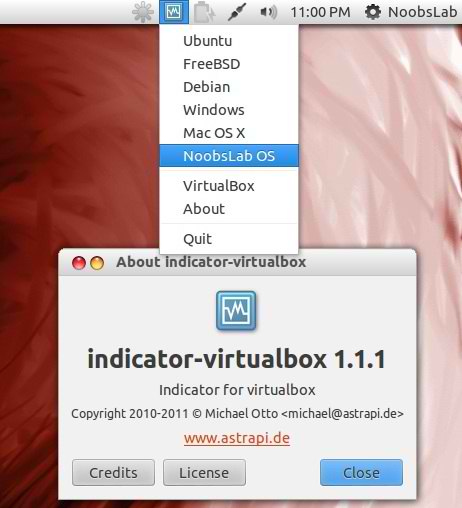 Note: VirtualBox indicator is available for Ubuntu 12.10/12.04/11.10/10.04
To install VirtualBox-indicator in Ubuntu/Linux Mint open Terminal (Press Ctrl+Alt+T) and copy the following commands in the Terminal:
17: Ubuntu One Indicator
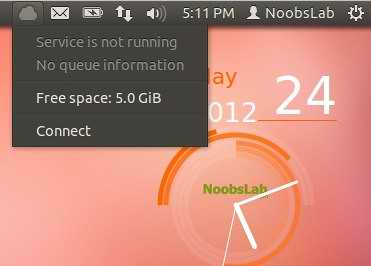
Access and manage your Ubuntu-One account with this indicator. It displays current info of account.
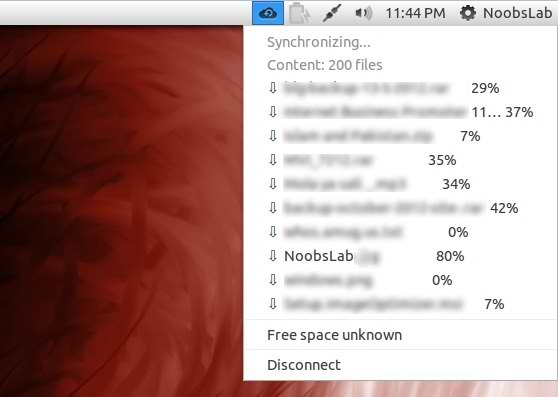 Note: Ubuntu One indicator is available for Ubuntu 12.10/12.04/11.10/11.04/10.04
To install UbuntuOne-indicator in Ubuntu/Linux Mint open Terminal (Press Ctrl+Alt+T) and copy the following commands in the Terminal:
Indicators are really useful for best user experience in Linux GUI Desktop. So again I collected some useful indicators from different sources and made available for your Ubuntu desktop. These are fully compatible with Unity + Gnome and indicators are checked on Ubuntu 12.10/12.04/11.10 before release to you guys. NoobsLab didn't checked these indicators on Linux Mint but I think these indicators should work with Linux Mint because Mint is based on Ubuntu. It is mentioned that which indicator available for which Ubuntu version.
1: Brightness Indicator
If you install Ubuntu/Mint on your laptop then this indicator can be useful for you to control your laptop display brightness with indicator.
To install brightness-indicator in Ubuntu/Linux Mint open Terminal (Press Ctrl+Alt+T) and copy the following commands in the Terminal:
- sudo add-apt-repository ppa:noobslab/indicators
- sudo apt-get update
- sudo apt-get install indicator-brightness
2: Sensors Indicator
Sensors Indicators display your PC sensors information. In order to use this indicator, your PC must have sensors.
To install sensors-indicator in Ubuntu/Linux Mint open Terminal (Press Ctrl+Alt+T) and copy the following commands in the Terminal:
- sudo add-apt-repository ppa:noobslab/indicators
- sudo apt-get update
- sudo apt-get install indicator-sensors lm-sensors
3: Caffeine Indicator
With Caffeine indicator you can temporary disable screensaver, Also there is option to add program in list to disable screensaver permanently for that program.
To install caffeine-indicator in Ubuntu/Linux Mint open Terminal (Press Ctrl+Alt+T) and copy the following commands in the Terminal:
- sudo add-apt-repository ppa:noobslab/indicators
- sudo apt-get update
- sudo apt-get install caffeine
4: Calendar Indicator
Calendar indicator is linked with Google Calendar, You can access your Google account calendar via this indicator and get notifications directly on your desktop.
To install calendar-indicator in Ubuntu/Linux Mint open Terminal (Press Ctrl+Alt+T) and copy the following commands in the Terminal:
- sudo add-apt-repository ppa:noobslab/indicators
- sudo apt-get update
- sudo apt-get install calendar-indicator
5: Catch Indicator
Catch indicator links your catch account to indicator, you can access and manage your catch notes via this indicator.
To install catch-indicator in Ubuntu/Linux Mint open Terminal (Press Ctrl+Alt+T) and copy the following commands in the Terminal:
- sudo add-apt-repository ppa:noobslab/indicators
- sudo apt-get update
- sudo apt-get install catch-indicator
6: Classic Menu Indicator
Classic Menu indicator shows classic menu on Ubuntu panel
To install ClassicMenu-indicator in Ubuntu/Linux Mint open Terminal (Press Ctrl+Alt+T) and copy the following commands in the Terminal:
- sudo add-apt-repository ppa:noobslab/indicators
- sudo apt-get update
- sudo apt-get install classicmenu-indicator
7: Crypt Folder Indicator
With Crypt-Folder you can manage EncFS folders via this indicator, You can mount, unmount EncFS folders, create new EncFS folders, stores the password in Gnome Key-ring and mounts it at login, change existing EncFS folders password.

To install CryptFolder-indicator in Ubuntu/Linux Mint open Terminal (Press Ctrl+Alt+T) and copy the following commands in the Terminal:
- sudo add-apt-repository ppa:noobslab/indicators
- sudo apt-get update
- sudo apt-get install cryptfolder-indicator
8: Disper Indicator
Disper-indicator is use to switch display. This indicator also detects which monitors are currently in use and shows option to enable single screen, clone or extended screen configurations for NVIDIA cards.
To install Disper-indicator in Ubuntu/Linux Mint open Terminal (Press Ctrl+Alt+T) and copy the following commands in the Terminal:
- sudo add-apt-repository ppa:noobslab/indicators
- sudo apt-get update
- sudo apt-get install disper-indicator
9: FluxGui Indicator
Flux is a small but very useful indicator: It fades your screens to a warmer color temperature in the evening. This is pleasant for your eyes and won�t leave you wide awake at 2am because your computer monitors are so bright.
To install FluxGui-indicator in Ubuntu/Linux Mint open Terminal (Press Ctrl+Alt+T) and copy the following commands in the Terminal:
- sudo add-apt-repository ppa:noobslab/indicators
- sudo apt-get update
- sudo apt-get install fluxgui
10: Lookit Indicator
Lookit indicator screenshot utility for your desktop, it has several options for capture screenshot.
To install Lookit-indicator in Ubuntu/Linux Mint open Terminal (Press Ctrl+Alt+T) and copy the following commands in the Terminal:
- sudo add-apt-repository ppa:noobslab/indicators
- sudo apt-get update
- sudo apt-get install lookit
11: Multi-Load Indicator
Multi-Load indicator displays information about your system resources.
To install MultiLoad-indicator in Ubuntu/Linux Mint open Terminal (Press Ctrl+Alt+T) and copy the following commands in the Terminal:
- sudo add-apt-repository ppa:noobslab/indicators
- sudo apt-get update
- sudo apt-get install indicator-multiload
12: My-Weather Indicator
It displays weather of location on panel, You can add up-to 2 locations in this indicator. It displays complete details about location weather.
To install My-Weather-indicator in Ubuntu/Linux Mint open Terminal (Press Ctrl+Alt+T) and copy the following commands in the Terminal:
- sudo add-apt-repository ppa:noobslab/indicators
- sudo apt-get update
- sudo apt-get install my-weather-indicator
13: Sticky Notes Indicator
This indicator is really useful, You can write notes on your desktop with sticky notes.
To install StickyNotes-indicator in Ubuntu/Linux Mint open Terminal (Press Ctrl+Alt+T) and copy the following commands in the Terminal:
- sudo add-apt-repository ppa:noobslab/indicators
- sudo apt-get update
- sudo apt-get install indicator-stickynotes
14: System Monitor Indicator
System Monitor display CPU and memory usage on panel, Also you can access system monitor from this indicator.
To install SysMonitor-indicator in Ubuntu/Linux Mint open Terminal (Press Ctrl+Alt+T) and copy the following commands in the Terminal:
- sudo add-apt-repository ppa:noobslab/indicators
- sudo apt-get update
- sudo apt-get install indicator-sysmonitor
15: Touch-pad Indicator
With touch-pad indicator you can enable/disable your laptop touch-pad.
To install Touchpad-indicator in Ubuntu/Linux Mint open Terminal (Press Ctrl+Alt+T) and copy the following commands in the Terminal:
- sudo add-apt-repository ppa:noobslab/indicators
- sudo apt-get update
- sudo apt-get install touchpad-indicator
16: VirtualBox Indicator
VirtualBox indicator shows VirtualBox OS in indicator, you can easily run them from indicator.
To install VirtualBox-indicator in Ubuntu/Linux Mint open Terminal (Press Ctrl+Alt+T) and copy the following commands in the Terminal:
- sudo add-apt-repository ppa:noobslab/indicators
- sudo apt-get update
- sudo apt-get install indicator-virtualbox
17: Ubuntu One Indicator
Access and manage your Ubuntu-One account with this indicator. It displays current info of account.
To install UbuntuOne-indicator in Ubuntu/Linux Mint open Terminal (Press Ctrl+Alt+T) and copy the following commands in the Terminal:
That's it, Enjoy
- sudo add-apt-repository ppa:noobslab/indicators
- sudo apt-get update
- sudo apt-get install ubuntuone-indicator