Warung Bebas
Showing posts with label weather. Show all posts

Thursday, 20 December 2012

Install My-Weather indicator in Ubuntu/Linux Mint

Install My-Weather indicator in Ubuntu 12.10 Quantal/Ubuntu 12.04 Precise/11.10/11.04/10.10/10.04/Linux Mint 14/13/12/10/9

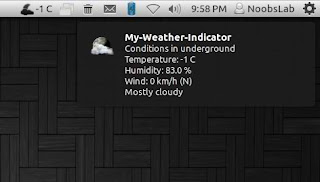
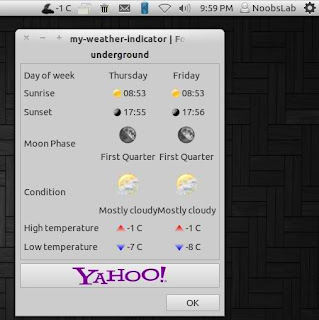
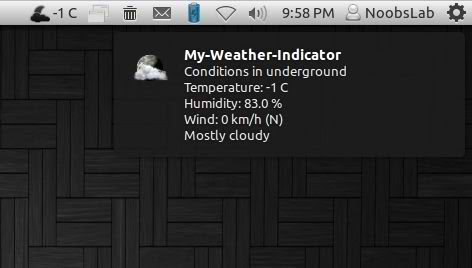
It displays weather of location on panel, You can add up-to 2 locations in this indicator. It shows weather in complete details. There is forecast map option to choose location from map.
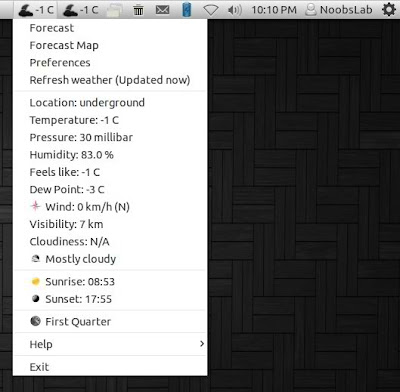
weather indicator

weather indicator

weather indicator

You can add up to two locations in this indicator, there are option for show temperature on panel and show notifications about weather. Also you can select "Auto location" for Main location, It will auto detect your current location.
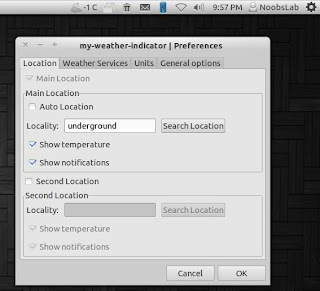
weather indicator
There are three weather sources available: Yahoo, Open Weather Map and World Weather Online. You can choose whatever you want.
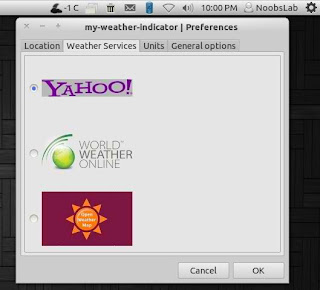
weather indicator
You change settings of temperature and details for weather.
weather indicator
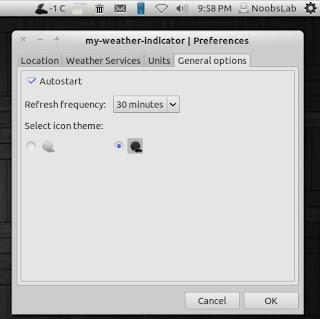
In General Options you can select "Auto-start" option to start automatically at login. You can change weather refresh time from "Refresh Frequency" and You can choose light or dark icon for panel.
weather indicator

To install My-Weather indicator in Ubuntu/Linux Mint open Terminal (Press Ctrl+Alt+T) and copy the following commands in the Terminal:
  • sudo add-apt-repository ppa:noobslab/indicators
  • sudo apt-get update
  • sudo apt-get install my-weather-indicator
That's it, Enjoy

Thursday, 24 May 2012

Indicators Collection for Ubuntu 12.04/11.10/11.04/10.04/Mint

Ubuntu Indicators Collection for Ubuntu 12.04 Precise/11.10 Oneiric/11.04 Natty/10.04 Lucid LTS/Linux Mint via single PPA

Here are some Ubuntu Indicators which can be useful for everyone. These indicators makes easy to use Ubuntu. After 2nd indicator add NoobsLab ppa and start installation. All indicators are checked on written Ubuntu Version, So hopefully there will be no problem for you to install and use them.

1: Weather Indicator (For Ubuntu 12.04/11.10/11.04):
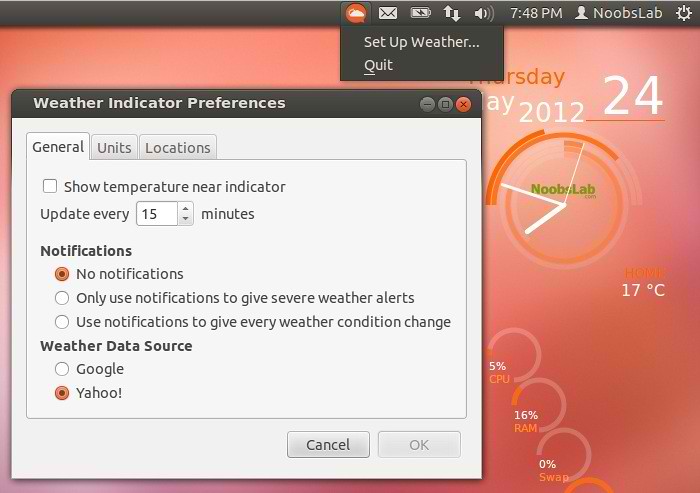
Weather Indicator allows to see your current weather situation in Ubuntu panel, This is available in Ubuntu repositories so you don't need to add any PPA for this indicator.

ubuntu weather

To install Weather Indicator in Ubuntu open Terminal (Press Ctrl+Alt+T) and copy the following commands in the Terminal:
  • sudo apt-get install indicator-weather

2: Recent Notifications Indicator (For Ubuntu 12.04/11.10/11.04):
This indicator stores recent notifications and easily can be access on Ubuntu Panel.

notification indicator

To Install Recent Notification in Ubuntu open Terminal (Press Ctrl+Alt+T) and copy the following commands in the Terminal:
  • sudo add-apt-repository ppa:jconti/recent-notifications
  • sudo apt-get update
  • sudo apt-get install indicator-notifications


>> Now add PPA and install following Indicators:
  • sudo add-apt-repository ppa:noobslab/indicators
  • sudo apt-get update


3: Caffeine Indicator (For Ubuntu 12.04/11.10):
Using caffeine you can disable sleep mode/screen saver under Ubuntu/Mint.

ubuntu caffeine

To install Caffeine Indicator in Ubuntu open Terminal (Press Ctrl+Alt+T) and copy the following commands in the Terminal:
  • sudo apt-get install caffeine

4: VirtualBox Indicator (For Ubuntu 12.04/11.10/10.04):
With VirtualBox Indicator you can open Virtual Machines easily and quickly from Panel.

ubuntu virtualbox

To install VirtualBox Indicator in Ubuntu open Terminal (Press Ctrl+Alt+T) and copy the following commands in the Terminal:
  • sudo apt-get install indicator-virtualbox

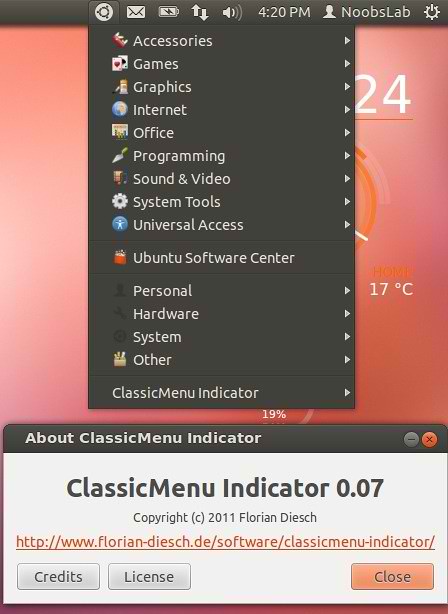
5: Classic Menu Indicator (For Ubuntu 12.04/11.10/11.04):
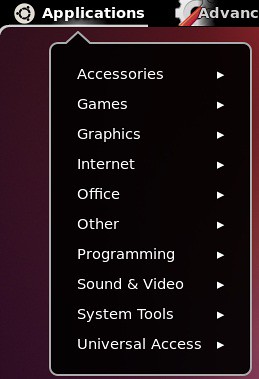
This Indicator give you Classic menu like old Ubuntu version have on the Panel.

ubuntu classic menu

To install ClassicMenu Indicator in Ubuntu open Terminal (Press Ctrl+Alt+T) and copy the following commands in the Terminal:
  • sudo apt-get install classicmenu-indicator

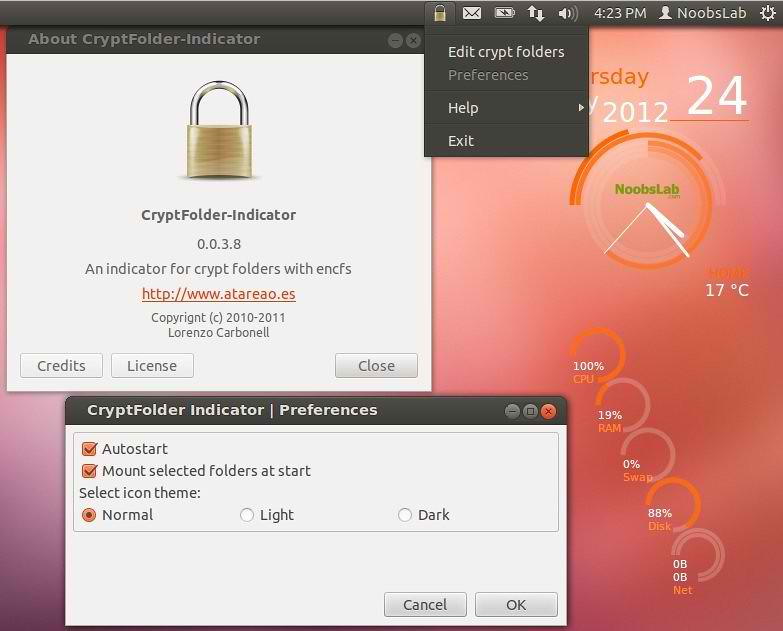
6: CryptFolder Indicator (For Ubuntu 12.04/11.10):
CryptFolder Indicator is used to manage EncFS folders easily from panel.

Ubuntu cryptfolder

To install CryptFolder Indicator in Ubuntu open Terminal (Press Ctrl+Alt+T) and copy the following commands in the Terminal:
  • sudo apt-get install cryptfolder-indicator


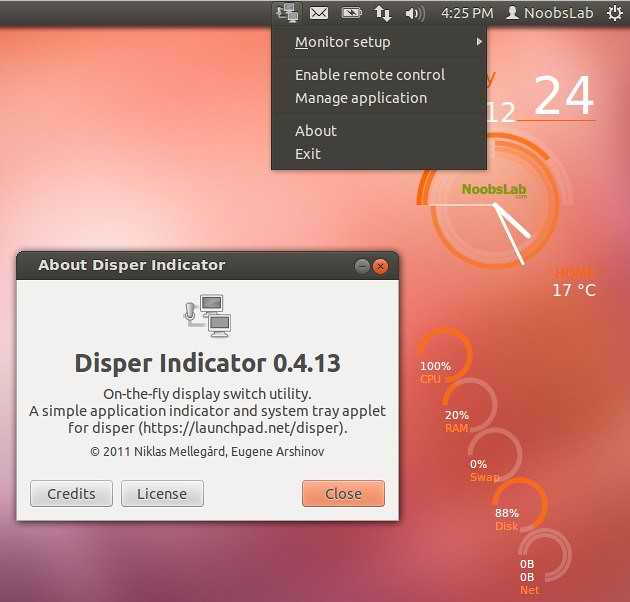
7: Disper Indicator (For Ubuntu 12.04):
This Disper Indicator simple detects which monitors are connected to the pc and also provide different options like enable single screen, extended screen or clone screen configuration.

ubuntu disper

To install Disper Indicator in Ubuntu open Terminal (Press Ctrl+Alt+T) and copy the following commands in the Terminal:
  • sudo apt-get install disper-indicator

8: FluxGui Indicator (For Ubuntu 12.04/11.10/10.04):
FluxGui make your pc screen just like room you are in, it is for all time. When the sunsets fluxgui make your screen like indoor lights. In the morning it make like sunlight again.

ubuntu fluxgui

To install FluxGui Indicator in Ubuntu open Terminal (Press Ctrl+Alt+T) and copy the following commands in the Terminal:
  • sudo apt-get install fluxgui

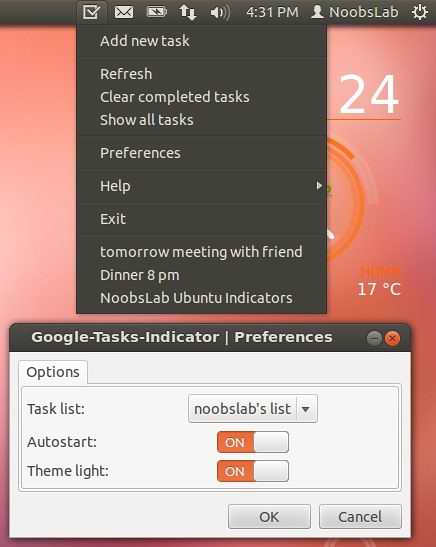
9: Google-Tasks Indicator (For Ubuntu 12.04/11.10):
Google Task Indicator shows your latest 10 tasks in Ubuntu panel.

ubuntu google tasks

To install GoogleTasks Indicator in Ubuntu open Terminal (Press Ctrl+Alt+T) and copy the following commands in the Terminal:
  • sudo apt-get install google-tasks-indicator
10: System Monitor Indicator (For Ubuntu 12.04/11.10):
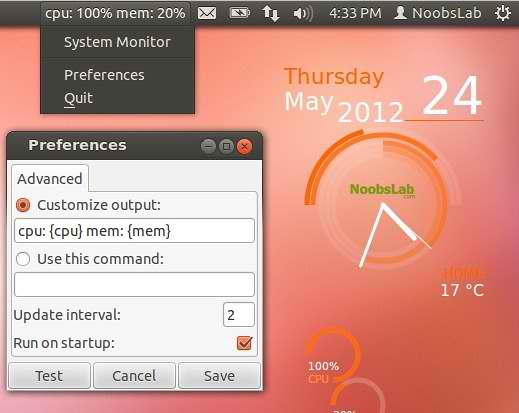
System Monitor Indicator shows your cpu and memory usage on Ubuntu Panel.

ubuntu system monitor

To install SystemMonitor Indicator in Ubuntu open Terminal (Press Ctrl+Alt+T) and copy the following commands in the Terminal:
  • sudo apt-get install indicator-sysmonitor

11: Lookit Indicator (For Ubuntu 12.04/11.10/10.04):
With Lookit Indicator you can capture your screen area, active window, full screen. Also you can set delay in capturing screen. There is also upload feature available in this utility.

ubuntu lookit

To install Lookit Indicator in Ubuntu open Terminal (Press Ctrl+Alt+T) and copy the following commands in the Terminal:
  • sudo apt-get install lookit

12: Touchpad Indicator (For Ubuntu 12.04/11.10):
Touchpad indicator allows you to enable/disable your laptop touchpad easily. You can disable touchpad while typing.

ubuntu touchpad

To install TouchPad Indicator in Ubuntu open Terminal (Press Ctrl+Alt+T) and copy the following commands in the Terminal:
  • sudo apt-get install touchpad-indicator

13: UbuntuOne Indicator (For Ubuntu 12.04/11.10/11.04/10.04):
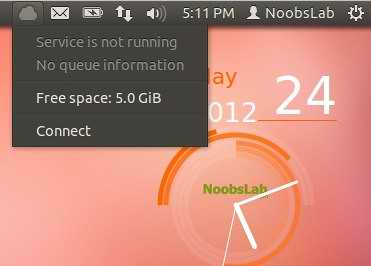
UbuntuOne indicator shows your UbuntuOne account status in Ubuntu Panel.

ubuntuone indicator

To install UbuntuOne Indicator in Ubuntu open Terminal (Press Ctrl+Alt+T) and copy the following commands in the Terminal:
  • sudo apt-get install ubuntuone-indicator

14: Keylock Indicator (For Ubuntu 12.04/11.04):
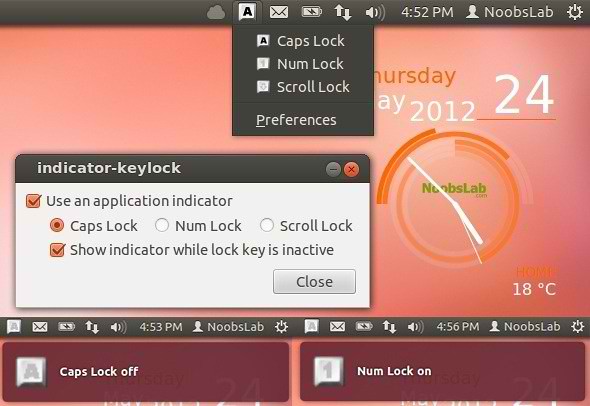
It is for lock keys Caps, Num and Scroll, It also shows notifications when you enable or disable lock keys.

ubuntu keylock

To install KeyLock Indicator in Ubuntu open Terminal (Press Ctrl+Alt+T) and copy the following commands in the Terminal:
  • sudo apt-get install indicator-keylock

15: Workspaces Indicator (For Ubuntu 11.10):
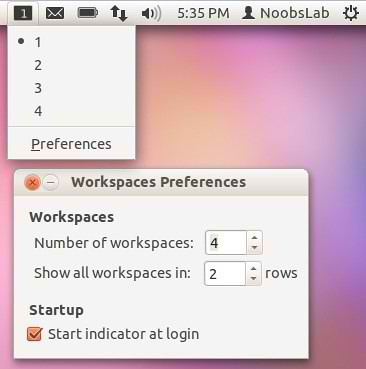
With Workspace indicator you can select desktop from top panel easily.

ubuntu workspaces

To install WorkSpaces Indicator in Ubuntu open Terminal (Press Ctrl+Alt+T) and copy the following commands in the Terminal:
  • sudo apt-get install indicator-workspaces

16: Pastie Indicator (For Ubuntu 10.04):
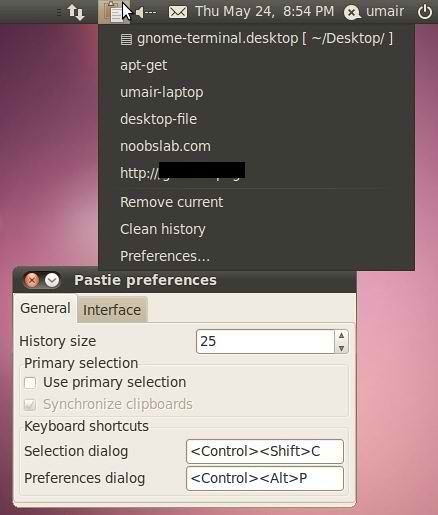
Pastie Indicator saves your clipboard data, Which can be easily accessible from Ubuntu panel.

ubuntu clipboard

To install Pastie Indicator in Ubuntu open Terminal (Press Ctrl+Alt+T) and copy the following commands in the Terminal:
  • sudo apt-get install pastie

More Indicators:
>> Windows List Indicator

That's it, Enjoy

Thursday, 26 April 2012

Install Gnome Shell 3.4 and Extensions for Gnome Shell 3.4 in Ubuntu 12.04 Precise Pangolin

Install Gnome Shell 3.4 and Extensions for Gnome Shell 3.4 in Ubuntu 12.04 Precise Pangolin

Gnome 3.4 is the second GNOME release since 3.0 back in April 2011. It brings a large number of improvements to the user experience, including many bug fixes and small enhancements. The result is a shinier, more polished, more reliable GNOME 3.
This release also contains some important new developments. Applications have been a major focus for recent design and development effort, and a host of applications have had significant updates for this release.

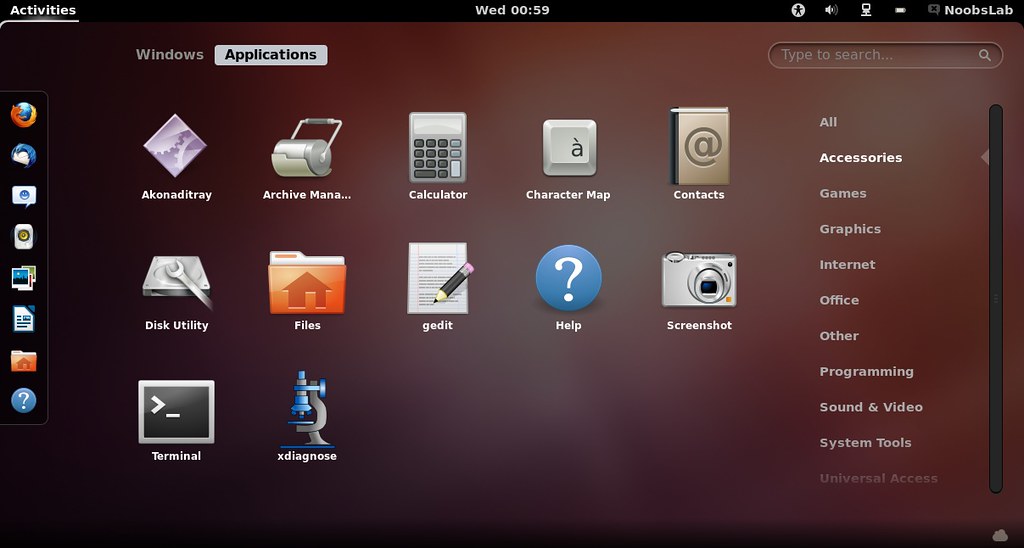
gnome shell 3.4

To Install Gnome Shell on Ubuntu 12.04 (Press Ctrl+Alt+T) and copy the following commands in the Terminal:
  • sudo apt-get update
  • sudo apt-get install gnome-shell gnome-tweak-tool

Here is complete Release Announcement of Gnome 3.4.


First Add NoobsLab PPA to install following Extensions:
  • sudo add-apt-repository ppa:noobslab/gnome

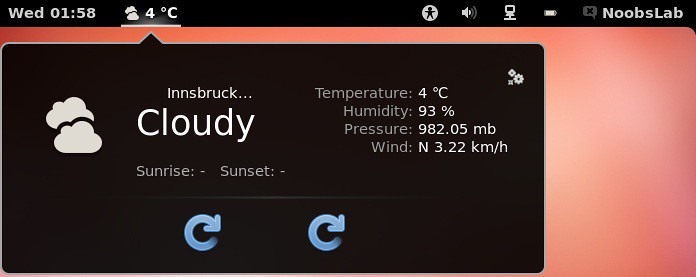
>> Install Weather Extension:
weather extension
Open Terminal and enter following command:
  • sudo apt-get install gnome-shell-extensions-weather
To get your Yahoo ID, go to http://weather.yahoo.com, enter your city/zip code and when you find it, look for the orange "RSS" icon on the right. Hovering this icon, you'll see your code - this is the WOEID.
    When you click on RSS icon, You'll see this URL in address bar
    For Example: http://weather.yahooapis.com/forecastrss?p=BUXX0005&u=f (See picture Below)
    The Red Color is "WOEID" code.

    gnome shell weather

    Copy and paste your Woeid id in settings.
    Now Restart your Gnome Shell (Press Alt+F2 and type: 'r') or Logout and Login back.


    >> Install Message Notifier Extension:

    open Terminal and enter following command:
    • sudo apt-get install gnome-shell-message-notifier


    >> Install System Monitor Extension:
    gnome shell

    open Terminal and enter following command:
    • sudo apt-get install gnome-shell-system-monitor


    >> Install Bottom Panel, Shutdown, Panel Favorites, Application Menu, Clock, Workspace Extension:

    Bottom Panel Extension
    gnome shell

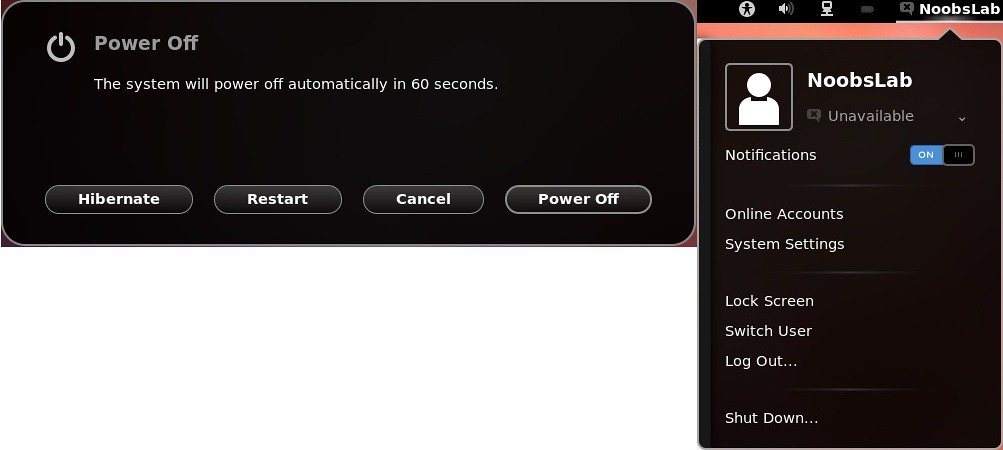
    Shutdown Menu Extension
    gnome shell

    Panel Favorites Extension
    gnome shell

    Applications Menu Extension
    gnome shell

    Move clock Extension
    gnome shell

    Static Workspace Extension
    gnome shell

    open Terminal and enter following command:
    • sudo apt-get install shell-extensions3.4


    >> Install Gnome Shell Official Extensions:

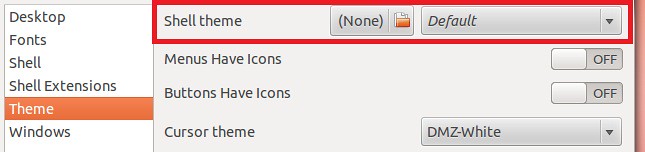
    In this extension you can find User-Theme Extension, with this extension you can enable themes in Gnome Shell 3.4.
    gnome shell themes

    Themes Enabled 
    gnome shell 3.4 themes

    Also you will get other Extensions: Native Window Placement, Alternative Status Menu, Alternative Tab, User Themes, Workspace Indicator, Dock, Places Status Indicator, Auto Move Windows, System Monitor, Gajim IM Integration, Removable Drive Menu, WindowNavigator, Applications Menu Extension.

    Enter following command to Install Official Gnome Shell 3.4 Extensions:
    • sudo apt-get install gnome-shell-extensions
    After Installation Press Alt+F2 and type 'r' to restart Gnome Shell, or just logout and login back. Open Gnome Tweak Tool to change/install shell Themes.

    Also Checkout Important Things to do After Install of Ubuntu 12.04

    That's it, Enjoy
     

    Just the Life of Eddie Copyright © 2012 Best Celebrity Wallpaper -- Powered by Blogger