Warung Bebas
Showing posts with label opensuse. Show all posts

Sunday, 22 July 2012

Install Conky Tab in Ubuntu/Linux Mint/Fedora/Any Linux Distro

Install Conky Tab in Ubuntu 12.10/Ubuntu 12.04/Ubuntu 11.10/any Ubuntu Version/Linux Mint/Fedora/Any Linux Distro

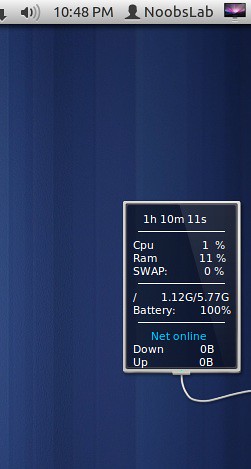
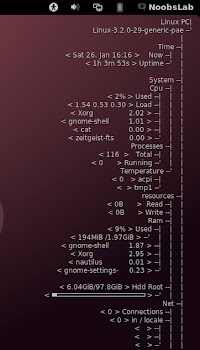
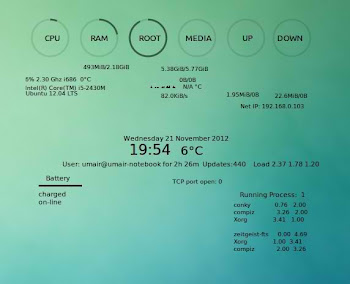
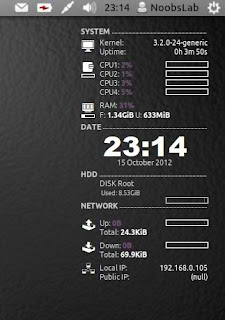
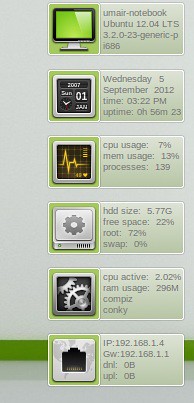
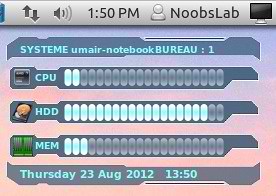
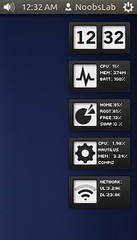
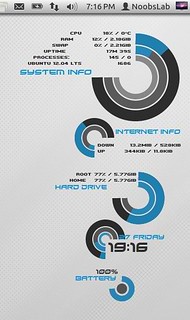
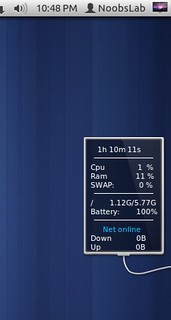
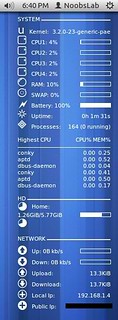
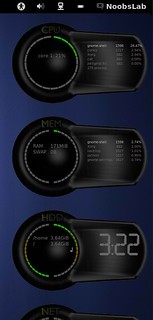
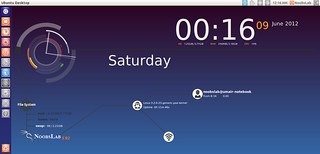
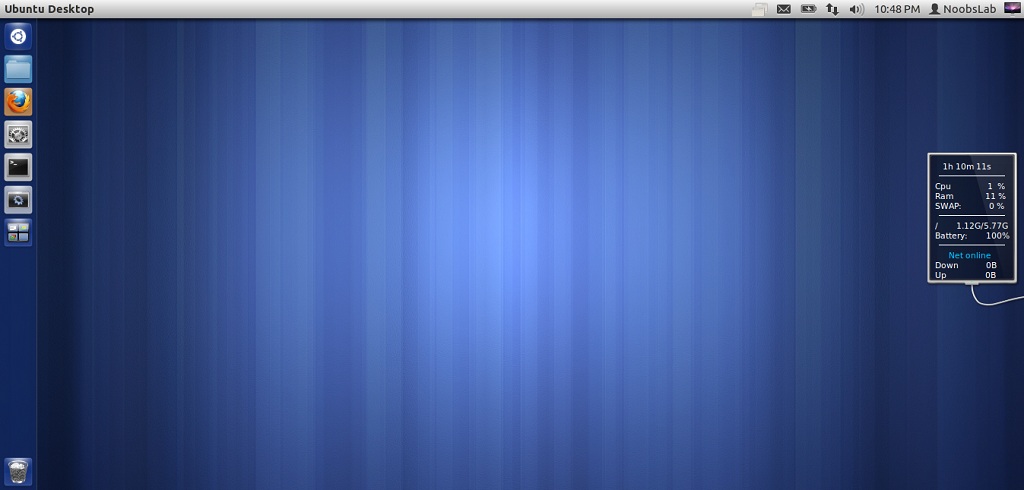
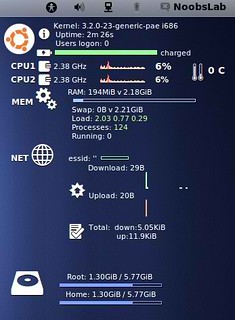
Here you can find Conky Collection for Linux Distro's. This conky gadget is really simple and beautiful. It shows Cpu up-time  Cpu usage, Ram Usage, Swap Usage, Root Hdd usage, Laptop Battery, Network up-speed and down-speed  NoobsLab totally modified this gadget, and made available for all environments like (Gnome Shell, Unity, Cinnamon, Gnome Classic, Mate, and others). Also this conky is available for Wifi and Ethernet.
conky

Install Conky in Ubuntu/Linux Mint open terminal (Press Ctrl+Alt+T) and copy the following commands in the Terminal:
  • sudo apt-get install conky conky-all
Install by yourself in other distro's.

First of all Download Startup script with following commands:
  • wget -O .start-conky http://goo.gl/6RrEw
  • chmod +x .start-conky
Now open Startup Applications > click Add  > New Dialog box will open click on Browse > Now (Press Ctrl+H) see following screenshot.
conky startup

1: Conky Tab for Wifi
Ubuntu conky

for (Unity, Gnome Classic, Mate, and other):
To install conky tab in Ubuntu/Mint open Terminal (Press Ctrl+Alt+T) and copy the following commands in the Terminal:
  • wget -O conky-tab-wlan-u.zip http://goo.gl/vk7lp
  • unzip conky-tab-wlan-u.zip
  • sudo rm conky-tab-wlan-u.zip
for (Gnome Shell and Cinnamon):
To install conky tab in Ubuntu/Mint open Terminal (Press Ctrl+Alt+T) and copy the following commands in the Terminal:
  • wget -O conky-tab-wlan-gs.zip http://goo.gl/pn1Q1
  • unzip conky-tab-wlan-gs.zip
  • sudo rm conky-tab-wlan-gs.zip

2: Conky Tab for Ethernet
conky

for (Unity, Gnome Classic, Mate, and other):
To install conky tab in Ubuntu/Mint open Terminal (Press Ctrl+Alt+T) and copy the following commands in the Terminal:
  • wget -O conky-tab-eth-u.zip http://goo.gl/q4u8X
  • unzip conky-tab-eth-u.zip
  • sudo rm conky-tab-eth-u.zip
for (Gnome Shell and Cinnamon):
To install conky tab in Ubuntu/Mint open Terminal (Press Ctrl+Alt+T) and copy the following commands in the Terminal:
  • wget -O conky-tab-eth-gs.zip http://goo.gl/0QrX4
  • unzip conky-tab-eth-gs.zip
  • sudo rm conky-tab-eth-gs.zip
That's it, Enjoy
Source: Conky Tab
Monday, 16 July 2012

Conky Collection for Ubuntu/Linux Mint/Fedora/OpenSuse/Other Distro's

Conky Collection for Ubuntu 12.10 Quantal Quetzal/Ubuntu 12.04 Precise Pangolin/Ubuntu 11.10 Oneiric/Any Ubuntu Version/Linux Mint/Fedora/Other Linux Distro's

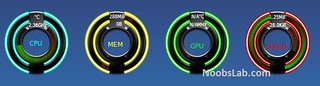
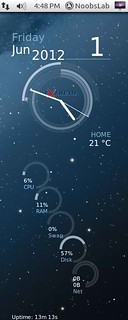
Now a day's conky gadgets are almost going down, Few guys are working on Conky gadgets. So NoobsLab decided to keep this work up for Linux guys. NoobsLab make available conky for all Linux environments like: Unity, Gnome Shell, Cinnamon, Mate, Gnome Classic and others.

Basic-Conky for Ubuntu/Mint/Fedora/Other Linux Distro's
 New
Bar-Conky for Ubuntu/Mint/Fedora/Other Linux Distro's
Nadia-Conky for Ubuntu/Mint/Fedora/Other Linux Distro's
HGM-Hudnet-Conky for Ubuntu/Mint/Fedora/Other Linux Distro's
123-Conky for Ubuntu/Mint/Fedora/Other Linux Distro's
Linux-Conky for Ubuntu/Mint/Fedora/Other Linux Distro's
Techno-Conky for Ubuntu/Mint/Fedora/Other Linux Distro's
1st-Conky for Ubuntu/Mint/Fedora/Other Linux Distro's
Colors-Conky for Ubuntu/Mint/Fedora/Other Linux Distro's
Legacy Conky for Ubuntu/Mint/Fedora/Other Linux Distro's
Lunatico Rings Conky for Ubuntu/Mint/Fedora/Other Linux Distro's
Gotham Conky for Ubuntu/Mint/Fedora/Other Linux Distro's
Energreen Conky for Ubuntu/Mint/Fedora/Other Linux Distro's
DeadSpace Conky for Ubuntu/Mint/Fedora/Other Linux Distro's
Reloj Conky for Ubuntu/Mint/Fedora/Other Linux Distro's
Two Conky for Ubuntu/Mint/Fedora/Other Linux Distro's
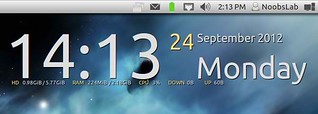
Tab Conky for Ubuntu/Mint/Fedora/Other Linux Distro's
Hardy Conky for Ubuntu/Mint/Fedora/Other Linux Distro's
Patch Conky for Ubuntu/Mint/Fedora/Other Linux Distro's
Lucid Conky for Ubuntu/Mint/Fedora/Other Linux Distro's
(Red, Gray, Orange) Conky in Ubuntu/Mint/Fedora/Other Linux Distro's
Sample Conky in Ubuntu/Mint/Fedora/Other Linux Distro's
Cores Conky in Ubuntu/Mint/Fedora/Other Linux Distro's
Infinity Conky in Ubuntu/Mint/Fedora/Other Linux Distro's
 Hot
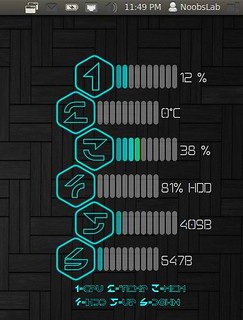
Tron Conky in Ubuntu/Mint/Fedora/Other Linux Distro's
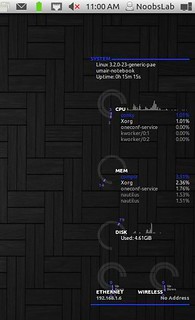
Lua Conky in Ubuntu/Mint/Fedora/Other Linux Distro's
 Hot


>>>Conky Installation<<<

Install Conky in Fedora open terminal and copy the following commands in the Terminal:
  • yum install conky

Install Conky in Ubuntu/Linux Mint open terminal (Press Ctrl+Alt+T) and copy the following commands in the Terminal:
  • sudo apt-get install conky conky-all

First of all Download Startup script with following commands:
  • wget -O .start-conky http://goo.gl/6RrEw
  • chmod +x .start-conky
Now open Startup Applications > click Add > New Dialog box will open click on Browse > Now (Press Ctrl+H) see following screenshot.

Saturday, 25 February 2012

Install Awoken Icons 2.4 on Ubuntu/Linux Mint (New Release)

New Release Install Awoken Icons 2.4 on Ubuntu 12.04 Precise Pangolin/Ubuntu 11.10 Oneiric/Ubuntu 11.04/Linux Mint 12/Linux Mint 13

awoken icons

Awoken Icons are very famous icons for Linux Distro's, It is most rated icons I have ever seen in Linux distro's. These icons are now available for Ubuntu 12.04 support and other latest & Linux flavors.

awoken icons


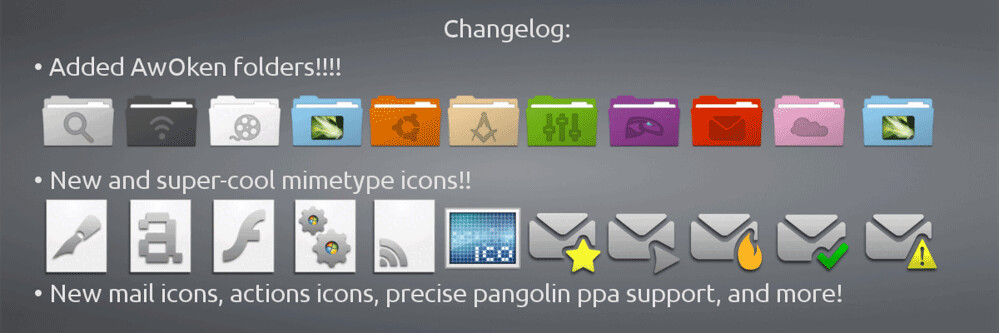
Changelog for 2.4 Version:
  • Added AWOKEN folders! Now the set is integrated with the most cool and stylish folders ever!
  • Drastic revision of mimetypes: now they use a different template icon (modified from Elementary icon set), and they're more refined in 24x24 version!
  • Most of the 22x22 actions icons that have characterized the latest versions have been brought to 24x24px and 128x128px resolutions. So the iconset become cleaner, cooler and more integrated! Consequently, also some status icons are changed.
  • Mail icons redrawed (both in bigger and in lower resolution). Now your favourite email client's toolbar (except thunderbird) works like a charm!
  • Added ppa for precise.
  • Drastic revision of the colorization script: now is faster, cleaner and supports parallel processing. This lead to a serious improvement on latest multi-core machines, but also on elder computers. Another big improvement is related to the fact that is now accepting RGB colors instead of CMY colors!
  • Revision of the Installation and Instructions PDF file.
  • Removed gedit choice from the customization script (it's useless having the possibility to change only one icon!).
  • Removed some folder sub-types, since the iconset is became too big. They are classy-yellow, classy-carboard, classy-white, classy-black. For the same reason, removed (from other folder types) folder-joomla, folder-wip, folder-science2, folder-windows, folder-apple, folder-ffw, folder-byte, folder-cd, folder-fonts, folder-linux1, folder-linux2, folder-public, folder-important.
  • Application added (or redrawed): accessories-text-editor-symbolic, document-open-symbolic, network-wired-disconnected, ubuntuone emblems, gtk-zoom-100 in 22x22px, jdownloader, gwibber, mail-message-new, mail-forward, mail-outbox, mail-mark-important (-junk, -notjunk, -unread, -spam), mail-reply, mail-reply-all, mail-move, edit-delete-mail, extract-archive, add-files-to-archive, add-folder-to-archive, gnome-pie, gelemental, luminance-hdr, application-x-mint, grooveshark, mintinstall, addressbook icons, call-start, call-stop, fillmore, gpick, gftp, batti, marlin, kompozer, preferences-desktop, preferences-system, preferences-desktop-personal, mime for video, midori, djvulibre, plank, fontforge, ffanvil, general settings icons, kupfer, acetoneiso, videoporama, beatbox, nvclock, cryptkeeper, bino, isomaster (I hope), gpixpod, graveman, gshutdown, ogmrip, billardgl, foobillard, fedora live usb, mp3-splt-gtk, yarock, scim-setup, application-fonts, mono-runtime, gnome-settings-default-applications, nitrogen, musique
  • Application added (or redrawed) specifically for KDE version: application-x-tarz, imagewriter, script-error, code-context, edit-link, view-group, edit-select, select-rectangular, zoom-select, insert-text, select\_rectangular, run-build-install-root.

To install Awoken Icons on Ubuntu/Linux Mint open Terminal (Press Ctrl+Alt+T) and copy the following commands in the Terminal:
  • sudo add-apt-repository ppa:alecive/antigone
  • sudo apt-get update
  • sudo apt-get install awoken-icon-theme
To customize icons enter following command:
  • awoken-icon-theme-customization

For Other Linux Distribution install Awoken Icons on Arch/Fedora/Suse/others
First Download Icons from DevianArt link, After Download Extract your Awoken Icons three folders in (.icons) directory.
Now open Terminal and enter following commands:
  • cd .icons
  • sudo cp -p AwOken/awoken-icon-theme-customization /usr/bin
  • sudo cp -p AwOken/awoken-icon-theme-customization-clear /usr/bin
  • sudo cp -p AwOkenDark/awoken-icon-theme-customization-dark /usr/bin
  • sudo cp -p AwOkenWhite/awoken-icon-theme-customization-white /usr/bin
To customize icons enter following command:
  • awoken-icon-theme-customization
Here is the Author Page on DevianArt. That's it
 

Just the Life of Eddie Copyright © 2012 Best Celebrity Wallpaper -- Powered by Blogger