Important Tweaks/Things to do After install of Ubuntu 12.04 Precise PangolinNew version of Ubuntu is released, I thought what people want in precise which is not available. So here are some important tweaks you need to do with new Ubuntu 12.04 Precise Pangolin, To make your Ubuntu experience better. So here we start Tweaks to do after install of Ubuntu 12.04.
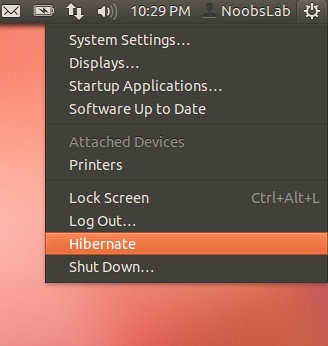
1: Enable Hibernate option:Open Terminal and enter following command:
- sudo gedit /var/lib/polkit-1/localauthority/50-local.d/hibernate.pkla
copy and paste the following code in file:
[Re-enable Hibernate]
Identity=unix-user:*
Action=org.freedesktop.upower.hibernate
ResultActive=yes
Restart to see hibernate option.
2: Install Gnome-Advance-Settings-tool: Install with following command:
- sudo apt-get install gnome-tweak-tool
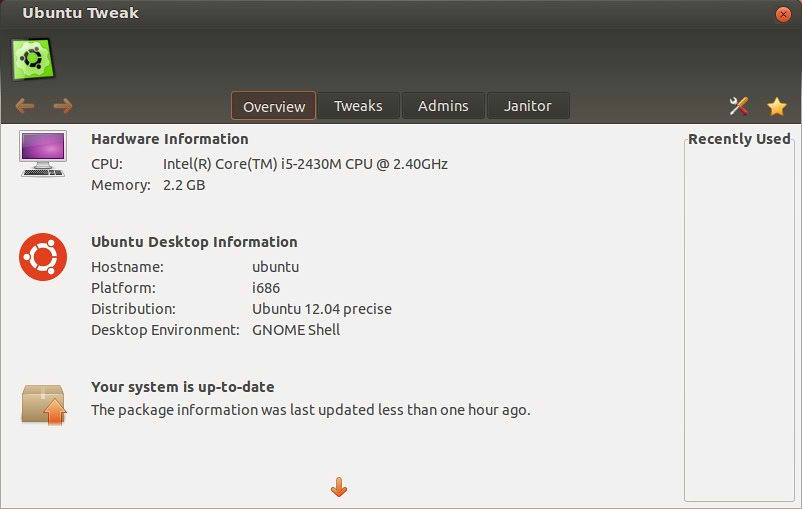
3: Install Ubuntu Tweak:Enter following commands to install Ubuntu Tweak:
- sudo add-apt-repository ppa:tualatrix/ppa
- sudo apt-get update
- sudo apt-get install ubuntu-tweak
Here you can find more tweak tools
Unsettings Tool,
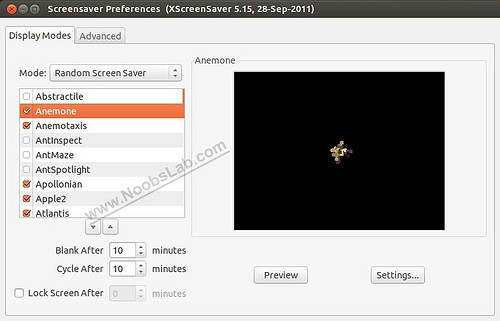
MyUnity Tool4: Install and enable XScreensaver: Install XSreenSaver with following commands:
- sudo apt-get remove gnome-screensaver
- sudo apt-get install xscreensaver xscreensaver-gl-extra xscreensaver-data-extra
create file for autostart:
- sudo gedit /etc/xdg/autostart/screensaver.desktop
copy and paste the following code in file:
[Desktop Entry]
Name=Screensaver
Type=Application
Exec=xscreensaver -nosplash
5: Change HUD Key: Go to "Dash" System Settings > Keyboard > Shortcuts > Launchers >
Key to show HUD Click on
Key to show HUD to change key. I set my key Alt+Z because it is easy to press, You can change whatever you want.
6: Disable Global Menu:Enter following command in Terminal:
- sudo apt-get autoremove appmenu-gtk appmenu-gtk3 appmenu-qt
and restart.
To disable Global Menu for Firefox, Go to 'Tools' �> 'Add-ons' �> 'Extensions' and
Disable 'Global Menu Bar integration'
To revert the changes enter following command in Terminal:
- sudo apt-get install appmenu-gtk appmenu-gtk3 appmenu-qt
then restart.
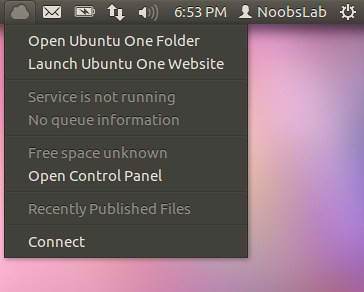
7: Install Ubuntu-One Indicator:To install enter following commands in the Terminal:
- sudo add-apt-repository ppa:rye/ubuntuone-extras
- sudo apt-get update
- sudo apt-get install indicator-ubuntuone
Then logout and login back.
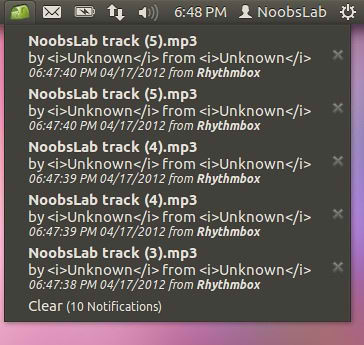
8: Install Recent Notifications Indicator:To install enter following commands in the Terminal:
- sudo add-apt-repository ppa:jconti/recent-notifications
- sudo apt-get update
- sudo apt-get install indicator-notifications
9: Move Minimize, Maximize, Close Buttons to Right:Enter following commands in Terminal to install gconf-editor:
- sudo apt-get install gconf-editor
now start gconf-editor with following command:
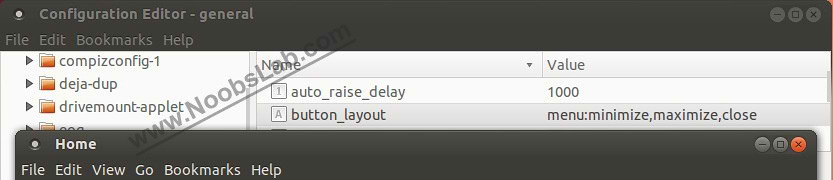
Go to the following: 'apps' -> 'metacity' -> 'general' Find the "
button_layout" parameter,
Right mouse click, and select Edit Key.
Change the value to the following:
menu:minimize,maximize,close then Press Enter.
10: Install CCSM: To install Compiz Config Setting Manager enter following command in Terminal:
- sudo apt-get install compizconfig-settings-manager
Go to Dash and Search "CCSM"
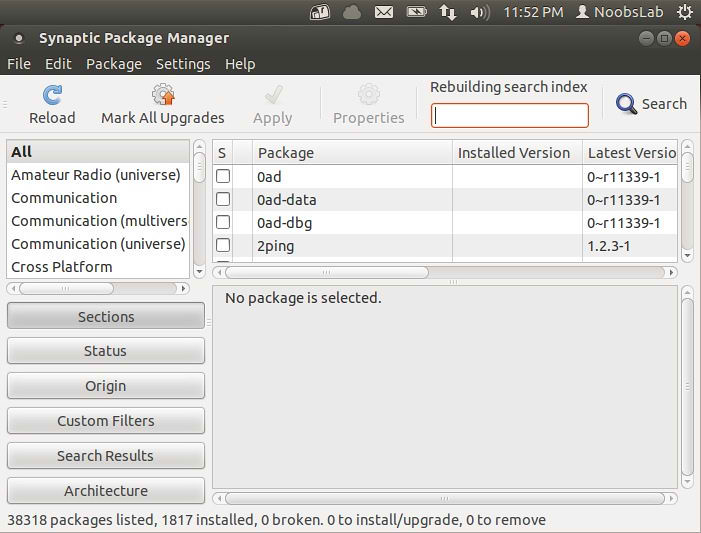
11: Install Synaptic Package Manager: To install Syanptic Package Manager enter following command in Terminal:
- sudo apt-get install synaptic
Go to Dash and Search "synaptic"
12: Move Nautilus Forward & Back button to Left Side: To move these buttons to left side just follow steps:
Open Terminal (Press
Ctrl+Alt+T) and copy the following commands in the Terminal:
- mkdir ~/Desktop/nautilus-mod
- cd ~/Desktop/nautilus-mod
- sudo apt-get update
- apt-get source nautilus
- sudo apt-get build-dep nautilus
- cd ~/Desktop/nautilus-mod/nautilus-3*
- gedit src/nautilus-toolbar.c
Now, scroll down to line 130 or Find for "
gtk_toolbar_insert (GTK_TOOLBAR (self->priv->toolbar), item, 0)" and change the "
0" to a "
2". So change the original line from:
gtk_toolbar_insert (GTK_TOOLBAR (self->priv->toolbar), item, 0);
To:
gtk_toolbar_insert (GTK_TOOLBAR (self->priv->toolbar), item, 2);
When you're done, click save and close Gedit.
Now Back in Terminal, run the following:
- ./configure --prefix=/usr
- make
- sudo killall nautilus
- sudo make install
Now logout and login back/restart to avoid mess.
To undo the changes and revert back to stock Nautilus, you can simply run following command:
- sudo apt-get --reinstall install nautilus
For Unity If SomeThing Went Wrong Enter following commands to Reset:>> to reset the Unity launcher icons:
>> to reset Unity:
>> to reset Compiz:
- gconftool-2 --recursive-unset /apps/compiz-1 unity --reset
13: Install Adobe Flash Plugin and Adobe Reader:Open Terminal and enter following commands:
- sudo apt-add-repository "deb http://archive.canonical.com/ $(lsb_release -sc) partner"
- sudo apt-get update && sudo apt-get install flashplugin-installer acroread
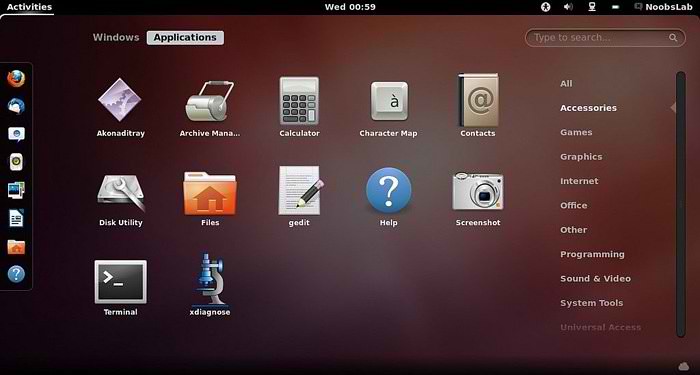
14: Install Gnome Shell 3.4: Enter Following commands to install Gnome-Shell 3.4:
- sudo add-apt-repository ppa:ricotz/testing
- sudo add-apt-repository ppa:gnome3-team/gnome3
- sudo apt-get update && sudo apt-get dist-upgrade
- sudo apt-get install gnome-shell gnome-tweak-tool
15: Install User-Theme Extensions in Gnome Shell 3.4:With User-Theme Extension you can enable Gnome Shell 3.4 themes in Gnome-Tweak-Tool.
Now Restart Gnome Shell (Press
Alt+F2 and type '
r') and enable User Themes Extension, again Restart Gnome Shell.
The Following command will install Many Extensions: Native Window Placement, Alternative Status Menu, Alternative Tab, User Themes, Workspace Indicator, Dock, Places Status Indicator, Auto Move Windows, System Monitor, Gajim IM Integration, Removable Drive Menu, WindowNavigator, Applications Menu Extension.
Enter following command to Install Gnome Shell 3.4 Extensions:- sudo add-apt-repository ppa:noobslab/gnome
- sudo apt-get update
- sudo apt-get install gnome-shell-extensions
After Installation Press
Alt+F2 and type '
r' to restart Gnome Shell, or just logout and login back. Open Gnome Tweak Tool to change/install shell Themes.
16: Install Important Extensions in Gnome Shell 3.4:Weather Extension, message Notifier Extension, System Monitor Extension, Bottom Panel Extension, Shutdown Menu Extension, Panel Favorites, Extension, Applications Menu Extension, Move clock Extension.
17: Install Restricted Extras: There are some Restricted extras in Ubuntu which is not install by default but you can install these Restricted extras by yourself. Restricted mp3 playback and decoding, support for various formats, fonts, java, flash plugin, lame, dvd playback.
- sudo apt-get install ubuntu-restricted-extras
18: Install Codecs: Install Useful codecs in your new Ubuntu and Enjoy.
- sudo apt-get install libxine1-ffmpeg gxine mencoder totem-mozilla icedax tagtool easytag id3tool lame nautilus-script-audio-convert libmad0 mpg321
19: More New Tweaks for Ubuntu 12.04 Precise Pangolin: - Enable Dodge Windows
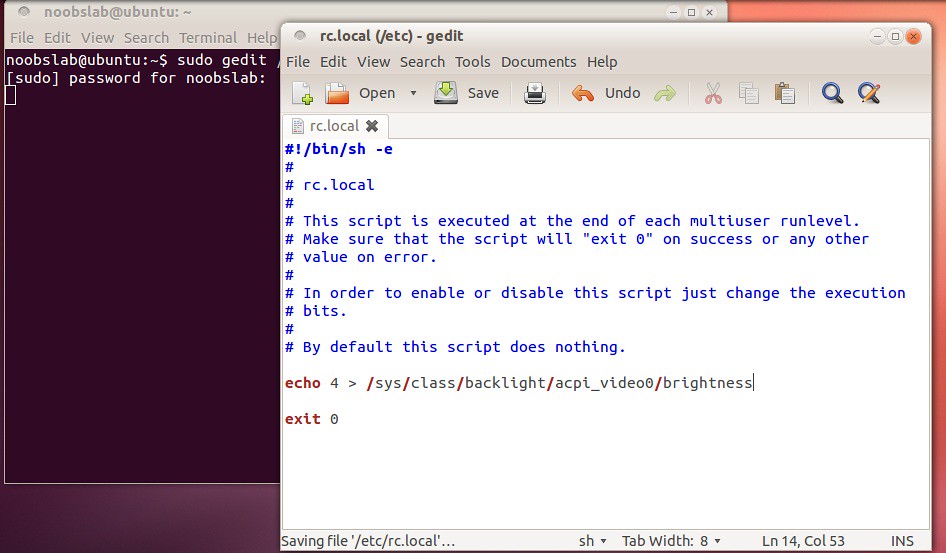
- Save Laptop Screen Brightness
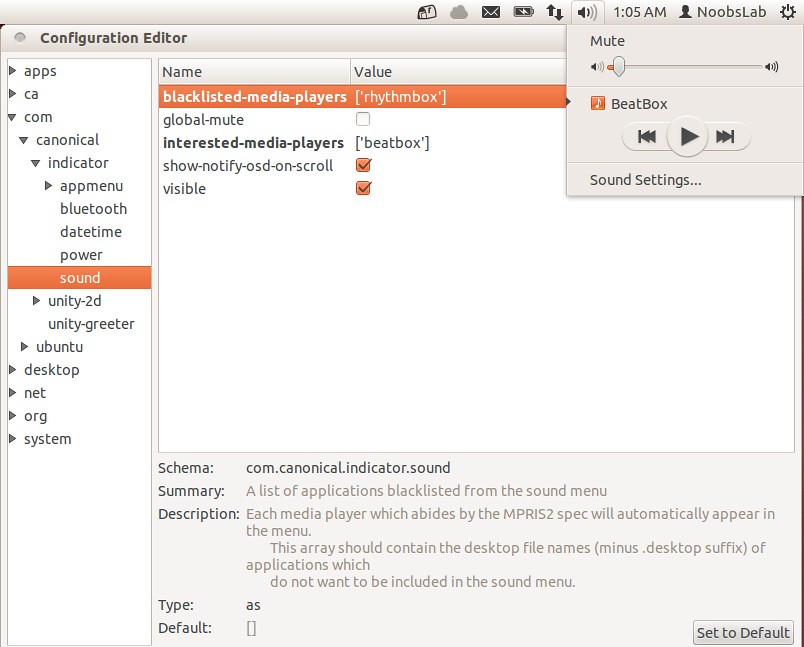
- Add Other Media Player in Sound Menu
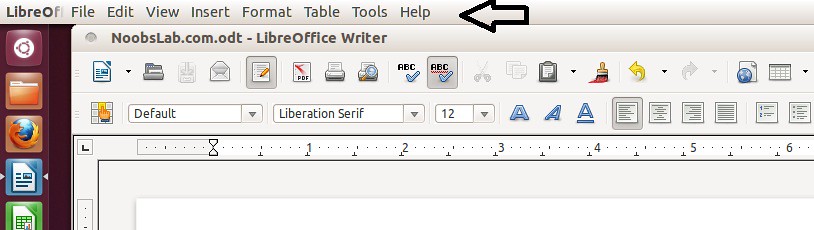
- Enable Global Menu for LibreOffice
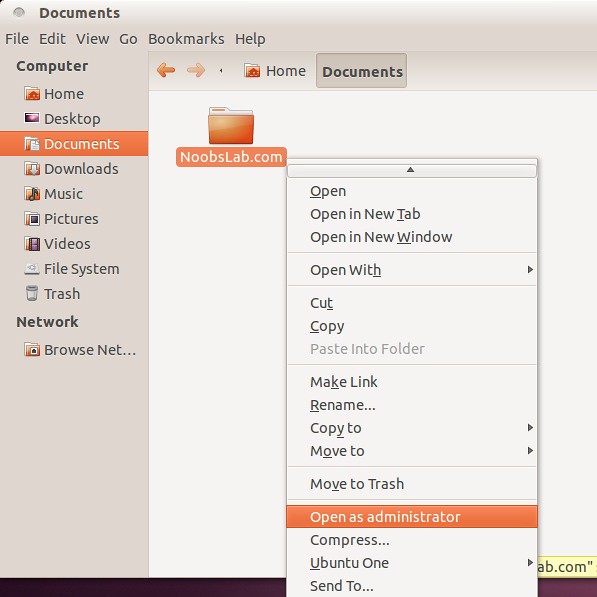
- Open Files and Folder as Administrator
-> Some More Tweaks20: Misc/Softwares for Ubuntu 12.04 Precise Pangolin: Remove White Dots from Login ScreenInstall Winehq Windows Program LoaderInstall Gimp 2.8 Image EditorInstall XBMC 11.0 EdenInstall Google ChromeInstall Deepin Software CenterInstall Virtual BoxInstall and Configure Samba SharingInstall Orion Gtk3 ThemeInstall Bleachbit CleanerInstall Gnome PieInstall Nvidia Drivers (Only for those who own Nvidia Card)
Best Ubuntu WallpapersThemes CollectionThat's it Enjoy.
 0
comments
0
comments