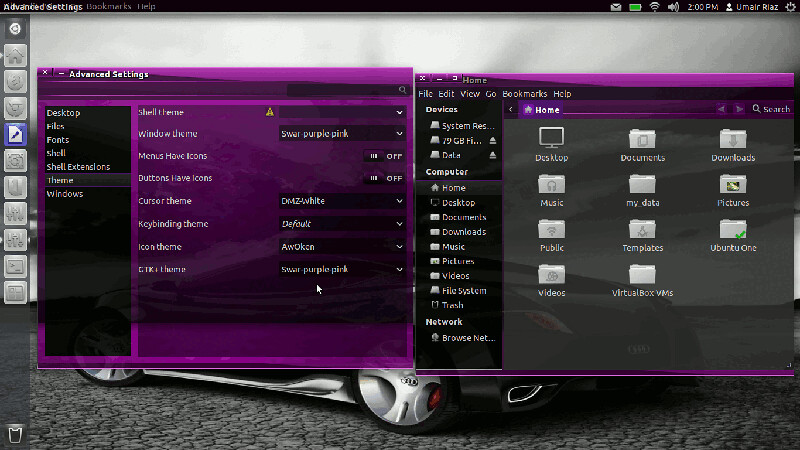
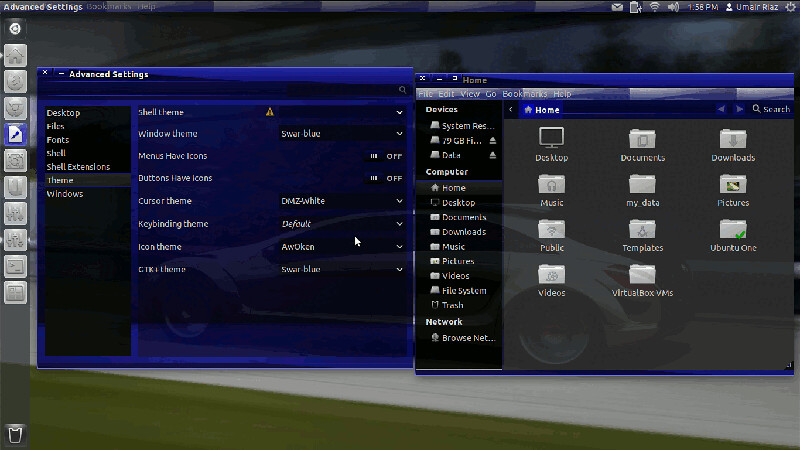
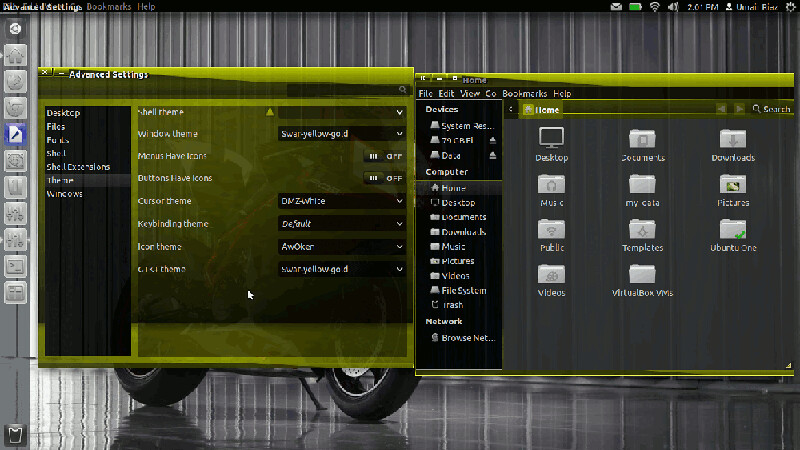
0
comments
0
comments
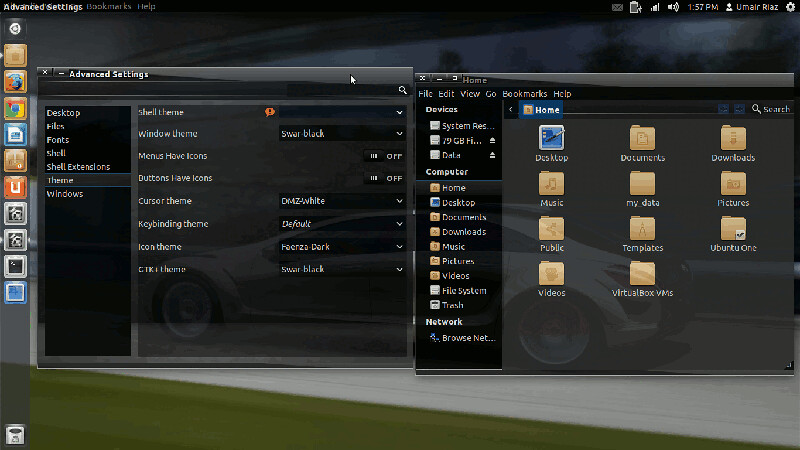
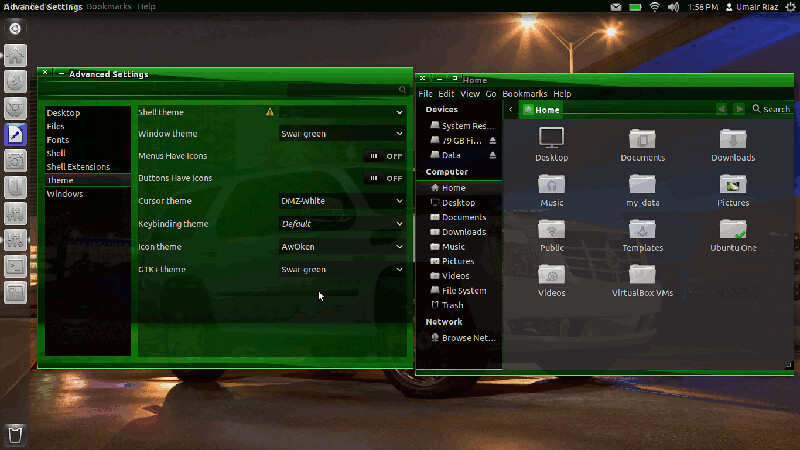
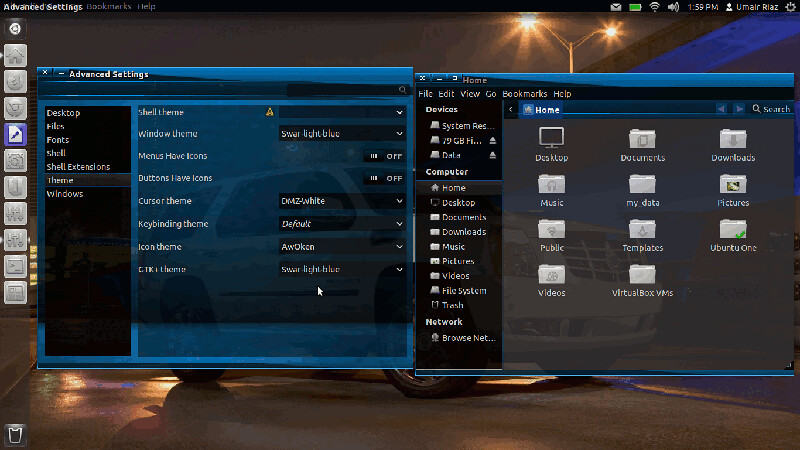
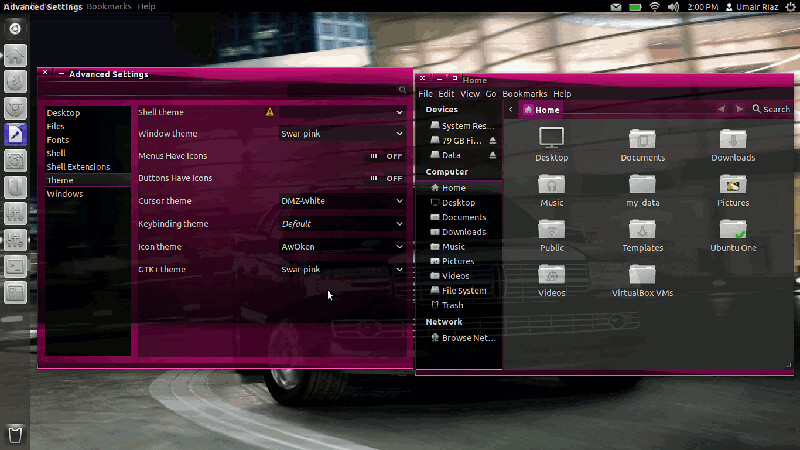
Best Malys Themes + Icons Collection for Ubuntu 12.04 Precise/11.10 Oneiric/Linux Mint 13/12 (GTK 3, 2, Gnome Shell)
1: Malys UniBlue Icons:
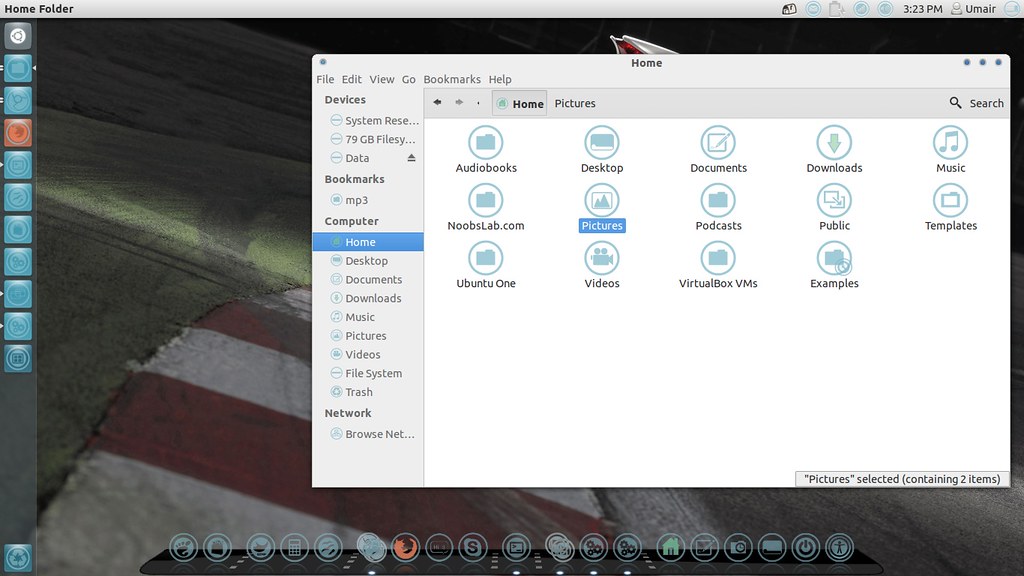
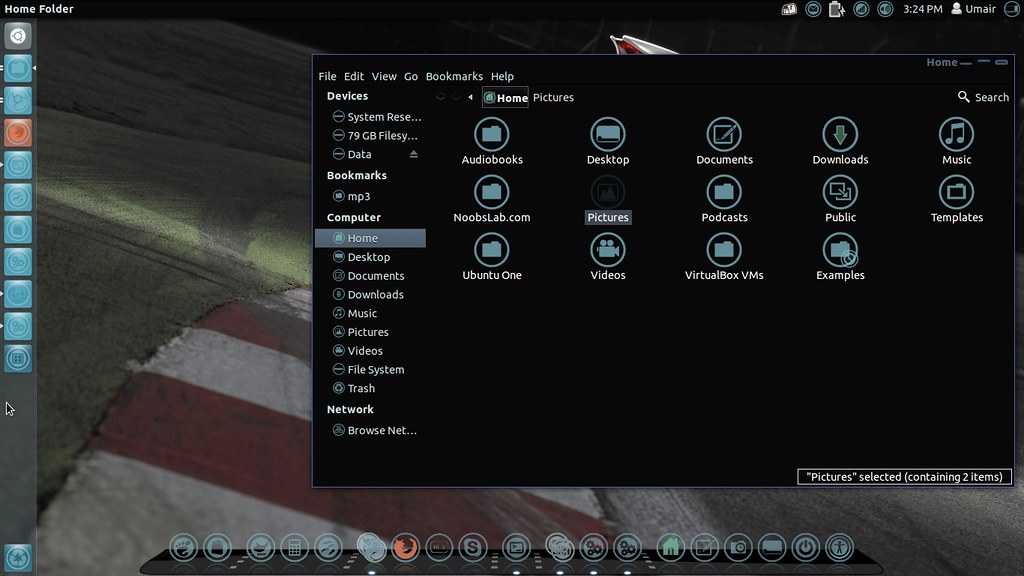 These Icons are compatible with all Ubuntu/Linux Mint Versions.
Available for Ubuntu 12.10/12.04/11.10 Linux Mint 13/12.
To install Malys-Uniblue-Icons on Ubuntu/Mint open Terminal (Press Ctrl+Alt+T) and copy the following commands in the Terminal:
2: Malys UniBlack Icons
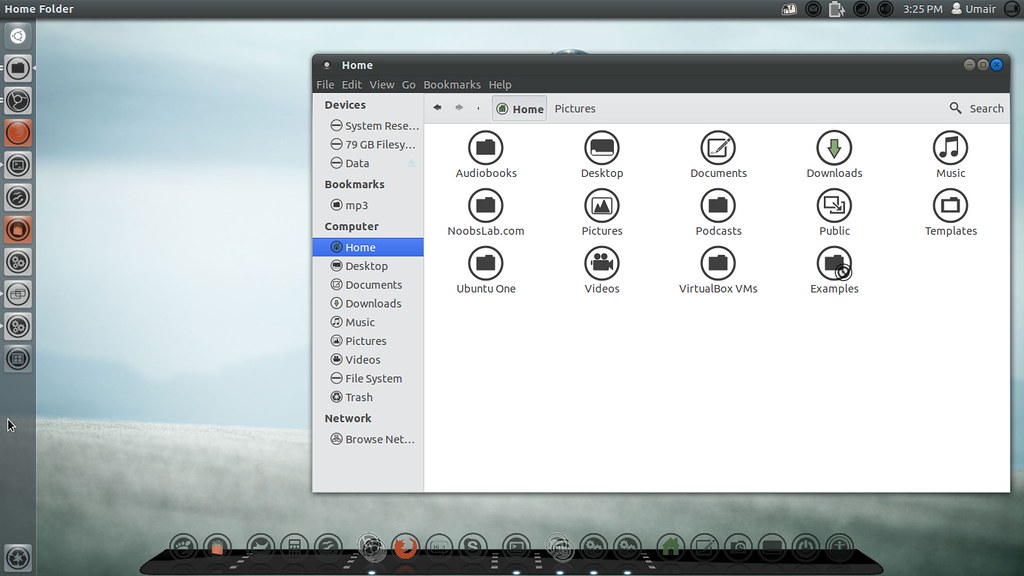
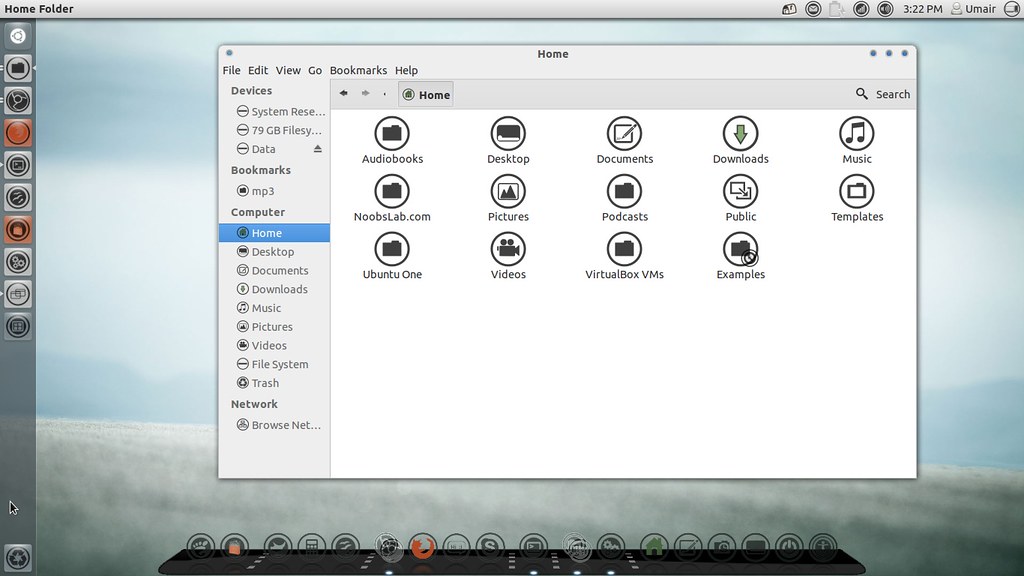 These Icons are compatible with all Ubuntu/Linux Mint Versions.
Available for Ubuntu 12.10/12.04/11.10/ Linux Mint 13/12.
To install Malys-UniBlack-Icons on Ubuntu/Mint open Terminal (Press Ctrl+Alt+T) and copy the following commands in the Terminal:
1: Malys Universal Theme (GTK)
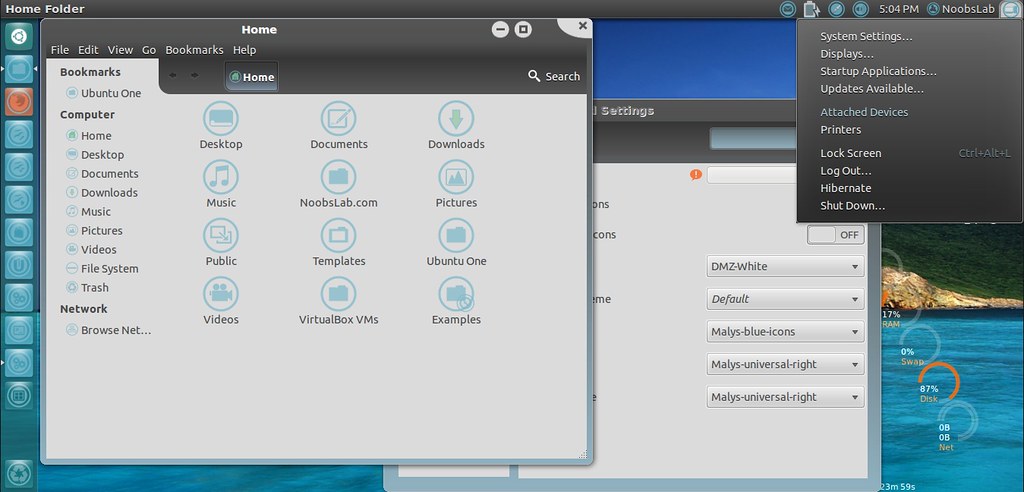 This Malys Universal-Right Theme compatible with GTK 3+2.
Available for Ubuntu 12.04/11.10/ Linux Mint 13/12.
>> Move Minimize, Maximize, Close Button to Right
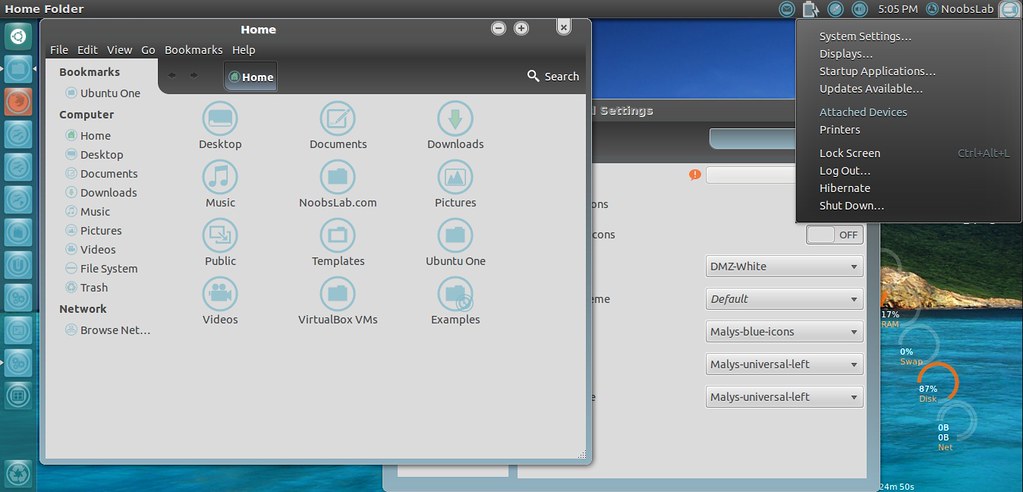 This Malys Universal-Left Theme compatible with GTK 3+2.
Available for Ubuntu 12.04/11.10/ Linux Mint 13/12.
>> Move Minimize, Maximize, Close Button to Right
2: Malys UniColors Theme (GTK)
>> Move Minimize, Maximize, Close Button to Right
>> Download Malys-UniColor Wallpaper
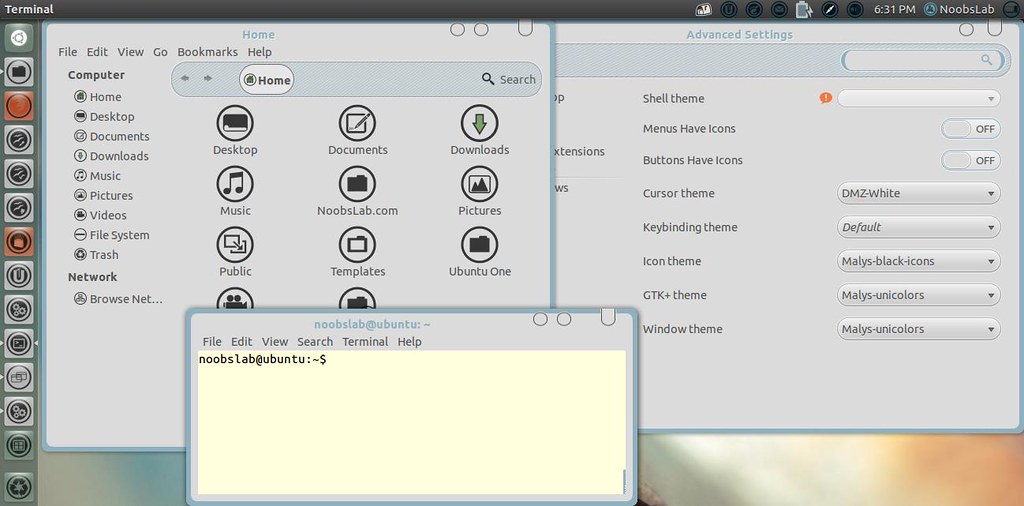 This Malys Universal-Right Theme compatible with GTK 3+2.
Available for Ubuntu 12.04/11.10/ Linux Mint 13/12.
To install Malys-Unicolors Theme on Ubuntu/Linux Mint open Terminal (Press Ctrl+Alt+T) and copy the following commands in the Terminal:
 This Malys Universal-Right Theme compatible with GTK 3+2.
Available for Ubuntu 12.04/11.10/ Linux Mint 13/12.
To install Malys-Unicolors Theme on Ubuntu/Linux Mint open Terminal (Press Ctrl+Alt+T) and copy the following commands in the Terminal:
3: Malys Revolt Theme (GTK)
>> Move Minimize, Maximize, Close Button to Right
>> Download Malys Revolt Wallpaper
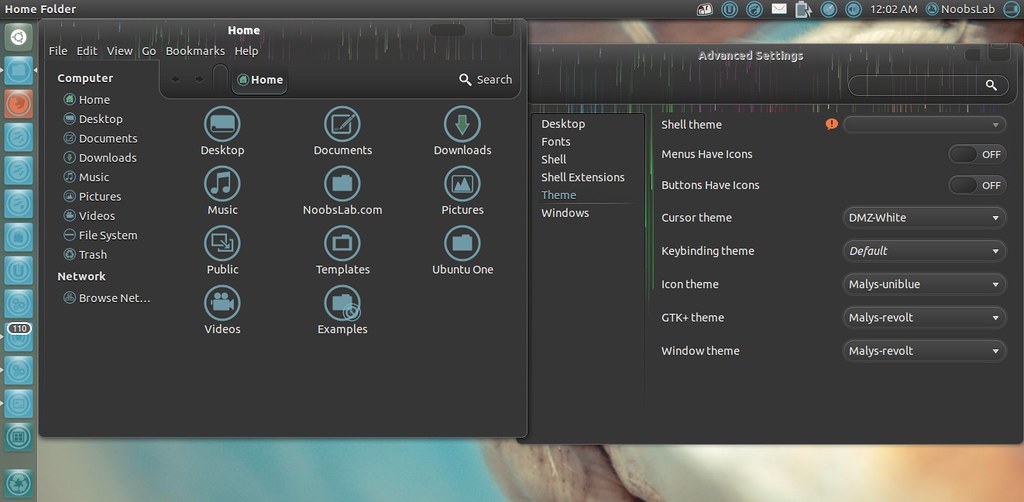 This Malys Universal-Right Theme compatible with GTK 3+2.
Available for Ubuntu 12.04/11.10/ Linux Mint 13/12.
To install Malys Revolt on Ubuntu/Mint open Terminal (Press Ctrl+Alt+T) and copy the following commands in the Terminal:
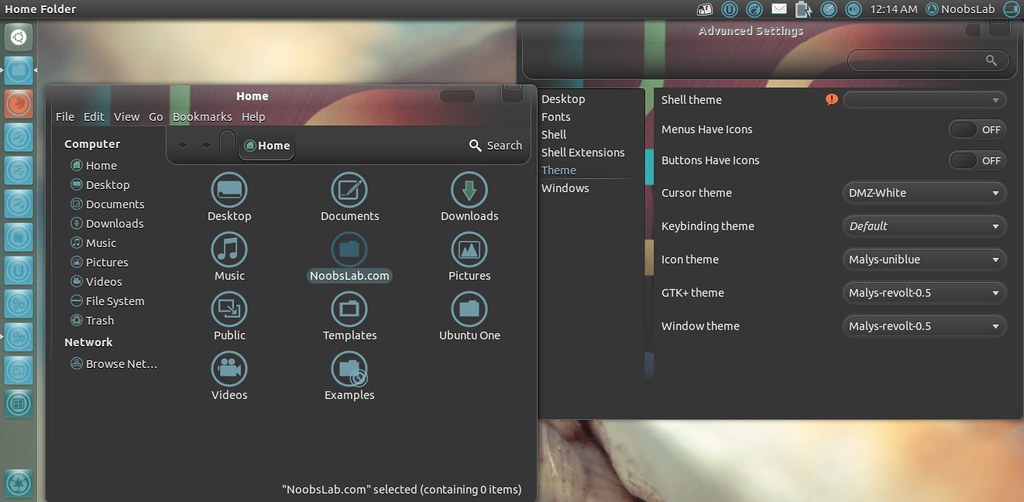 This Malys Universal-Right Theme compatible with GTK 3+2.
Available for Ubuntu 12.04/11.10/ Linux Mint 13/12.
To install Malys Revolt on Ubuntu/Mint open Terminal (Press Ctrl+Alt+T) and copy the following commands in the Terminal:
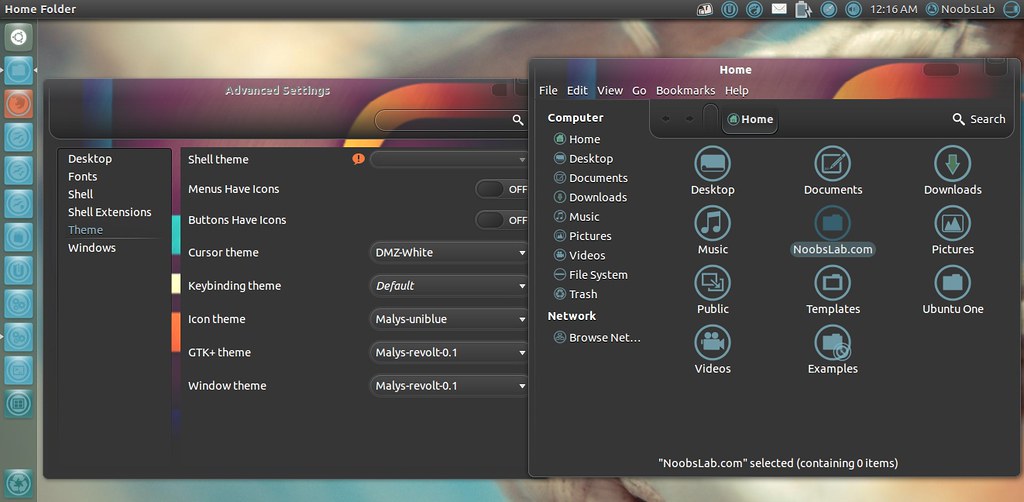 This Malys Universal-Right Theme compatible with GTK 3+2.
Available for Ubuntu 12.04/11.10/ Linux Mint 13/12.
To install Malys Revolt on Ubuntu/Mint open Terminal (Press Ctrl+Alt+T) and copy the following commands in the Terminal:
4: Malys UniSex Theme (GTK)
>> Download Wallpaper
>> Move Minimize, Maximize, Close Button to Right
 This Malys Universal-Right Theme compatible with GTK 3+2.
Available for Ubuntu 12.04/11.10/ Linux Mint 13/12.
To install Malys-Unisex-Clear on Ubuntu/Linux Mint open Terminal (Press Ctrl+Alt+T) and copy the following commands in the Terminal:
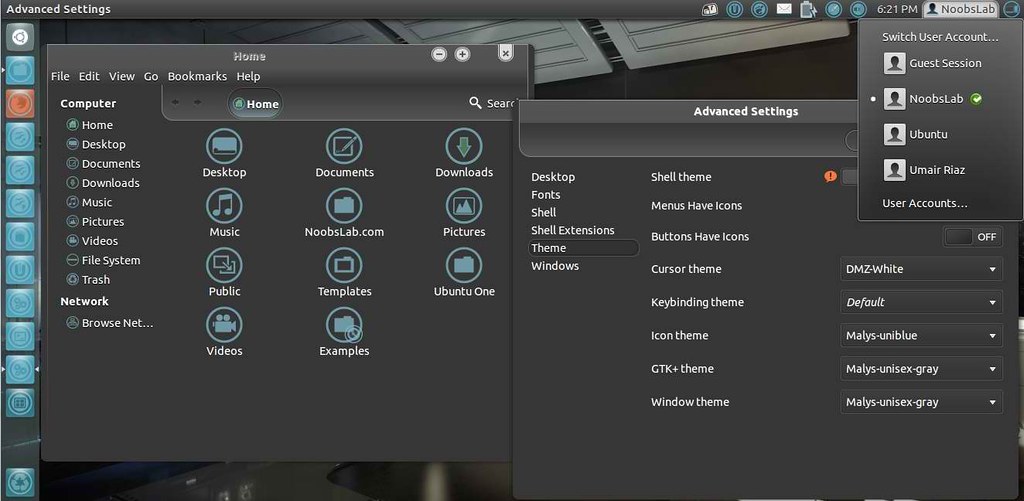 This Malys Universal-Right Theme compatible with GTK 3+2.
Available for Ubuntu 12.04/11.10/ Linux Mint 13/12.
To install Malys-Unisex-Gray on Ubuntu/Linux Mint open Terminal (Press Ctrl+Alt+T) and copy the following commands in the Terminal:
 This Malys Universal-Right Theme compatible with GTK 3+2.
Available for Ubuntu 12.04/11.10/ Linux Mint 13/12.
To install Malys-Unisex-White on Ubuntu/Linux Mint open Terminal (Press Ctrl+Alt+T) and copy the following commands in the Terminal:
5: Malys GS Theme (Gnome Shell)
>> Download Wallpaper for Malys GS

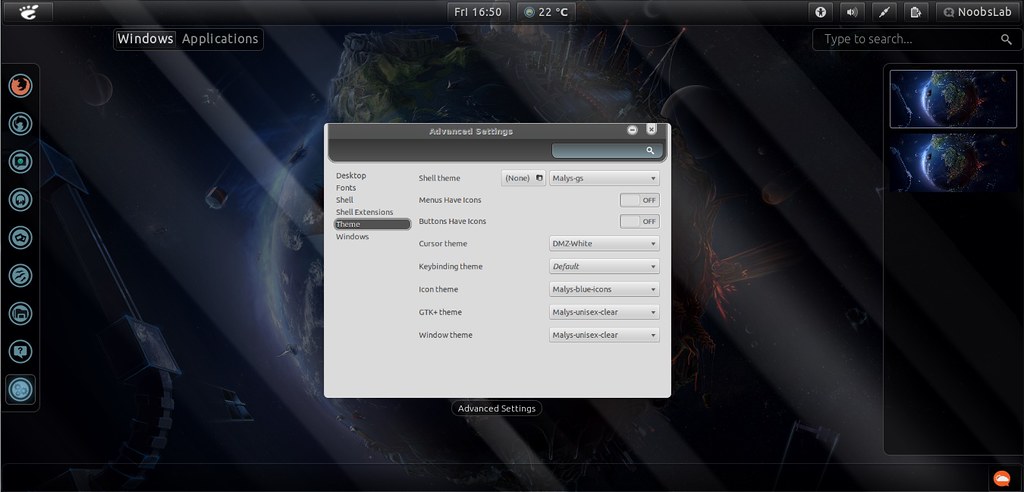 This Theme is Compatible with Gnome Shell (3)/(3.2, 3.2.1)/(3.4, 3.4.1)
Available for Ubuntu 12.04/11.10/ Linux Mint 13/12.
To install Malys-GS on Ubuntu/Linux Mint open Terminal (Press Ctrl+Alt+T) and copy the following commands in the Terminal:
6: Malys UniColors-GS Theme (Gnome Shell)
>> Download Malys-UniColors-GS Wallpaper
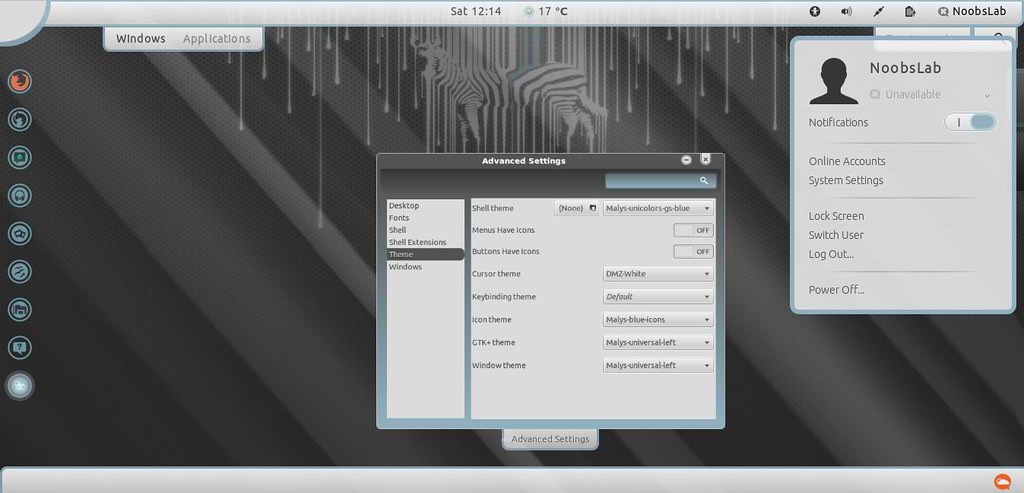 This Theme is Compatible with Gnome Shell (3)/(3.2, 3.2.1)/(3.4, 3.4.1)
Available for Ubuntu 12.04/11.10/ Linux Mint 13/12.
To install Malys-GS on Ubuntu/Linux Mint open Terminal (Press Ctrl+Alt+T) and copy the following commands in the Terminal:
 This Theme is Compatible with Gnome Shell (3)/(3.2, 3.2.1)/(3.4, 3.4.1)
Available for Ubuntu 12.04/11.10/ Linux Mint 13/12.
To install Malys-GS on Ubuntu/Linux Mint open Terminal (Press Ctrl+Alt+T) and copy the following commands in the Terminal:
7: Malys Metro Theme (Gnome Shell)
 This Theme is Compatible with Gnome Shell (3)/(3.2, 3.2.1)/(3.4, 3.4.1)
Available for Ubuntu 12.04/11.10/ Linux Mint 13/12.
To install Malys-GS on Ubuntu/Linux Mint open Terminal (Press Ctrl+Alt+T) and copy the following commands in the Terminal:
 This Theme is Compatible with Gnome Shell (3)/(3.2, 3.2.1)/(3.4, 3.4.1)
Available for Ubuntu 12.04/11.10/ Linux Mint 13/12.
To install Malys-GS on Ubuntu/Linux Mint open Terminal (Press Ctrl+Alt+T) and copy the following commands in the Terminal:
 This Theme is Compatible with Gnome Shell (3)/(3.2, 3.2.1)/(3.4, 3.4.1)
Available for Ubuntu 12.04/11.10/ Linux Mint 13/12.
To install Malys-GS on Ubuntu/Linux Mint open Terminal (Press Ctrl+Alt+T) and copy the following commands in the Terminal:
8: Malys GlassArt Theme (Gnome Shell)
>> Donwload GlassArt Wallpaper
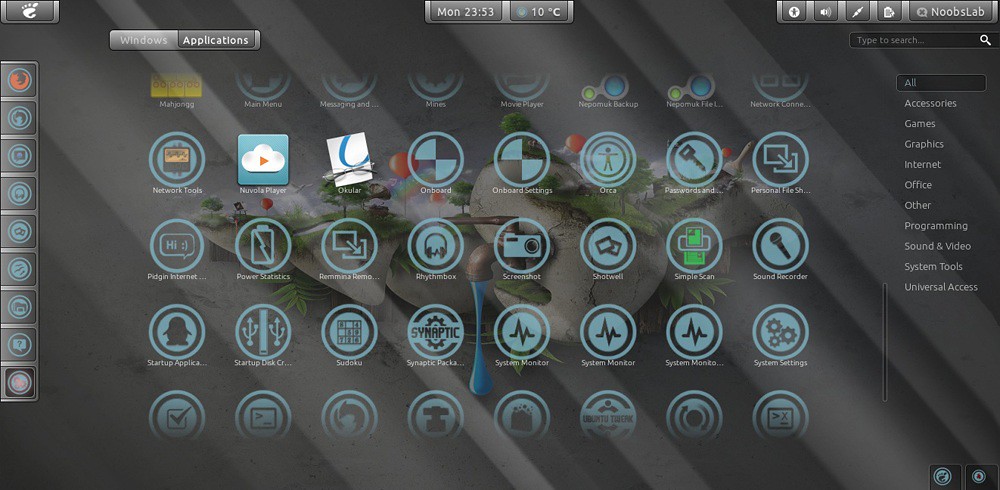 This Theme is Compatible with Gnome Shell (3)/(3.2, 3.2.1)/(3.4, 3.4.1)
Available for Ubuntu 12.04/11.10/ Linux Mint 13/12.
To Install Malys-GlassArt open Terminal (Press Ctrl+Alt+T) and copy the following commands in the Terminal:
 This Theme is Compatible with Gnome Shell (3)/(3.2, 3.2.1)/(3.4, 3.4.1)
Available for Ubuntu 12.04/11.10/ Linux Mint 13/12.
To Install Malys-GlassArt-Arch open Terminal (Press Ctrl+Alt+T) and copy the following commands in the Terminal:
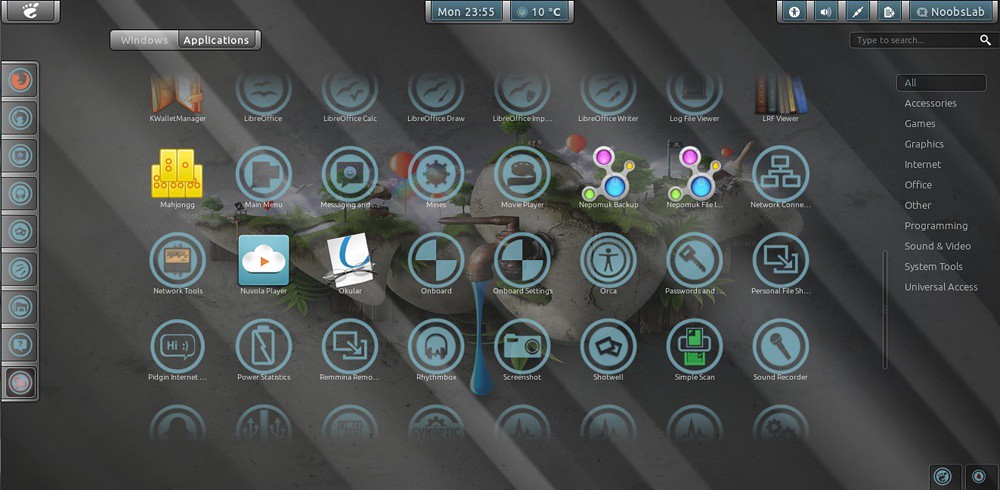 This Theme is Compatible with Gnome Shell (3)/(3.2, 3.2.1)/(3.4, 3.4.1)
Available for Ubuntu 12.04/11.10/ Linux Mint 13/12.
To Install Malys-GlassArt-Blue open Terminal (Press Ctrl+Alt+T) and copy the following commands in the Terminal:
 This Theme is Compatible with Gnome Shell (3)/(3.2, 3.2.1)/(3.4, 3.4.1)
Available for Ubuntu 12.04/11.10/ Linux Mint 13/12.
To Install Malys-GlassArt-Fedora open Terminal (Press Ctrl+Alt+T) and copy the following commands in the Terminal:
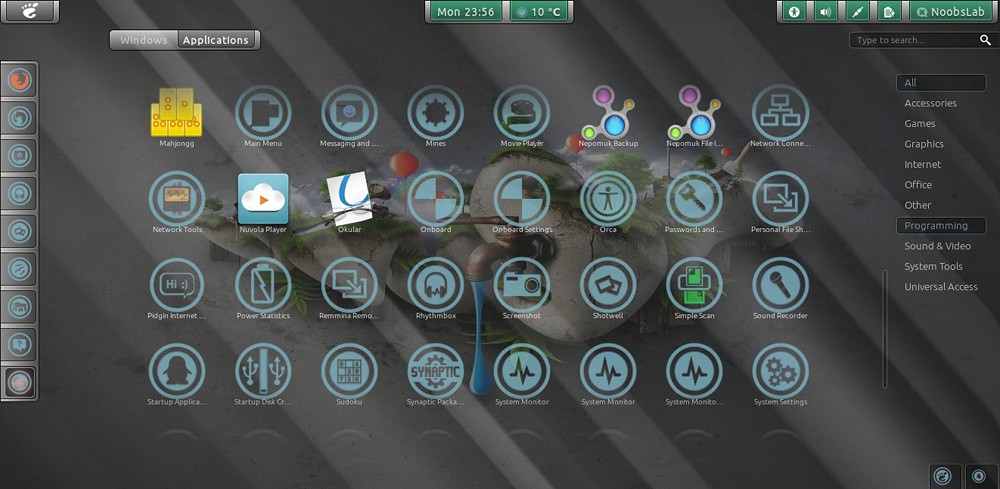 This Theme is Compatible with Gnome Shell (3)/(3.2, 3.2.1)/(3.4, 3.4.1)
Available for Ubuntu 12.04/11.10/ Linux Mint 13/12.
To Install Malys-GlassArt-Green open Terminal (Press Ctrl+Alt+T) and copy the following commands in the Terminal:
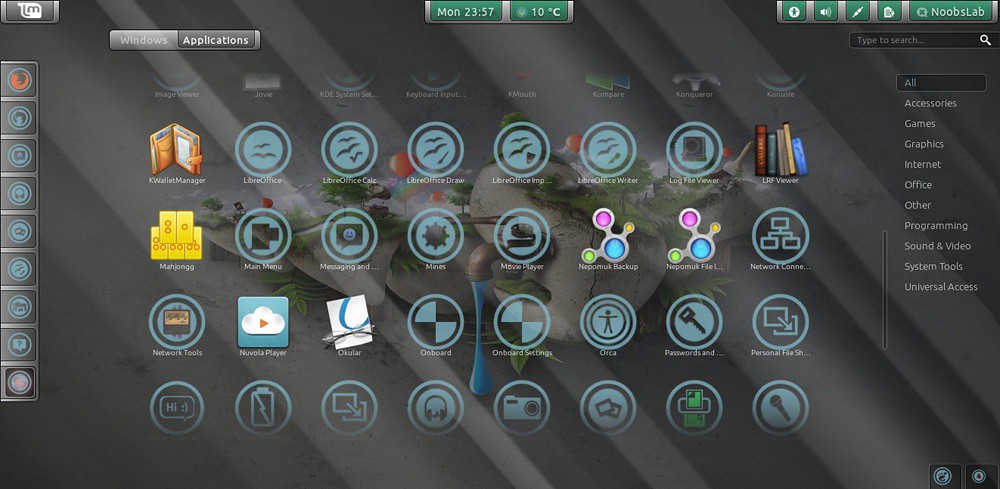 This Theme is Compatible with Gnome Shell (3)/(3.2, 3.2.1)/(3.4, 3.4.1)
Available for Ubuntu 12.04/11.10/ Linux Mint 13/12.
To Install Malys-GlassArt-Mint open Terminal (Press Ctrl+Alt+T) and copy the following commands in the Terminal:
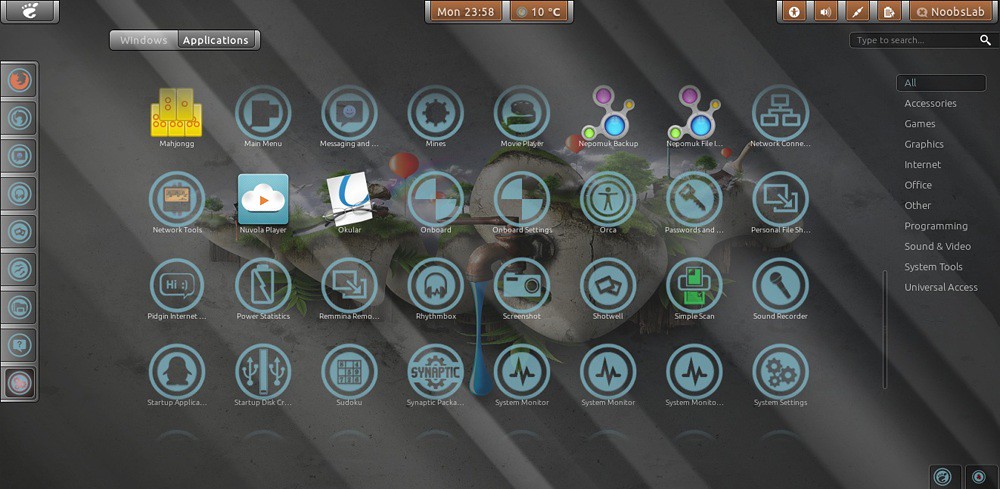 This Theme is Compatible with Gnome Shell (3)/(3.2, 3.2.1)/(3.4, 3.4.1)
Available for Ubuntu 12.04/11.10/ Linux Mint 13/12.
To Install Malys-GlassArt-Orange open Terminal (Press Ctrl+Alt+T) and copy the following commands in the Terminal:
 This Theme is Compatible with Gnome Shell (3)/(3.2, 3.2.1)/(3.4, 3.4.1)
Available for Ubuntu 12.04/11.10/ Linux Mint 13/12.
To Install Malys-GlassArt-Red open Terminal (Press Ctrl+Alt+T) and copy the following commands in the Terminal:
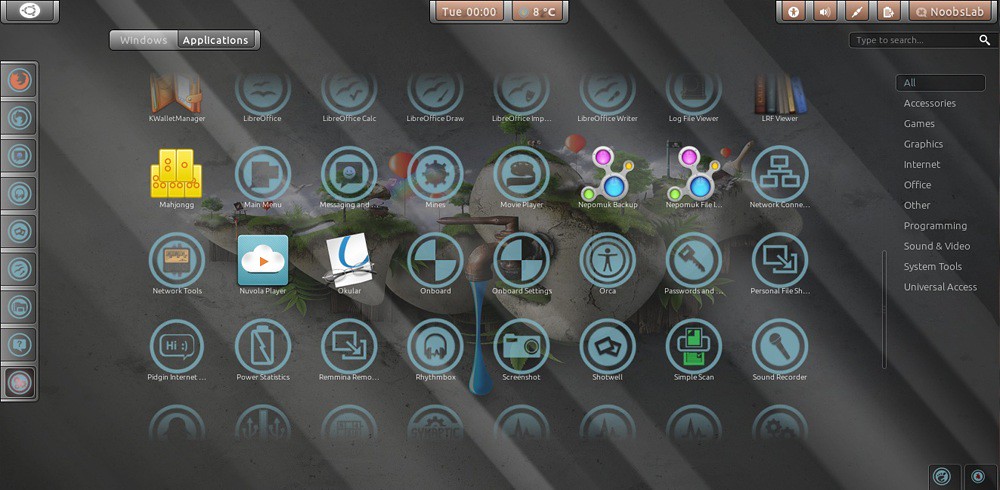 This Theme is Compatible with Gnome Shell (3)/(3.2, 3.2.1)/(3.4, 3.4.1)
Available for Ubuntu 12.04/11.10/ Linux Mint 13/12.
To Install Malys-GlassArt-Ubuntu open Terminal (Press Ctrl+Alt+T) and copy the following commands in the Terminal:
9: Malys more new themes and icons
Malys Glassy Theme (Gnome Shell)
Malys Future Theme (Gtk)
Malys-ex Icons
That's it, Enjoy.
1: Malys UniBlue Icons:
Available for Ubuntu 12.10/12.04/11.10 Linux Mint 13/12.
To install Malys-Uniblue-Icons on Ubuntu/Mint open Terminal (Press Ctrl+Alt+T) and copy the following commands in the Terminal:
- sudo add-apt-repository ppa:noobslab/icons
- sudo apt-get update
- sudo apt-get install malys-uniblue
2: Malys UniBlack Icons
Available for Ubuntu 12.10/12.04/11.10/ Linux Mint 13/12.
To install Malys-UniBlack-Icons on Ubuntu/Mint open Terminal (Press Ctrl+Alt+T) and copy the following commands in the Terminal:
- sudo add-apt-repository ppa:noobslab/icons
- sudo apt-get update
- sudo apt-get install malys-uniblack
Malys Themes
First of all add NoobsLab Themes PPA and start installation of Themes.
- sudo add-apt-repository ppa:noobslab/malys-themes
1: Malys Universal Theme (GTK)
Malys-Universal-Right Version
Available for Ubuntu 12.04/11.10/ Linux Mint 13/12.
>> Move Minimize, Maximize, Close Button to Right
- sudo apt-get install malys-universal-right
Malys-Universal-Left Version
Available for Ubuntu 12.04/11.10/ Linux Mint 13/12.
>> Move Minimize, Maximize, Close Button to Right
- sudo apt-get install malys-universal-left
2: Malys UniColors Theme (GTK)
>> Move Minimize, Maximize, Close Button to Right
>> Download Malys-UniColor Wallpaper
Malys UniColors Blue Version
Available for Ubuntu 12.04/11.10/ Linux Mint 13/12.
To install Malys-Unicolors Theme on Ubuntu/Linux Mint open Terminal (Press Ctrl+Alt+T) and copy the following commands in the Terminal:
- sudo apt-get install malys-unicolors-blue
Malys UniColors Gray Version
Available for Ubuntu 12.04/11.10/ Linux Mint 13/12.
To install Malys-Unicolors Theme on Ubuntu/Linux Mint open Terminal (Press Ctrl+Alt+T) and copy the following commands in the Terminal:
- sudo apt-get install malys-unicolors-gray
3: Malys Revolt Theme (GTK)
>> Move Minimize, Maximize, Close Button to Right
>> Download Malys Revolt Wallpaper
Malys Revolt 1.0 Version
Available for Ubuntu 12.04/11.10/ Linux Mint 13/12.
To install Malys Revolt on Ubuntu/Mint open Terminal (Press Ctrl+Alt+T) and copy the following commands in the Terminal:
- sudo apt-get install malys-revolt
Malys Revolt 0.5 Version
Available for Ubuntu 12.04/11.10/ Linux Mint 13/12.
To install Malys Revolt on Ubuntu/Mint open Terminal (Press Ctrl+Alt+T) and copy the following commands in the Terminal:
- sudo apt-get install malys-revolt-0.5
Malys Revolt 0.1 Version
Available for Ubuntu 12.04/11.10/ Linux Mint 13/12.
To install Malys Revolt on Ubuntu/Mint open Terminal (Press Ctrl+Alt+T) and copy the following commands in the Terminal:
- sudo apt-get install malys-revolt-0.1
4: Malys UniSex Theme (GTK)
>> Download Wallpaper
>> Move Minimize, Maximize, Close Button to Right
Malys UniSex Clear Version
Available for Ubuntu 12.04/11.10/ Linux Mint 13/12.
To install Malys-Unisex-Clear on Ubuntu/Linux Mint open Terminal (Press Ctrl+Alt+T) and copy the following commands in the Terminal:
- sudo apt-get install malys-unisex-clear
Malys UniSex Gray Version
Available for Ubuntu 12.04/11.10/ Linux Mint 13/12.
To install Malys-Unisex-Gray on Ubuntu/Linux Mint open Terminal (Press Ctrl+Alt+T) and copy the following commands in the Terminal:
- sudo apt-get install malys-unisex-gray
Malys UniSex White Version
Available for Ubuntu 12.04/11.10/ Linux Mint 13/12.
To install Malys-Unisex-White on Ubuntu/Linux Mint open Terminal (Press Ctrl+Alt+T) and copy the following commands in the Terminal:
- sudo apt-get install malys-unisex-white
5: Malys GS Theme (Gnome Shell)
>> Download Wallpaper for Malys GS
Available for Ubuntu 12.04/11.10/ Linux Mint 13/12.
To install Malys-GS on Ubuntu/Linux Mint open Terminal (Press Ctrl+Alt+T) and copy the following commands in the Terminal:
- sudo apt-get install malys-gs
6: Malys UniColors-GS Theme (Gnome Shell)
>> Download Malys-UniColors-GS Wallpaper
Malys UniColors-GS-Blue Version
Available for Ubuntu 12.04/11.10/ Linux Mint 13/12.
To install Malys-GS on Ubuntu/Linux Mint open Terminal (Press Ctrl+Alt+T) and copy the following commands in the Terminal:
- sudo apt-get install malys-unicolors-gs-blue
Malys UniColors-GS-Gray Version
Available for Ubuntu 12.04/11.10/ Linux Mint 13/12.
To install Malys-GS on Ubuntu/Linux Mint open Terminal (Press Ctrl+Alt+T) and copy the following commands in the Terminal:
- sudo apt-get install malys-unicolors-gs-gray
7: Malys Metro Theme (Gnome Shell)
Malys Metro-1 Version
Available for Ubuntu 12.04/11.10/ Linux Mint 13/12.
To install Malys-GS on Ubuntu/Linux Mint open Terminal (Press Ctrl+Alt+T) and copy the following commands in the Terminal:
- sudo apt-get install malys-metro1
Malys Metro-2 Version
Available for Ubuntu 12.04/11.10/ Linux Mint 13/12.
To install Malys-GS on Ubuntu/Linux Mint open Terminal (Press Ctrl+Alt+T) and copy the following commands in the Terminal:
- sudo apt-get install malys-metro2
Malys Metro-3 Version
Available for Ubuntu 12.04/11.10/ Linux Mint 13/12.
To install Malys-GS on Ubuntu/Linux Mint open Terminal (Press Ctrl+Alt+T) and copy the following commands in the Terminal:
- sudo apt-get install malys-metro3
8: Malys GlassArt Theme (Gnome Shell)
>> Donwload GlassArt Wallpaper
Malys GlassArt Version
Available for Ubuntu 12.04/11.10/ Linux Mint 13/12.
To Install Malys-GlassArt open Terminal (Press Ctrl+Alt+T) and copy the following commands in the Terminal:
- sudo apt-get install malys-glassart
Malys GlassArt-Arch Version
Available for Ubuntu 12.04/11.10/ Linux Mint 13/12.
To Install Malys-GlassArt-Arch open Terminal (Press Ctrl+Alt+T) and copy the following commands in the Terminal:
- sudo apt-get install malys-glassart-arch
Malys GlassArt-Blue Version
Available for Ubuntu 12.04/11.10/ Linux Mint 13/12.
To Install Malys-GlassArt-Blue open Terminal (Press Ctrl+Alt+T) and copy the following commands in the Terminal:
- sudo apt-get install malys-glassart-blue
Malys GlassArt-Fedora Version
Available for Ubuntu 12.04/11.10/ Linux Mint 13/12.
To Install Malys-GlassArt-Fedora open Terminal (Press Ctrl+Alt+T) and copy the following commands in the Terminal:
- sudo apt-get install malys-glassart-fedora
Malys GlassArt-Green Version
Available for Ubuntu 12.04/11.10/ Linux Mint 13/12.
To Install Malys-GlassArt-Green open Terminal (Press Ctrl+Alt+T) and copy the following commands in the Terminal:
- sudo apt-get install malys-glassart-green
Malys GlassArt-Mint Version
Available for Ubuntu 12.04/11.10/ Linux Mint 13/12.
To Install Malys-GlassArt-Mint open Terminal (Press Ctrl+Alt+T) and copy the following commands in the Terminal:
- sudo apt-get install malys-glassart-mint
Malys GlassArt-Orange Version
Available for Ubuntu 12.04/11.10/ Linux Mint 13/12.
To Install Malys-GlassArt-Orange open Terminal (Press Ctrl+Alt+T) and copy the following commands in the Terminal:
- sudo apt-get install malys-glassart-orange
Malys GlassArt-Red Version
Available for Ubuntu 12.04/11.10/ Linux Mint 13/12.
To Install Malys-GlassArt-Red open Terminal (Press Ctrl+Alt+T) and copy the following commands in the Terminal:
- sudo apt-get install malys-glassart-red
Malys GlassArt-Ubuntu Version
Available for Ubuntu 12.04/11.10/ Linux Mint 13/12.
To Install Malys-GlassArt-Ubuntu open Terminal (Press Ctrl+Alt+T) and copy the following commands in the Terminal:
- sudo apt-get install malys-glassart-ubuntu
9: Malys more new themes and icons
Malys Glassy Theme (Gnome Shell)
Malys Future Theme (Gtk)
Malys-ex Icons
That's it, Enjoy.
Source: Malysss DeviantArt