Warung Bebas
Showing posts with label gtk3 themes. Show all posts

Thursday, 9 August 2012

Install Fusion Dark theme on Ubuntu/Linux Mint (GTK3 + Gnome Shell)

Install Fusion Dark GTK3 + Gnome Shell Theme on Ubuntu 12.04 Precise/Linux Mint 13 Maya

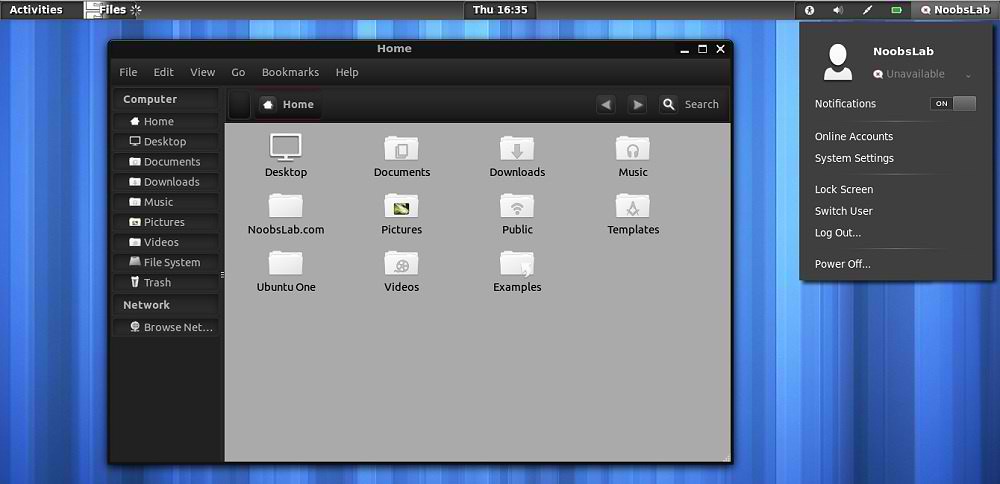
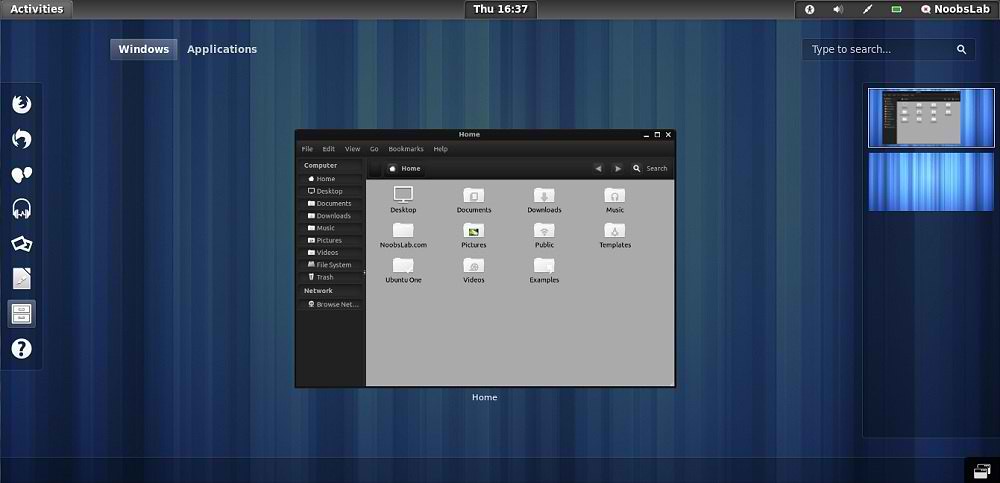
Fusion is dark theme some people really like dark theme, it is available for Gnome Shell 3.4 and GTK 3. It shows white windows border in unity environment but still looks cool.
You can use these Tools to change theme and icons: Gnome Tweak Tool, Ubuntu Tweak
Checkout theme collection here.

1st Install Awoken Icons

ubuntu themes

dark themes

To install Fusion theme on Ubuntu/Linux Mint (GTK +Gnome Shell) open Terminal (Press Ctrl+Alt+T) and copy the following commands in the Terminal:
  • mkdir ~/.themes
  • wget -O Fusion-Theme.zip http://dl.dropbox.com/u/53319850/NoobsLab.com/themes/Fusion-Theme.zip
  • unzip Fusion-Theme.zip -d ~/.themes
  • sudo rm Fusion-Theme.zip
That's it, Enjoy
Source: Fusion

Sunday, 29 July 2012

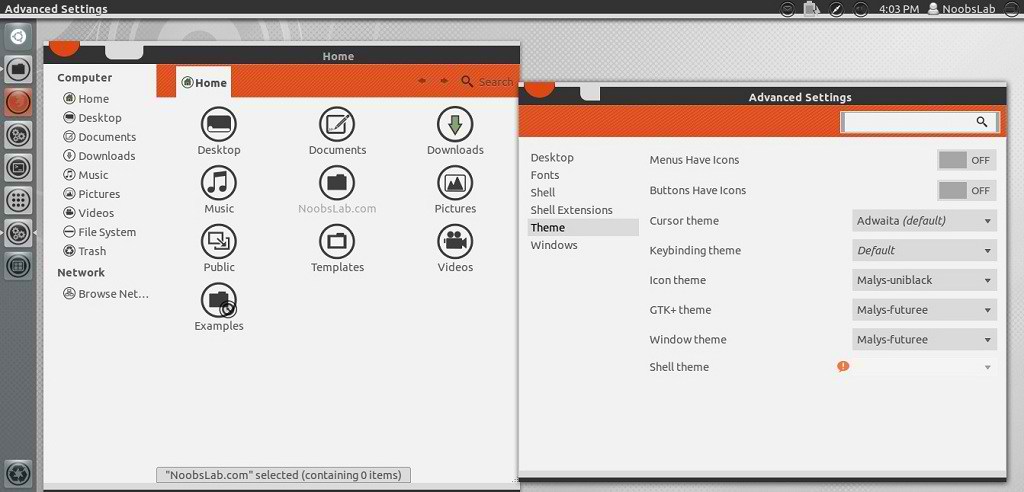
Install Malys-FutureBox Themes on Ubuntu/Linux Mint (GTK 3)

Install Malys-FutureBox Themes on Ubuntu 12.10/12.04/11.10/Linux Mint (GTK 3)/Ubuntu based Distributions

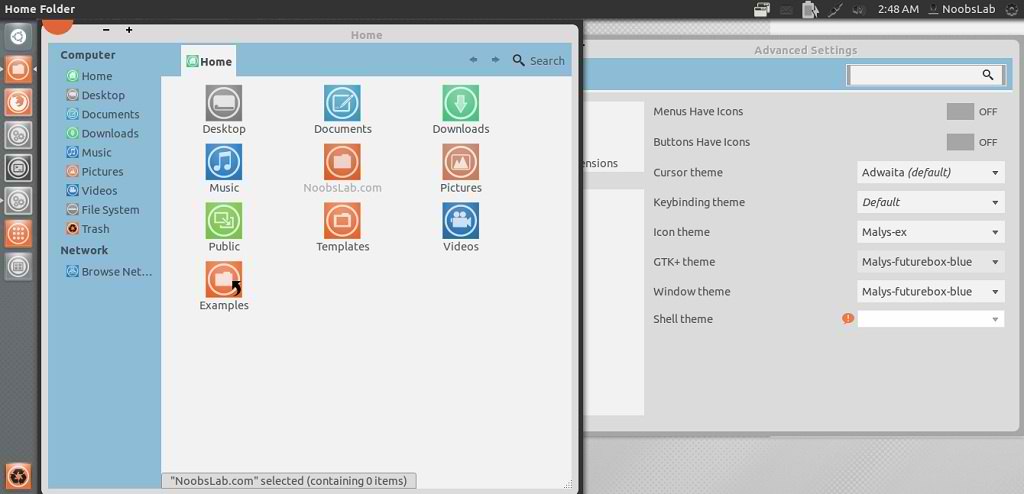
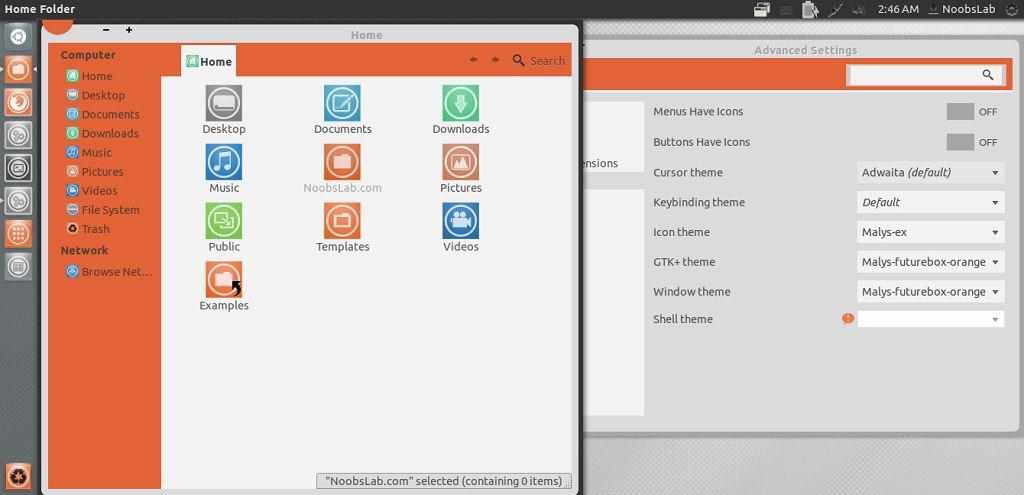
Malys is really nice themes and icons creator. Here you can find Malys other themes and icons. This malys-futurebox theme is made for GTK3. There are three version Green, Orange, Blue.

You can use these Tools to change theme and icons: Gnome Tweak Tool, Ubuntu Tweak

1st: Install Malys-ex Icons
2nd: Download Wallpapers

Malys-FutureBox-Blue
ubuntu themes

Malys-FutureBox-Green
gtk3 themes

Malys-FutureBox-Orange
ubuntu themes

To install Malys-FutureBox on Ubuntu/Linux Mint open Terminal (Press Ctrl+Alt+T) and copy the following commands in the Terminal:
  • sudo add-apt-repository ppa:noobslab/malys-themes
  • sudo apt-get update
  • sudo apt-get install malys-futurebox
That's it, Enjoy

Saturday, 7 July 2012

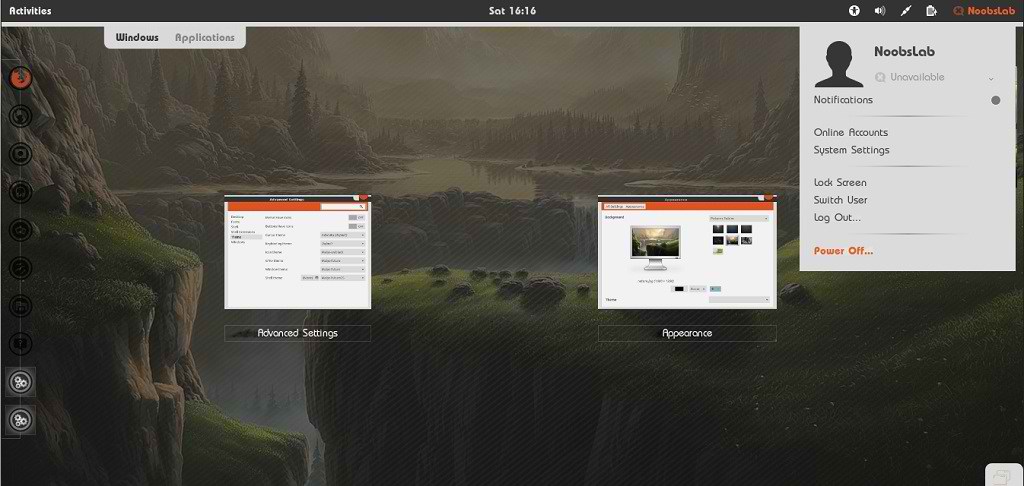
Install Malys Future Transparent Theme on Ubuntu/Linux Mint (Gnome Shell + Gtk3)

Install Malys Future Transparent Theme on Ubuntu 12.04 Precise/Ubuntu 12.10 Quantal/Ubuntu 11.10 Oneiric/Linux Mint (Gnome Shell + Gtk3)

Malys is great theme author, previously NoobsLab shared his many theme which you can found in Collection.  Malys Future theme is available for GTK and Gnome Shell. This theme tested on Ubuntu 12.04 with Gnome Shell 3.4 + GTK 3.

You can use these Tools to change theme and icons: Gnome Tweak Tool, Ubuntu Tweak

>> First of all Install Fonts open Terminal and enter following commands:
  • mkdir ~/.fonts
  • wget -O malys-future-fonts.zip http://dl.dropbox.com/u/53319850/NoobsLab.com/malys-future-fonts.zip
  • unzip malys-future-fonts.zip -d ~/.fonts
>> Now Install UniBlack Icons
>> Download Malys Future Wallpapers
>> Move Close, Minimize, Maximize Buttons to Right


1: Malys Future GTK Version

Malys Futuree Version
ubuntu themes

Malys Future Version
ubuntu themes

Both versions will be available with one command.

To install Malys Future Gtk on Ubuntu/Linux Mint open Terminal (Press Ctrl+Alt+T) and copy the following commands in the Terminal:
  • sudo add-apt-repository ppa:noobslab/malys-themes
  • sudo apt-get update
  • sudo apt-get install malys-future

2: Malys Future Transparent Gnome Shell Version

Malys Future Gnome Shell Version
ubuntu themes

Malys Futuree Transparent Gnome Shell Version
ubuntu themes

Both versions will be available with one command.

To install Malys Future Gtk on Ubuntu/Linux Mint open Terminal (Press Ctrl+Alt+T) and copy the following commands in the Terminal:
  • sudo add-apt-repository ppa:noobslab/malys-themes
  • sudo apt-get update
  • sudo apt-get install malys-future-gs
That's it, Enjoy

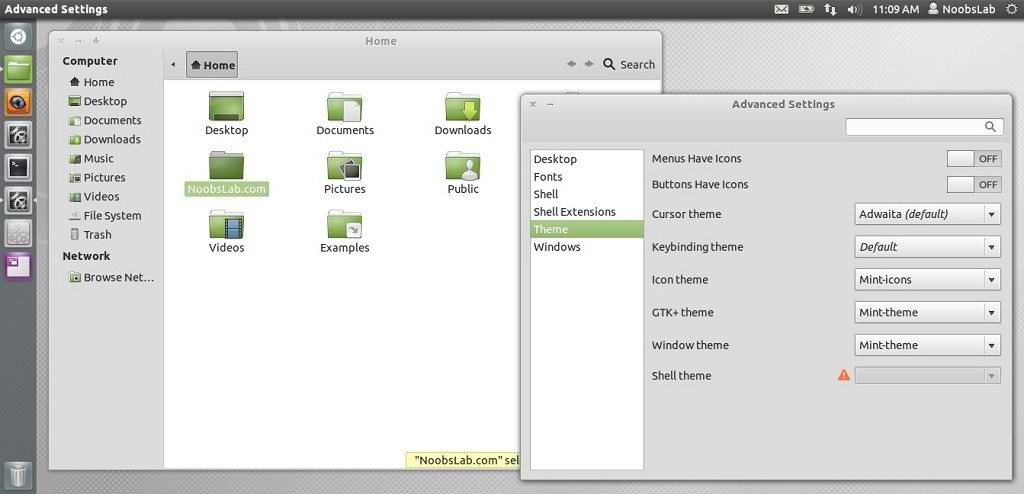
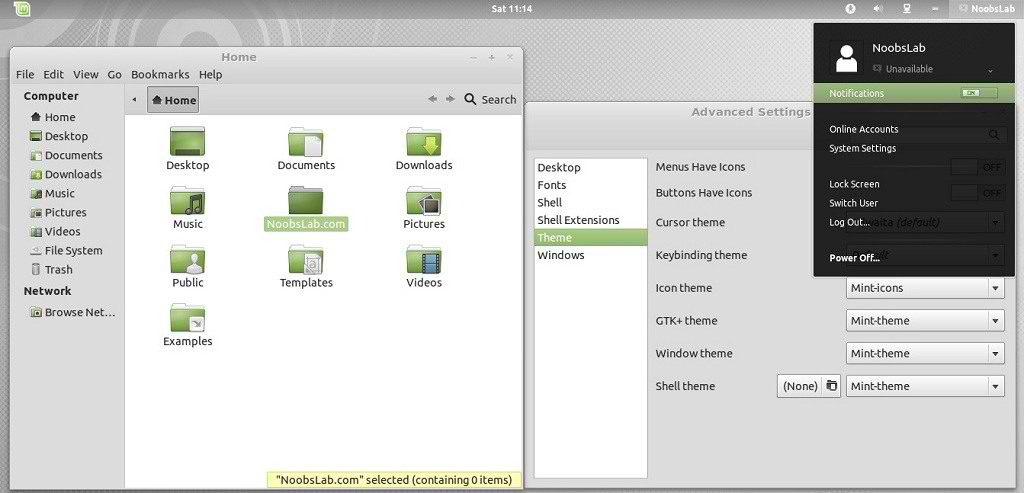
Install Linux Mint Theme + Icons in Ubuntu (Gnome Shell + GTK3 + Cinnamon)

Install Linux Mint Theme + Icons in Ubuntu 12.10 Quantal/Ubuntu 12.04 Precise/Ubuntu 11.10 Oneiric (Gnome Shell + GTK + Cinnamon)


Mbossg is theme author, He provide Mint theme and icons for Ubuntu users. For those who want different flavor theme in Ubuntu can check collection here.
This Mint theme is available for GTK3, Gnome Shell 3.4, Cinnamon.

You can use these Tools to change theme and icons: Gnome Tweak Tool, Ubuntu Tweak


ubuntu theme


mint theme


To install Mint Theme on Ubuntu open Terminal (Press Ctrl+Alt+T) and copy the following commands in the Terminal:

  • mkdir ~/.themes
  • wget -O mint-theme.zip http://dl.dropbox.com/u/53319850/NoobsLab.com/mint-theme.zip
  • unzip mint-theme.zip -d ~/.themes

To install Mint Icons on Ubuntu open Terminal (Press Ctrl+Alt+T) and copy the following commands in the Terminal:

  • mkdir ~/.icons
  • wget -O mint-icons.zip http://dl.dropbox.com/u/53319850/NoobsLab.com/mint-icons.zip
  • unzip mint-icons.zip -d ~/.icons
That's it, Enjoy.

Friday, 6 July 2012

Install Zukitwo Primary Colors Theme on Ubuntu/Linux Mint

Install Zukitwo Primary Colors Theme on Ubuntu 12.10/Ubuntu 12.04/Ubuntu 11.10/Linux Mint

You can use These Tools to change theme: Gnome Tweak Tool, Ubuntu Tweak

zukitwo theme

ubuntu theme

Ubuntu themes

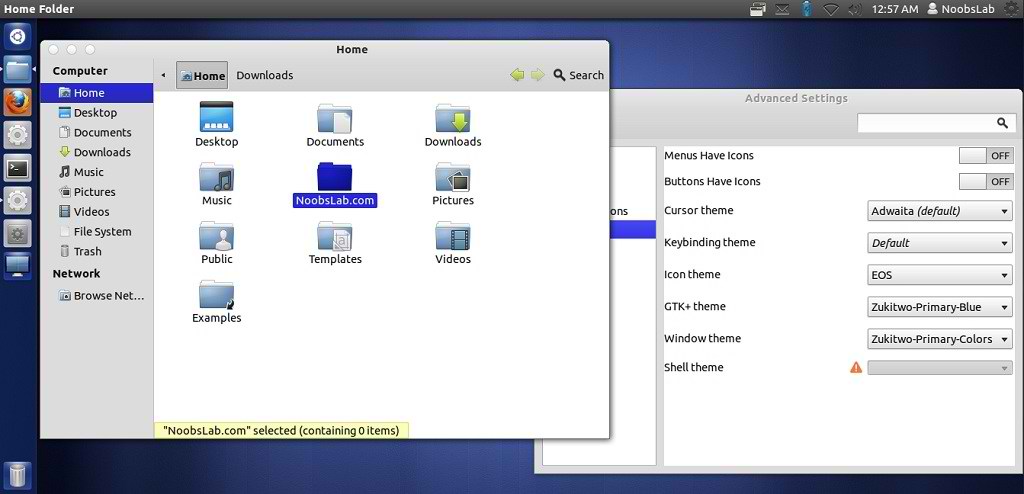
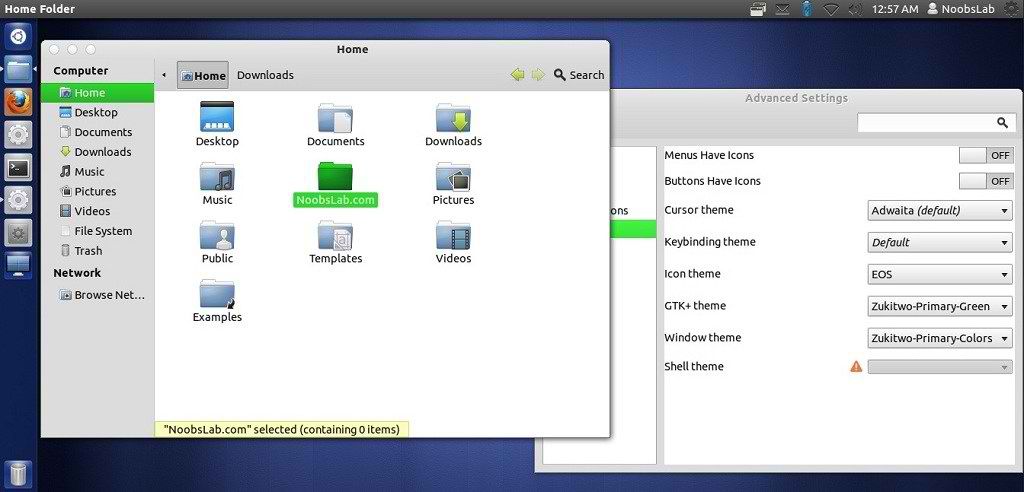
There are three GTK2, GTK3, GNOME Shell and Cinnamon themes in all (Red, Green and Blue) as well as common Metacity/Mutter and XFWM themes for all three themes (Zukitwo-Primary-Colors).

To install Zukitwo-Primary-Colors theme on Ubuntu/Linux Mint (Press Ctrl+Alt+T) and copy the following commands in the Terminal:
  • mkdir ~/.themes
  • wget -O zukitwo_pc.zip http://dl.dropbox.com/u/53319850/NoobsLab.com/zukitwo_primary_colors.zip
  • unzip zukitwo_pc.zip -d ~/.themes
Enjoy
Source: Deviantart

Saturday, 23 June 2012

Install GnomishDark theme on Ubuntu/Linux Mint (GTK3 + Gnome Shell)

Install GnomishDark theme on Ubuntu 12.04/11.10/Linux Mint 13/12 (GTK3 + Gnome Shell)

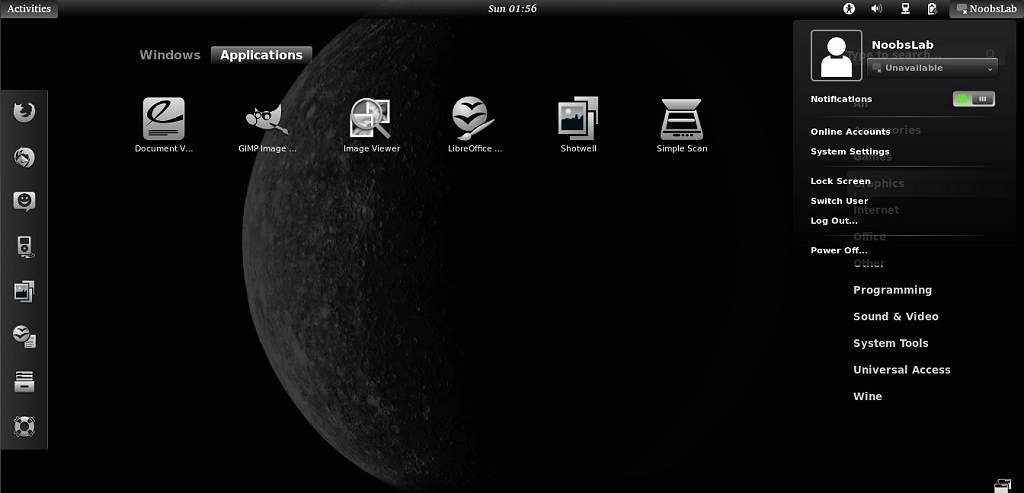
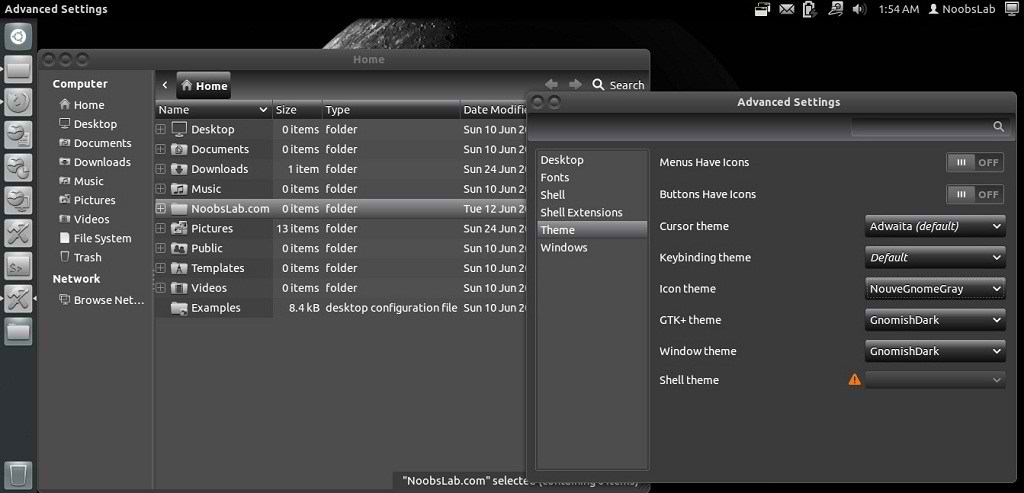
This is a clean dark theme for GTK3, based on Adwaita (provided by gnome-themes-standard), plus a matching GNOME-Shell theme. This theme works with Gnome shell, Gtk3.

You can use These Tools to change icons/themes: Gnome Tweak Tool, Ubuntu Tweak

Ubuntu Themes

Ubuntu Themes

1st Install nouveGnome Gray Icons then install theme.

To install GnomishDark theme on Ubuntu/Linux Mint open Terminal (Press Ctrl+Alt+T) and copy the following commands in the Terminal:
  • mkdir ~/.themes
  • wget -O GnomishDark.zip http://dl.dropbox.com/u/53319850/NoobsLab.com/GnomishDark1.zip
  • unzip GnomishDark.zip -d ~/.themes && sudo rm GnomishDark.zip
That's it, Enjoy
Source: GnomishDark

Tuesday, 19 June 2012

Install Evolve GTK3 theme on Ubuntu/Linux Mint

Install Evolve GTK3 theme on Ubuntu 12.04 Precise/11.10 Oneiric/Linux Mint 13/12

Evolve is a simple and minimal light theme for Gnome. It supports Gnome Shell, Unity and Pantheon. The theme is compatible with GTK 3.4 and uses the Adwaita engine. It also includes a GTK 2.0 theme using Murrine engine.

Ubuntu themes

To install Evolve theme on Ubuntu/Mint open Terminal (Press Ctrl+Alt+T) and copy the following commands in the Terminal:
  • sudo add-apt-repository ppa:satyajit-happy/themes
  • sudo apt-get update
  • sudo apt-get install evolve-gtk-theme
For other Distro's Download Source From here
That's it, Enjoy

Monday, 11 June 2012

Install Elementary Dark Gtk3 Theme on Ubuntu 12.04/11.10/Linux Mint 13/12

Install Elementary Dark Gtk3 Theme on Ubuntu 12.04 Precise/11.10 Oneiric/Linux Mint 13/12

elementary dark theme

Ubuntu elementary theme

elementary Dark is a soft and subtle dark theme based on the higly popular elementary theme.
The theme is compatible with the latest GTK 3.4 and uses the Unico engine. It also includes the elementary Dark GTK 2.0 theme using Murrine engine.

Malys UniBlue Icons used in Screenshots.

To install Elementary Dark theme on Ubuntu/Linux Mint open Terminal (Press Ctrl+Alt+T) and copy the following commands in the Terminal:
  • sudo add-apt-repository ppa:satyajit-happy/themes
  • sudo apt-get update
  • sudo apt-get install elementary-dark-theme
That's it, Enjoy.
Source: satya164

Monday, 21 May 2012

Install Malys-Unisex GTK3/2 themes on Ubuntu/Linux Mint

Install Malys-Unisex GTK3/2 themes on Ubuntu 12.04/11.10 Oneiric/11.04/10.10/10.04/Linux Mint

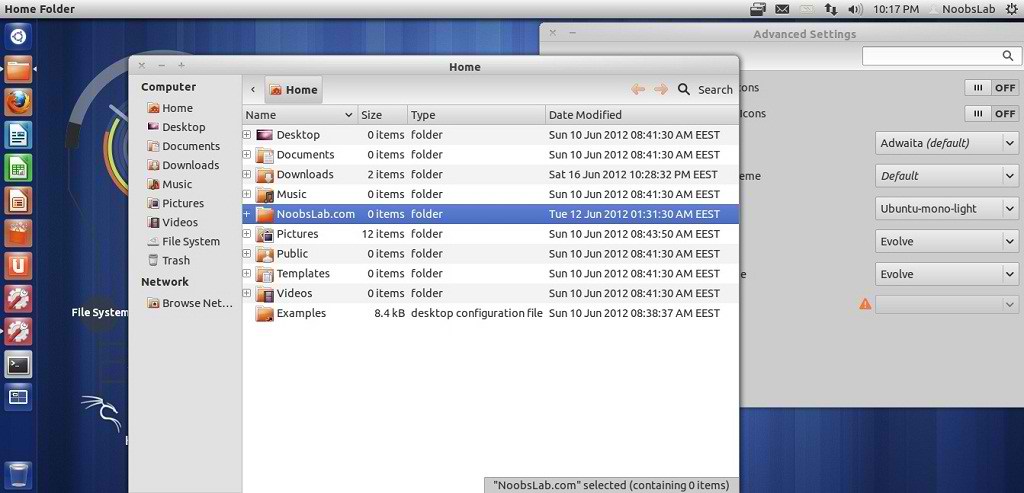
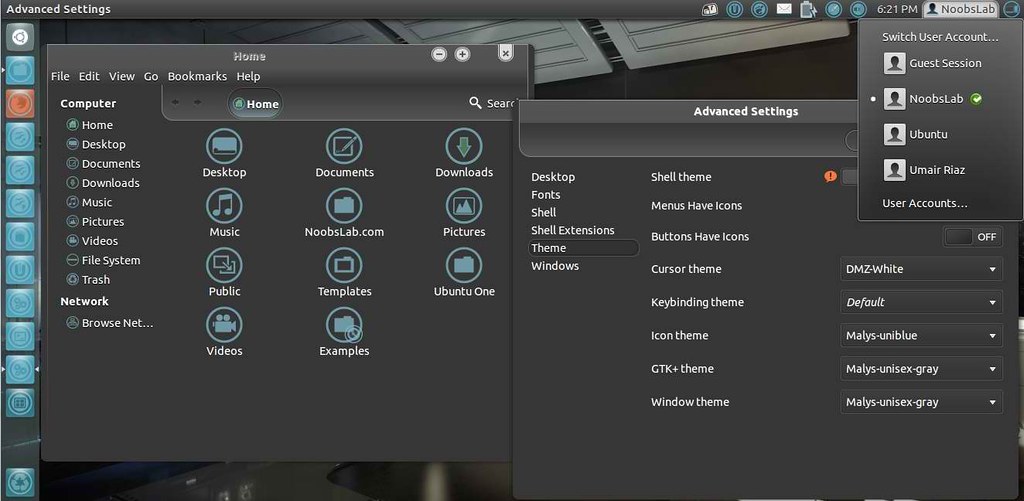
Malys-Unisex theme is really nice theme Personally I like this theme. It Support Gtk 3/2 and have 3 different versions clear, gray and white.

1st Download Wallpaper
2nd Install Malys-Uniblue-Icons
3rd: Move Minimize, Maximize, Close Button to Right

>> Malys-Unisex-Clear Theme

ubuntu malys themes

To install Malys-Unisex-Clear on Ubuntu/Linux Mint open Terminal (Press Ctrl+Alt+T) and copy the following commands in the Terminal:
  • sudo add-apt-repository ppa:noobslab/malys-themes
  • sudo apt-get update
  • sudo apt-get install malys-unisex-clear

>> Malys-Unisex-Gray Theme

ubuntu themes

To install Malys-Unisex-Gray on Ubuntu/Linux Mint open Terminal (Press Ctrl+Alt+T) and copy the following commands in the Terminal:
  • sudo add-apt-repository ppa:noobslab/malys-themes
  • sudo apt-get update
  • sudo apt-get install malys-unisex-gray

>> Malys-Unisex-White Theme

ubuntu gtk themes

To install Malys-Unisex-White on Ubuntu/Linux Mint open Terminal (Press Ctrl+Alt+T) and copy the following commands in the Terminal:
  • sudo add-apt-repository ppa:noobslab/malys-themes
  • sudo apt-get update
  • sudo apt-get install malys-unisex-white
For other Distro see Source link. That's it, Enjoy
Source: Malys-Unisex

Monday, 14 May 2012

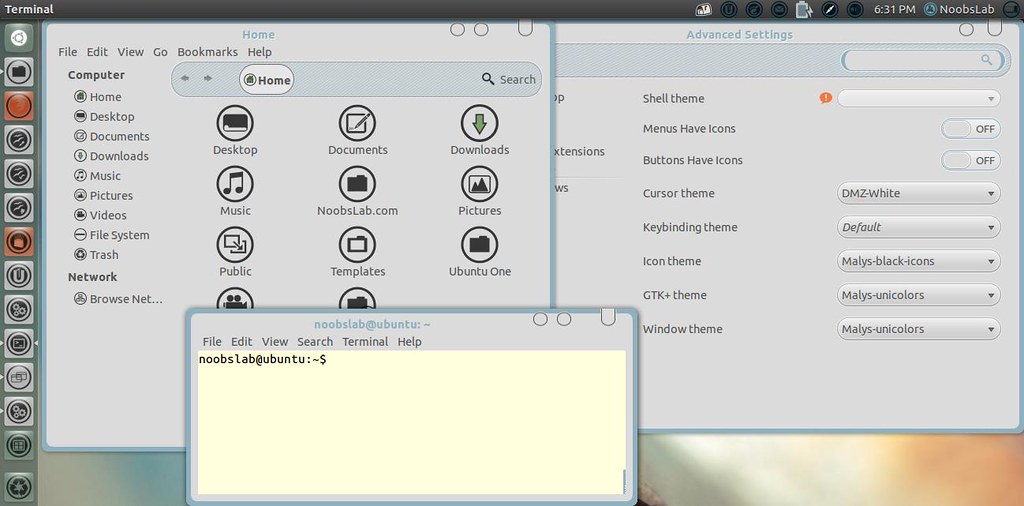
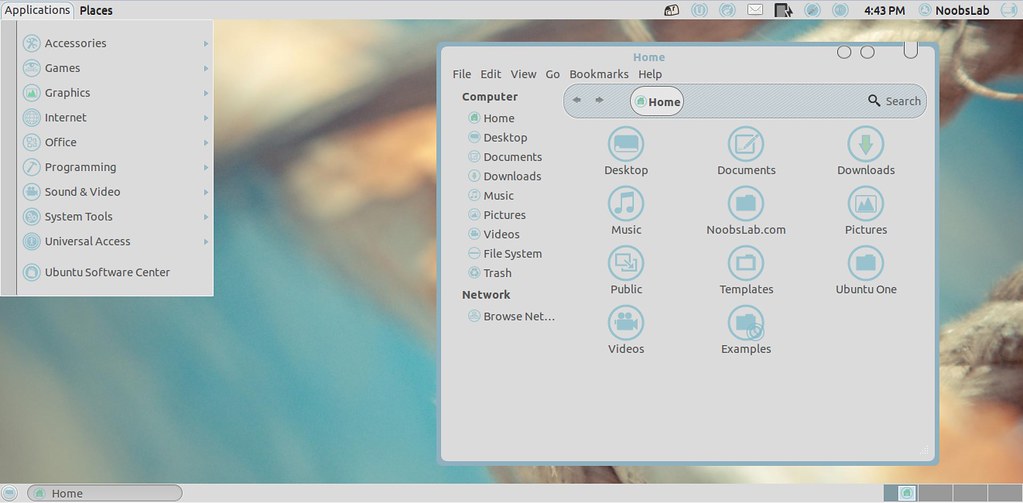
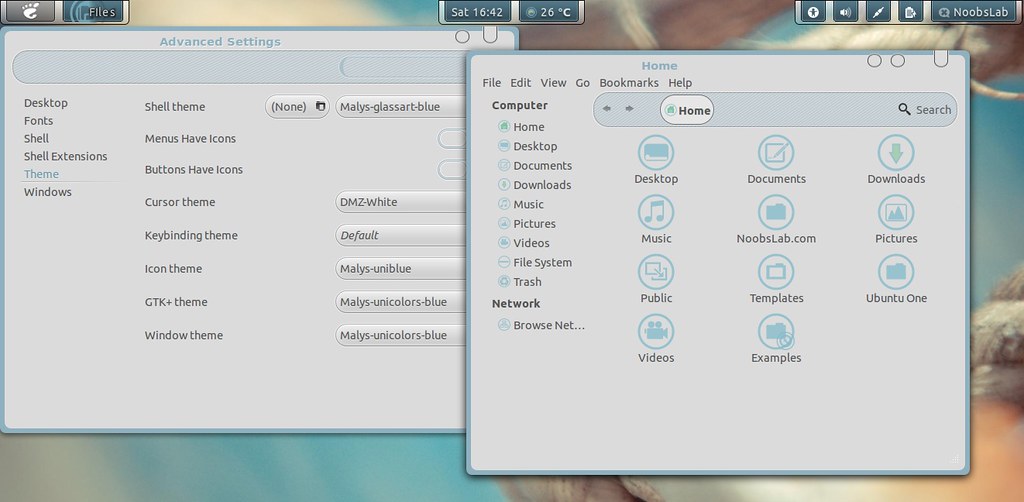
Install Malys-Unicolors GTK3/2 Theme on Ubuntu/Linux Mint

Install Malys-Unicolors GTK3/2 Theme on Ubuntu 12.04 Precise/11.10 Oneiric/Linux Mint 13/12

1st: Install Malys UniBlue or UniBlack Icons
2nd: Move Minimize, Maximize, Close Button to Right
3rd: Download Malys-UniColor Wallpaper

Use Tweak Tools to change theme and icons: Ubuntu Tweak, Gnome Tweak Tool

1: Malys-UniColors-Blue

Ubuntu 12.04 themes

Themes Tested on Ubuntu 12.04 Precise Pangolin.

To install Malys-Unicolors Theme on Ubuntu/Linux Mint open Terminal (Press Ctrl+Alt+T) and copy the following commands in the Terminal:
  • sudo add-apt-repository ppa:noobslab/malys-themes
  • sudo apt-get update
  • sudo apt-get install malys-unicolors-blue

2: Malys-UniColors-Gray

ubuntu 12.04 Themes

To install Malys-Unicolors Theme on Ubuntu/Linux Mint open Terminal (Press Ctrl+Alt+T) and copy the following commands in the Terminal:
  • sudo add-apt-repository ppa:noobslab/malys-themes
  • sudo apt-get update
  • sudo apt-get install malys-unicolors-gray
More ScreenShots

Gnome Classic
gnome classic themes

Gnome Shell
gnome shell themes

That's it, Enjoy

Monday, 2 April 2012

Install Transparent Swar Themes on Ubuntu/Linux Mint (GTK3/2)

Install Transparent Swar Theme on Ubuntu 12.04 Precise/Ubuntu 11.10 Oneiric/11.04 Natty/10.10 Maverick/10.04 Lucid/Linux Mint (GTK3/2)

1st > First of all you need to transparent your Ubuntu/Linux Mint, Follow Steps or see video:

Enable Transparency in Ubuntu/Linux Mint
1. Install Compiz Confit Settings Manager (CCSM)
To install via Terminal hit Ctrl + Alt + T
2. Select the below text and hit Ctrl + C to copy and paste into Terminal:
  • sudo apt-get install -y compiz compizconfig-settings-manager && sudo apt-get install -y compiz-fusion-plugins-extra
3. Click on the Launch Application Button (or Super Key) and type CCSM to locate CompizConfig Settings Manager and open it via clicking on it
4. Go into Opacity, Brightness and Saturation
5. In the Opacity Tab click on New
6. Click on the + Button or Add Function
7. Make sure Type is 'Windows Class'
8. Click on the Grab Button and Select Items around your screen until you find Ccsm
9. Click on Add
10. Set the Windows Value to 90
You need to repeat steps 5-9 3 more times with the settings below OR alternatively you can type it manually in the Value Box which is somewhat easier
11. You require 4 Settings to fully enable transparency
12. Click on the New button and in the Windows box type
class=Ccsm (Window Values = 90) then click on add
13. Click on the New button and in the Windows box type
class=Nautilus (Window Values = 90) then click on add
14. Click on the New button and in the Windows box type
class=Normal (Window Values = 90) then click on add
15. Click on the New button and in the Windows box type
class=Dialog (Window Values = 90) then click on add
16. Now click on the Enable Opacity, Brightness and Saturation check-box in the left side panel
17. Restart the computer if any issues occur and the settings should be applied as you see in the print-screen images
18. Remember be cautious with CCSM and Unity as many of the older functions simply do not work yet and will cause crashes
Clearly Opacity or Transparency hasn't failed me

* To enable or disable transparency for something such as a DVD hold the ALT key and move the Mouse Center wheel up or down to enable more or disable more transparency to meet your needs. This does not permanently apply that setting but is a temporary setting.

If Transparency or CCSM Problem occur Reset with following commands:
  • gconftool-2 --recursive-unset /apps/compiz-1
  • unity --reset
Here is Transparent Swar Black Base Themes

2nd > Now Swar Themes Installation
First add PPA for theme installation
  • sudo add-apt-repository ppa:noobslab/swar-themes
  • sudo apt-get update

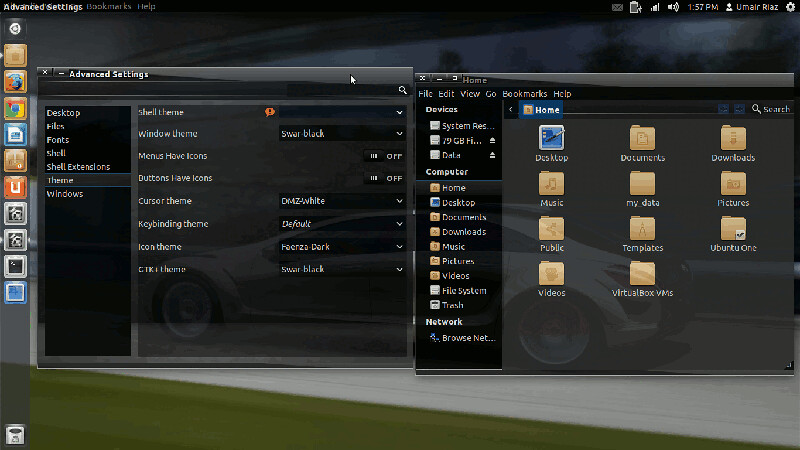
  • Swar Black
ubuntu black themes
Install this theme with following command:
  • sudo apt-get install swar-black-base-blue

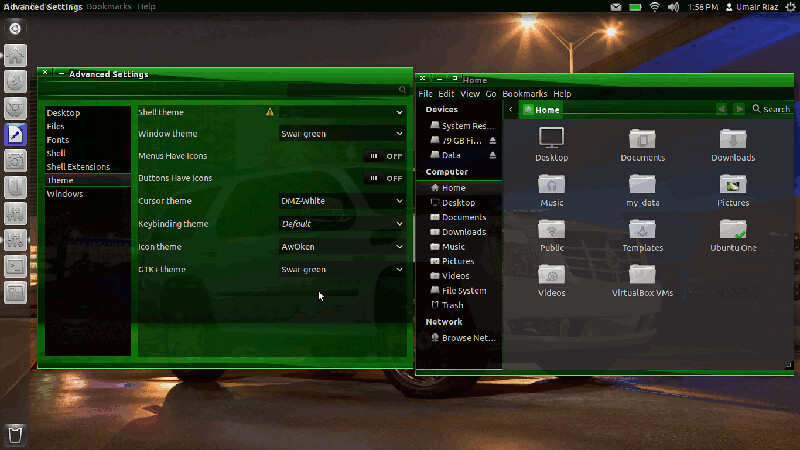
  • Swar Green
precise themes
Install this theme with following command:
  • sudo apt-get install swar-green

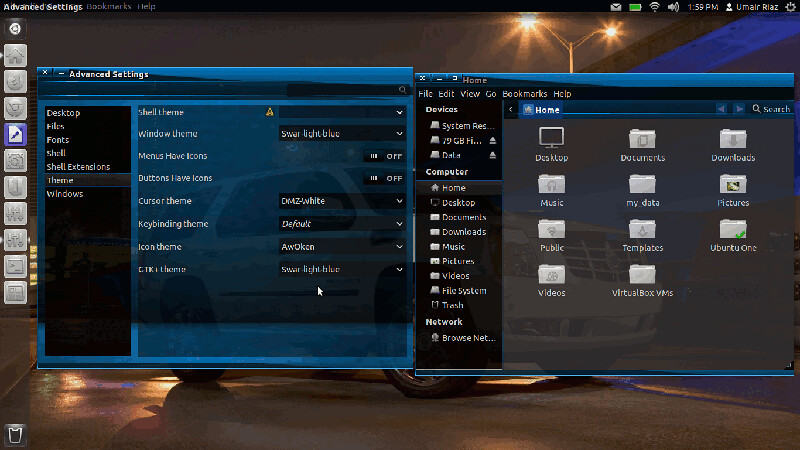
  • Swar Light Blue
ubuntu themes
Install this theme with following command:
  • sudo apt-get install swar-light-blue

  • Swar Orange
ubuntu 12.04 themes
Install this theme with following command:
  • sudo apt-get install swar-orange

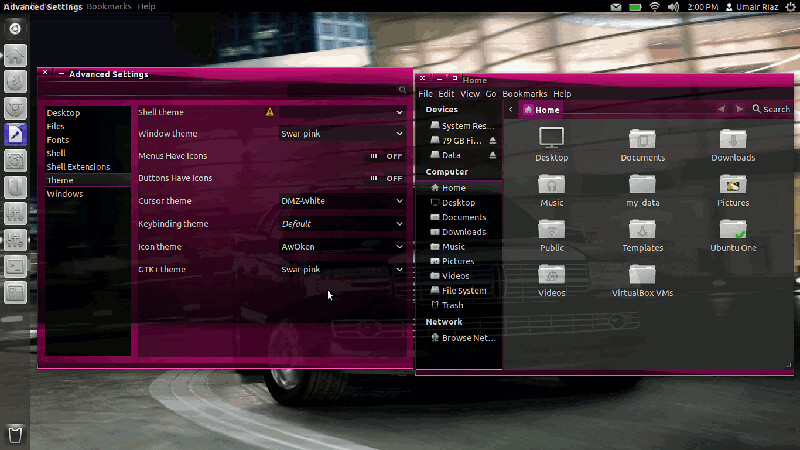
  • Swar Pink
12.04 themes
Install this theme with following command:
  • sudo apt-get install swar-pink

  • Swar Purple
ubuntu themes
Install this theme with following command:
  • sudo apt-get install swar-purple

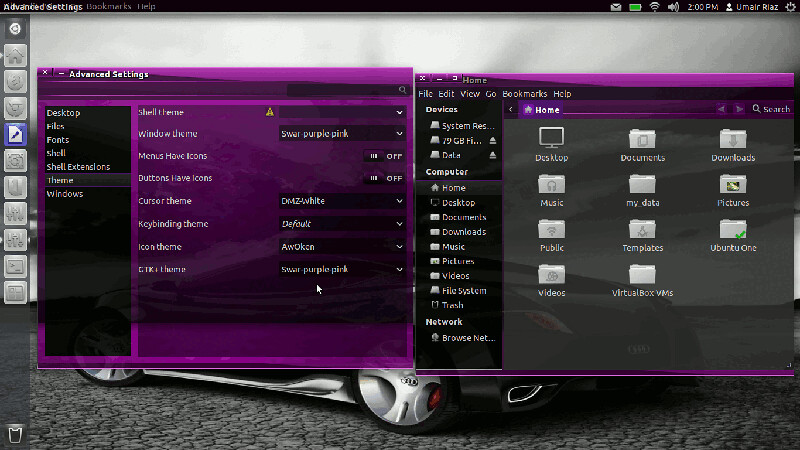
  • Swar Purple Pink
ubuntu themes
Install this theme with following command:
  • sudo apt-get install swar-purple-pink

  • Swar Red
ubuntu themes
Previously I shared this theme.
Install this theme with following command:
  • sudo apt-get install swar-red

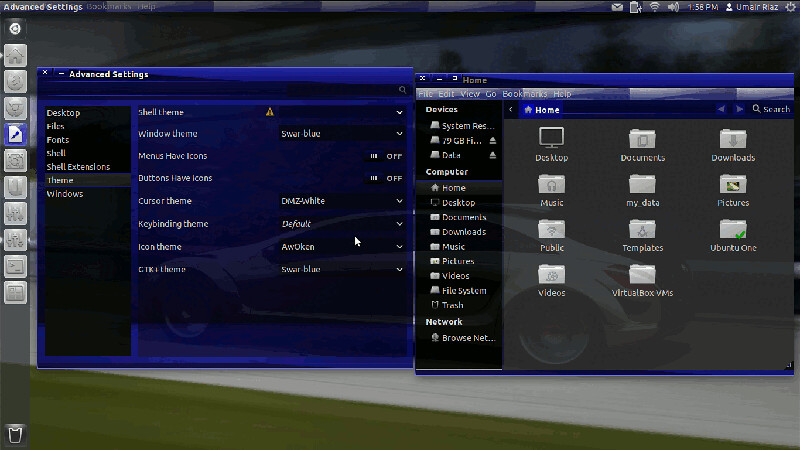
  • Swar Blue
ubuntu themes
Install this theme with following command:
  • sudo apt-get install swar-blue

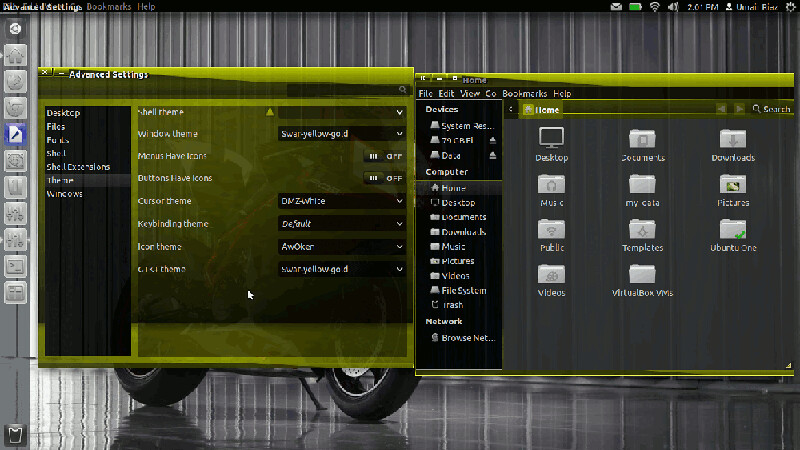
  • Swar Yellow Gold
ubuntu themes
Install this theme with following command:
  • sudo apt-get install swar-yellow-gold
That's it, Enjoy

Monday, 26 March 2012

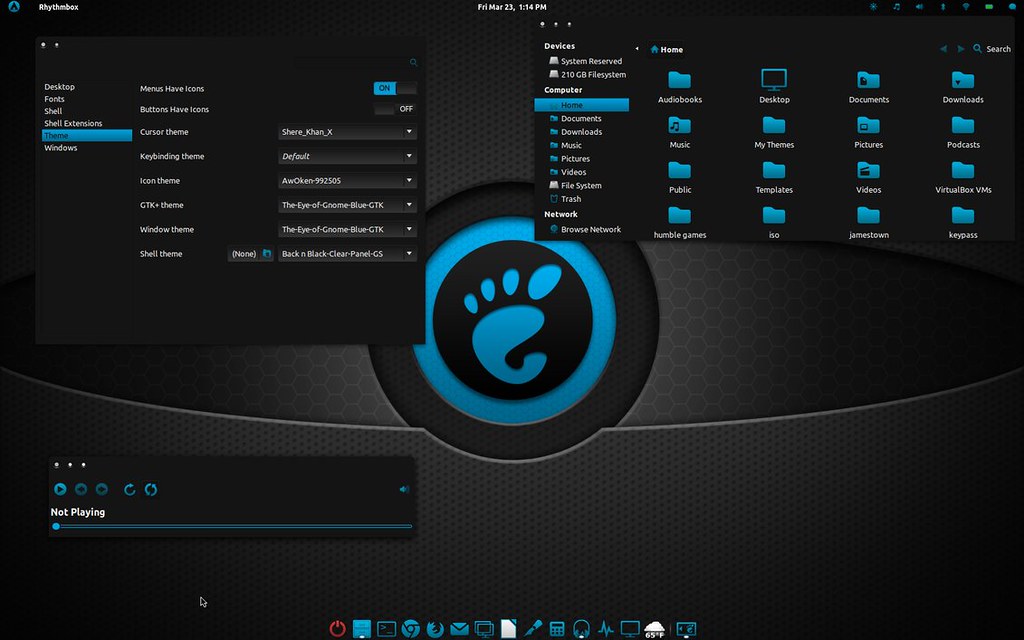
Install The-Eye-of-Gnome-Blue GTK3/2 theme on Ubuntu/Linux Mint

Install The-Eye-of-Gnome-Blue GTK3/2 theme on Ubuntu 12.04 Precise Pangolin/Ubuntu 11.10/11.04/10.10/Linux Mint

ubuntu theme

1: First Download this Wallpaper for this Theme.
2: Install Awoken Icons
3: Install Cairo Dock

4: To install theme on Ubuntu/Linux Mint open Terminal (Press Ctrl+Alt+T) and copy the following commands in the Terminal:
  • mkdir ~/.themes
  • wget http://dl.dropbox.com/u/53319850/NoobsLab.com/the_eye_of_gnome_blue.zip
  • unzip the_eye_of_gnome_blue.zip -d ~/.themes

Install Blue Wave GTK3 themes on Ubuntu/Linux Mint

Install Blue Wave GTK3 three themes on Ubuntu 12.04 Precise Pangolin/ Ubuntu 11.10 Oneiric/Linux Mint

ubuntu theme

Author Created this theme using Ubuntu's Ambiance GTK2/GTK3 as a building block.
The purpose of this theme was to make something that was easy to read, integrated well in both gnome-shell and ubuntu unity desktop, and looks seamless between gtk2 and gtk3 (still working on that).
Also included is a gnome-shell theme, but it is far off from completion and probably shouldn't be used on a production desktop.

Changes for Version 1.4 Blue Wave:
  • Changed GTK3 default and toolbar buttons to give them the effect of pressing them in when active.
  • Fixed the treeview column colors. (now there are none just white to match canvas)
  • Added light borders to notebook frames, tabs, fixed column headers.
  • Few other minor tweaks.
  • Gnome Shell Changes
    • Changed a lot of stuff to make the theme fit with overall appearance of the GTK+ themes.
First Download Wallpaper for Blue Wave

To install theme on Ubuntu/Linux Mint open Terminal (Press Ctrl+Alt+T) and copy the following commands in the Terminal:
- 1st Wave Blue Theme:
  • mkdir ~/.themes
  • wget http://dl.dropbox.com/u/53319850/NoobsLab.com/wave_blue.zip
  • unzip  wave_blue.zip -d ~/.themes
- 2nd Wave Blue Ambiant Theme:
  • mkdir ~/.themes
  • wget http://dl.dropbox.com/u/53319850/NoobsLab.com/wave_blue_ambiant.zip
  • unzip wave_blue_ambiant.zip -d ~/.themes
- 3rd Wave Dark Black Theme:
  • mkdir ~/.themes
  • wget http://dl.dropbox.com/u/53319850/NoobsLab.com/wave_dark_black.zip
  • unzip  wave_dark_black.zip -d ~/.themes
To change theme install Gnome Tweak Tool. Enjoy
Source: Blue Wave


Just the Life of Eddie Copyright © 2012 Best Celebrity Wallpaper -- Powered by Blogger