Warung Bebas
Showing posts with label 12.04 precise themes. Show all posts

Thursday, 17 May 2012

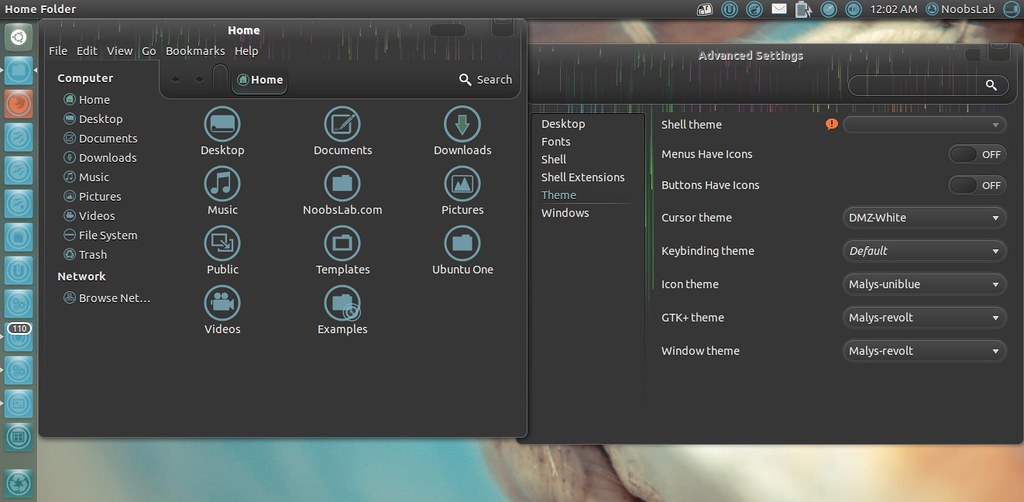
Install Malys-Revolt GTK Theme on Ubuntu 12.04 Precise/11.10 Oneiric/Linux Mint 13/12

Install Malys-Revolt GTK Theme on Ubuntu 12.04 Precise Pangolin/Ubuntu 11.10 Oneiric Ocelot/Linux Mint 13 Maya/12 Lisa

1st: Here is UniBlue Icons for this theme
2nd: Move Minimize, Maximize, Close Button to Right
3rd: Download Malys Revolt Wallpaper

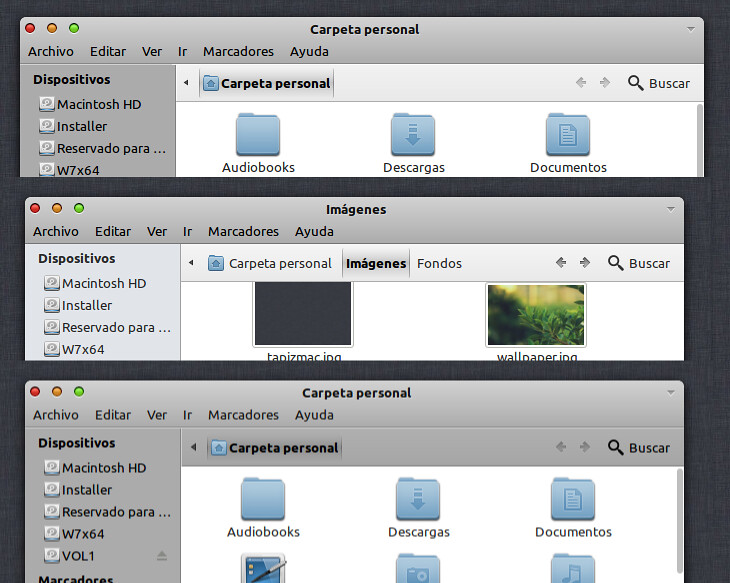
1: Malys-Revolt 1.0 Version:

Ubuntu 12.04 themes

Theme Tested on Ubuntu 12.04 Precise Pangolin

To install Malys Revolt on Ubuntu/Mint open Terminal (Press Ctrl+Alt+T) and copy the following commands in the Terminal:
  • sudo add-apt-repository ppa:noobslab/malys-themes
  • sudo apt-get update
  • sudo apt-get install malys-revolt

2: Malys-Revolt 0.5 Version:
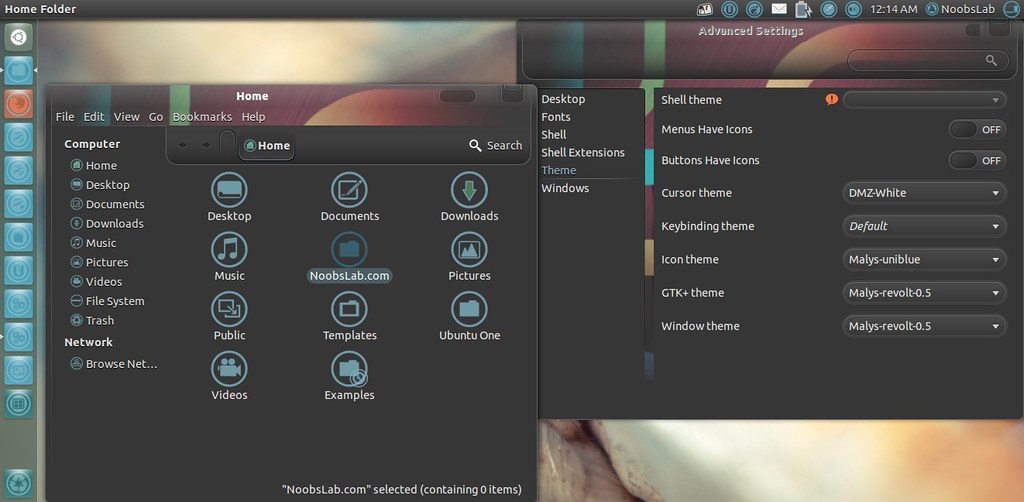
Ubuntu 12.04 themes

Theme Tested on Ubuntu 12.04 Precise Pangolin

To install Malys Revolt on Ubuntu/Mint open Terminal (Press Ctrl+Alt+T) and copy the following commands in the Terminal:
  • sudo add-apt-repository ppa:noobslab/malys-themes
  • sudo apt-get update
  • sudo apt-get install malys-revolt-0.5

3: Malys-Revolt 0.1 Version:
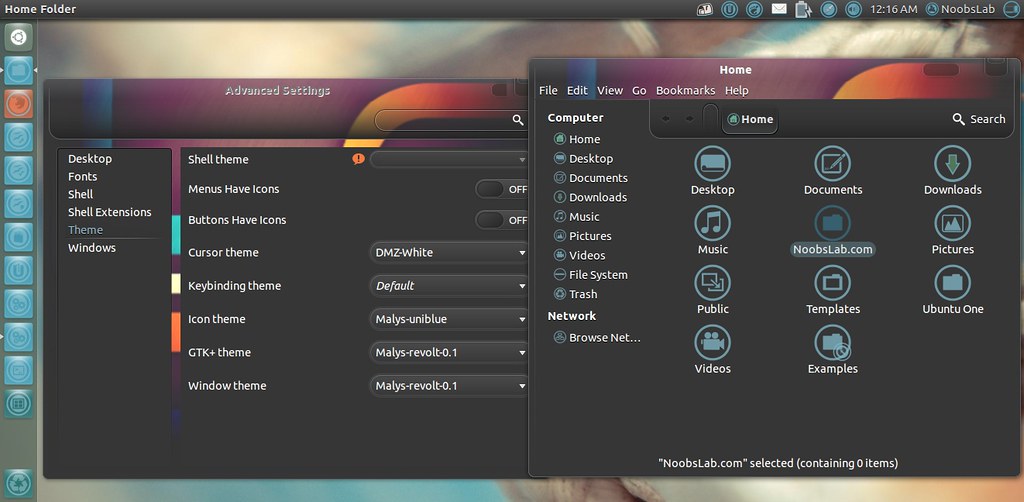
Ubuntu 12.04 themes

Theme Tested on Ubuntu 12.04 Precise Pangolin

To install Malys Revolt on Ubuntu/Mint open Terminal (Press Ctrl+Alt+T) and copy the following commands in the Terminal:
  • sudo add-apt-repository ppa:noobslab/malys-themes
  • sudo apt-get update
  • sudo apt-get install malys-revolt-0.1
That's it, Enjoy
Source: Malys Revolt

Monday, 26 March 2012

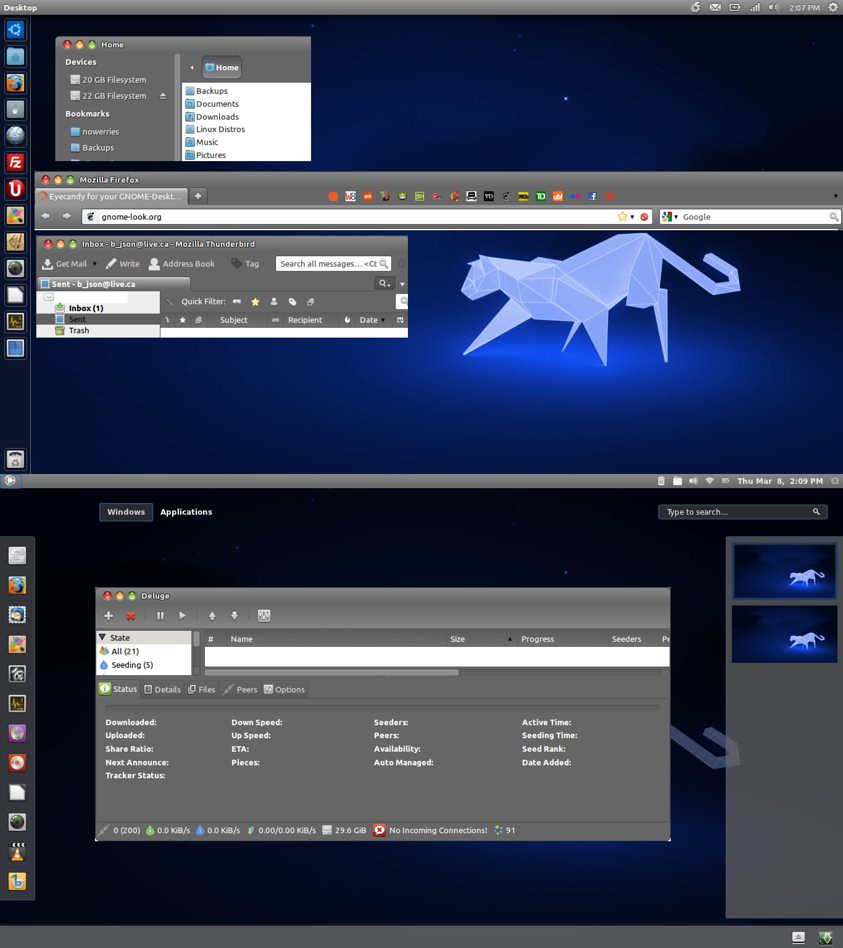
Install Blue Wave GTK3 themes on Ubuntu/Linux Mint

Install Blue Wave GTK3 three themes on Ubuntu 12.04 Precise Pangolin/ Ubuntu 11.10 Oneiric/Linux Mint

ubuntu theme

Author Created this theme using Ubuntu's Ambiance GTK2/GTK3 as a building block.
The purpose of this theme was to make something that was easy to read, integrated well in both gnome-shell and ubuntu unity desktop, and looks seamless between gtk2 and gtk3 (still working on that).
Also included is a gnome-shell theme, but it is far off from completion and probably shouldn't be used on a production desktop.

Changes for Version 1.4 Blue Wave:
  • Changed GTK3 default and toolbar buttons to give them the effect of pressing them in when active.
  • Fixed the treeview column colors. (now there are none just white to match canvas)
  • Added light borders to notebook frames, tabs, fixed column headers.
  • Few other minor tweaks.
  • Gnome Shell Changes
    • Changed a lot of stuff to make the theme fit with overall appearance of the GTK+ themes.
First Download Wallpaper for Blue Wave

To install theme on Ubuntu/Linux Mint open Terminal (Press Ctrl+Alt+T) and copy the following commands in the Terminal:
- 1st Wave Blue Theme:
  • mkdir ~/.themes
  • wget http://dl.dropbox.com/u/53319850/NoobsLab.com/wave_blue.zip
  • unzip  wave_blue.zip -d ~/.themes
- 2nd Wave Blue Ambiant Theme:
  • mkdir ~/.themes
  • wget http://dl.dropbox.com/u/53319850/NoobsLab.com/wave_blue_ambiant.zip
  • unzip wave_blue_ambiant.zip -d ~/.themes
- 3rd Wave Dark Black Theme:
  • mkdir ~/.themes
  • wget http://dl.dropbox.com/u/53319850/NoobsLab.com/wave_dark_black.zip
  • unzip  wave_dark_black.zip -d ~/.themes
To change theme install Gnome Tweak Tool. Enjoy
Source: Blue Wave

Saturday, 11 February 2012

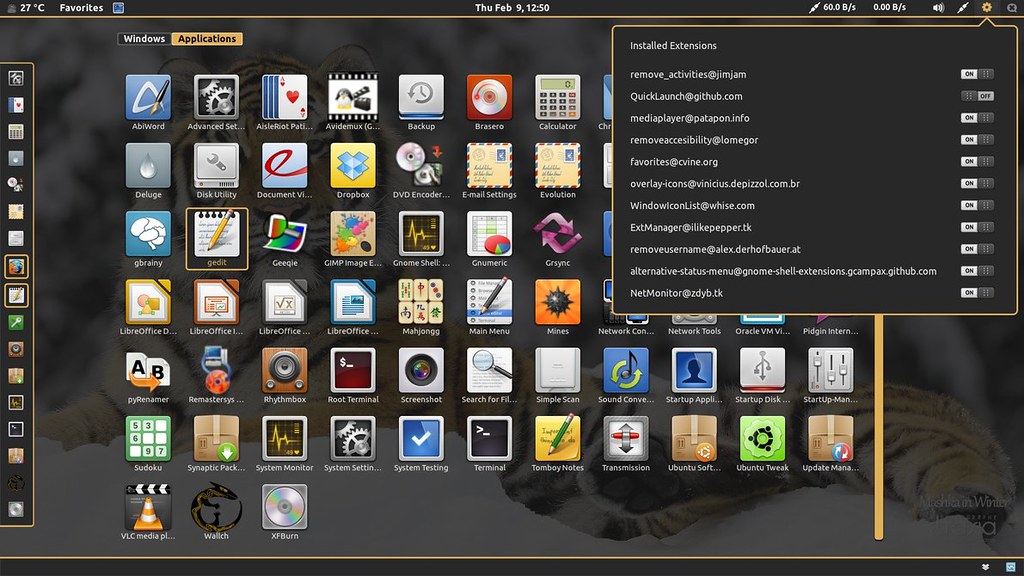
TigerGS Gnome Shell Theme for Ubuntu/Linux Mint/Fedora

Install TigerGS Gnome Shell Theme for Ubuntu 12.04/11.10/Linux Mint/Fedora

Gnome Shell themes

To install TigerGS theme on Gnome shell open Terminal (Press Ctrl+Alt+T) and copy the following commands in the Terminal:
  • mkdir ~/.themes
  • wget http://dl.dropbox.com/u/53319850/tigergs.zip
  • unzip tigergs.zip -d ~/.themes
Now enter the following command to install Gnome Tweak Tool:
  • sudo apt-get install gnome-tweak-tool
Now open Tweak tool and change theme, That's it

Sunday, 5 February 2012

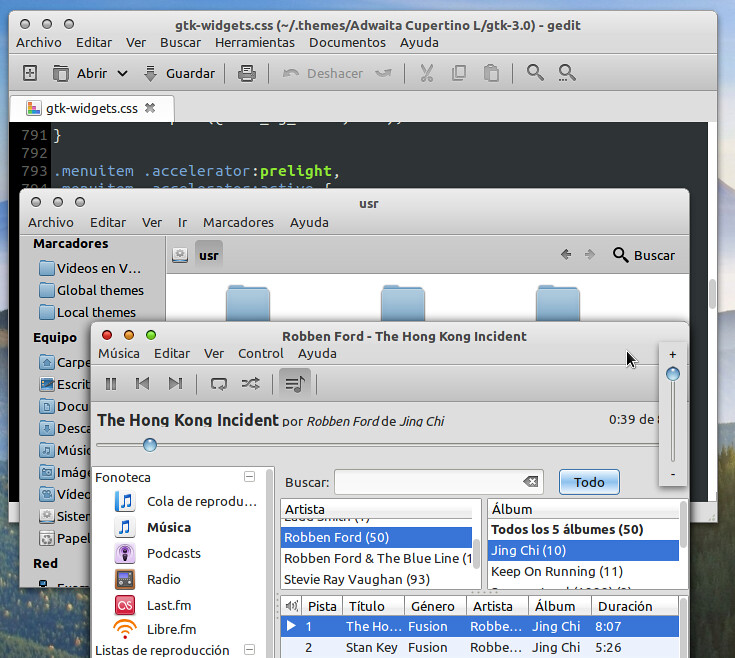
Adwaita Cupertino Theme with icons for Ubuntu 12.04/11.10

Install Adwaita Cupertino Theme like Mac OS with icons for Ubuntu 12.04 Precise Pangolin/Ubuntu 11.10 Oneiric Ocelot


It is based on the theme Adwaita GTK3, changing colors to set the cupertino style

- Tested in GNOME 3.2 and Unity
There are 2 versions, one based on the colors of Snow Leopard and the other Lion. Option border or borderless

Version for unity due to global-menu and design of nautilus.

* IMPORTANT *
- GTK3 theme ported to unico-engine, GTK2 theme uses the Murrine and Pixmap engines
- Inside the theme folder there is a readme.txt file with some really simple instructions (styles for nautilus, glassy buttons, Unity top panel transparent mac style)
- "Adwaita Cupertino SL and L" is borderless by default in Gnome Shell (in Unity edges is always)
If you want the version with borders, select in gnome-tweak-tool -> Window theme -> "Adwaita Cupertino (SL or L) Unity" and in GTK+ theme "Adwaita Cupertino (SL or L)"

To install open Terminal (Press Ctrl+Alt+T) and copy the following commands in the Terminal:
Install Theme
  • mkdir ~/.themes
  • wget  http://dl.dropbox.com/u/53319850/Ubuntu_Themes/Adwaita-Cupertino.tar.gz
  • tar -xzvf Adwaita-Cupertino.tar.gz -C ~/.themes
Install Icons
  • mkdir ~/.icons
  • wget http://dl.dropbox.com/u/53319850/Ubuntu_Icons/Faenza-Cupertino.tar.gz
  • tar -xzvf  Faenza-Cupertino.tar.gz -C ~/.icons

Now apply Theme and Icons:
Install Gnome Tweak Tool with following command:
  • sudo apt-get install gnome-tweak-tool
Now go to dash and search for "Advance Settings" and open it.


Just the Life of Eddie Copyright © 2012 Best Celebrity Wallpaper -- Powered by Blogger