Warung Bebas
Showing posts with label 12.04 themes. Show all posts

Monday, 21 May 2012

Install Zukitwo theme on Ubuntu/Linux Mint (Gtk3/2 + Gnome Shell) via PPA

Install Zukitwo theme on Ubuntu 12.04 Precise/Ubuntu 11.10 Oneiric/10.04 Lucid/Linux Mint (Gtk3/2 + Gnome Shell) via PPA

There are two Zukitwo theme versions: One is Simple Zukitwo and other is Zukitwo Dark, Both theme Include same Gnome Shell theme.

Important note by Author: This theme is designed around Gnome 3.4 and the 1.0.2 version of the Unico engine. Any later versions included with any development releases may break the theme.

1st Download Wallpaper

Zukitwo Theme:

ubuntu 12.04 themes

zukitwo themes

To install Zukitwo Theme on Ubuntu/Linux Mint open Terminal (Press Ctrl+Alt+T) and copy the following commands in the Terminal:
  • sudo add-apt-repository ppa:noobslab/themes
  • sudo apt-get update
  • sudo apt-get install zukitwo

Zukitwo Dark Theme:
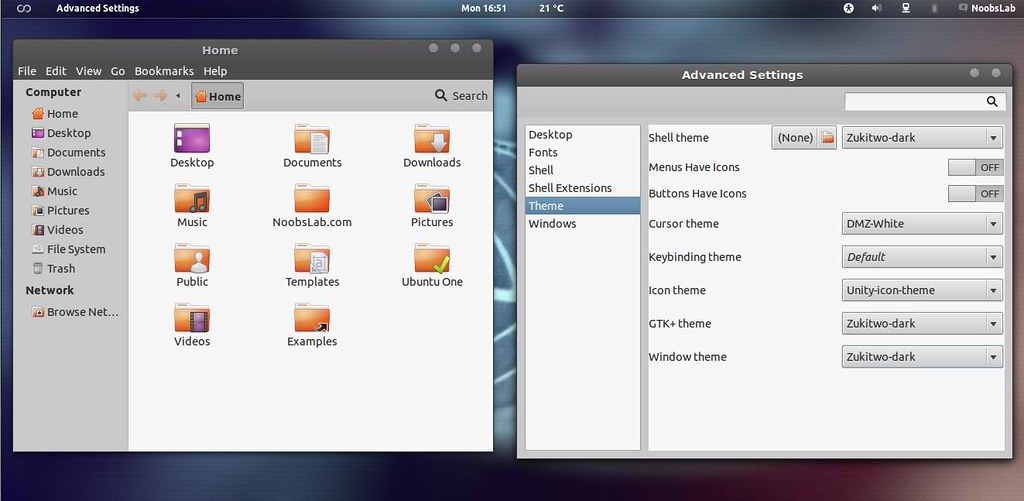
ubuntu gnome shell themes

12.04 precise themes

To install Zukitwo Theme on Ubuntu/Linux Mint open Terminal (Press Ctrl+Alt+T) and copy the following commands in the Terminal:
  • sudo add-apt-repository ppa:noobslab/themes
  • sudo apt-get update
  • sudo apt-get install zukitwo-dark
That's it, Enjoy

Saturday, 21 April 2012

Install Awesome Theme with Icons on Ubuntu 12.04/11.10/Linux Mint

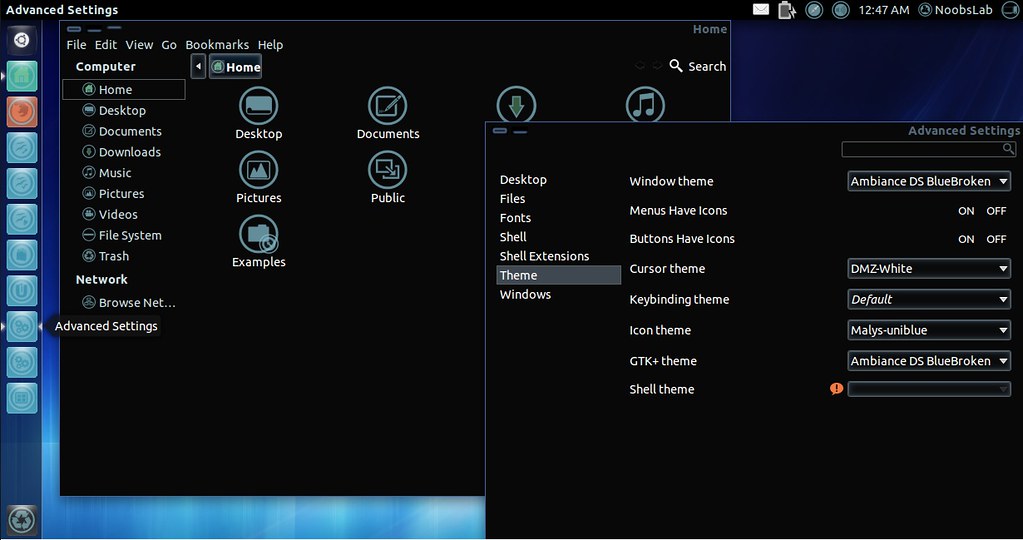
Install Ambiance-BlueBroken Theme with Malys-Uniblue Icons on Ubuntu 12.04 Precise Pangolin/Ubuntu 11.10 Oneiric/Linux Mint 12 Lisa

ubuntu themes

ubuntu 12.04

ubuntu themes

1st Download Wallpapers
2nd Install Gnome Tweak Tool

To Install Icons open Terminal (Press Ctrl+Alt+T) and copy the following commands in the Terminal:
  • sudo add-apt-repository ppa:noobslab/icons
  • sudo apt-get update
  • sudo apt-get install malys-uniblue
To Install Theme open Terminal (Press Ctrl+Alt+T) and copy the following commands in the Terminal:
  • sudo add-apt-repository ppa:noobslab/themes
  • sudo apt-get update
  • sudo apt-get install ambiance-bluebroken
Sources: Theme, Icons

Thursday, 5 April 2012

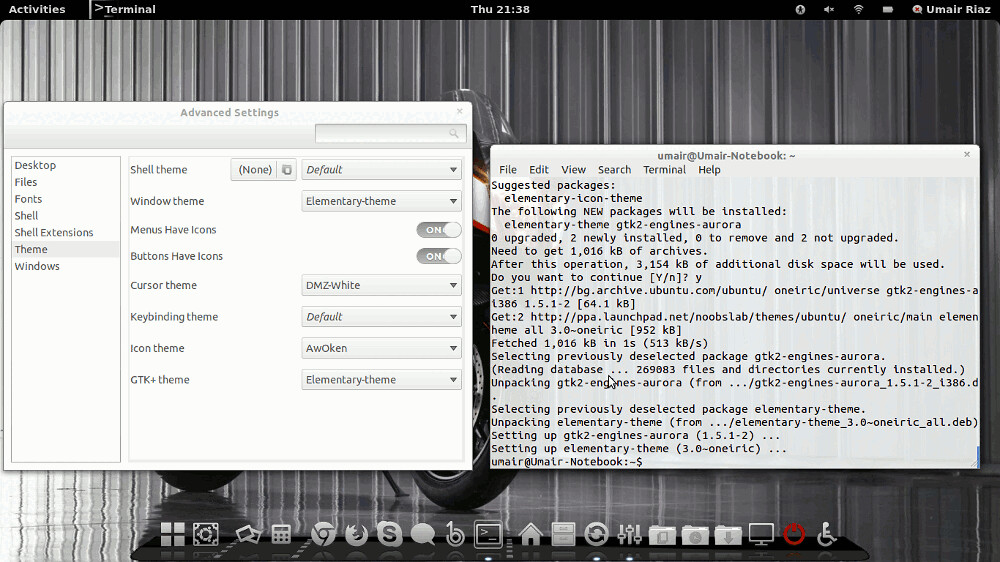
Install Elementary 3.0 Gtk Theme on Ubuntu 12.04/11.10/Linux Mint (GTK 3)

Install Elementary 3.0 Gtk 3 Theme on Ubuntu 12.04 Precise/11.10 Oneiric/Linux Mint 12

elementary theme

Changes in Elementary Gtk theme 3.0 version:
  • GTK3 support, including :backdrop class, but there�s no dark theme yet
  • elementary now uses the Unico GTK3 engine
  • Granite support (which is used by many applications that will be default in the elementary OS Luna, such as BeatBox, etc.)
  • Dropped GTK2 classes for GTK3 apps so there�s no more support for applications like Nautilus elementary and others (so any application that has a GTK3 version doesn�t have support for GTK2 anymore)
  • The default placement is now close:maximize
  • The maximize button has been changed from the �+� (typically used to mean new) to two opposing arrows
  • And More.

To install Elementary Theme via Noobslab PPA on Ubuntu/Mint GTK3 open Terminal (Press Ctrl+Alt+T) and copy the following commands in the Terminal:
  • sudo add-apt-repository ppa:noobslab/themes
  • sudo apt-get update
  • sudo apt-get install elementary-theme
Enjoy

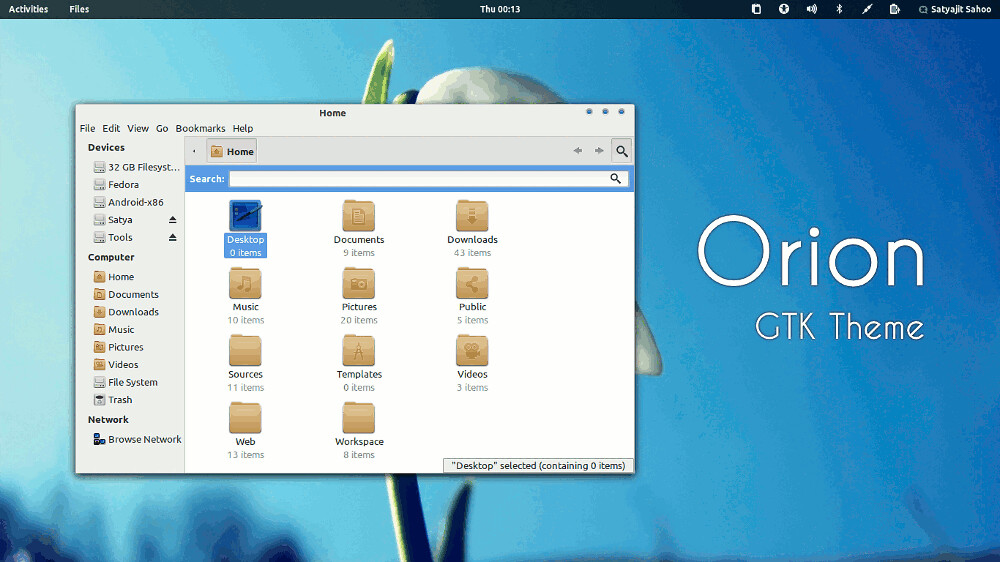
Install Orion GTK3 Themes on Ubuntu 12.04/11.10/Linux Mint

Install Orion GTK3 Themes on Ubuntu 12.04 Precise Pangolin/Ubuntu 11.10 Oneiric Ocelot/Linux Mint (GTK3)

Orion is a modern light theme for Gnome. It supports Gnome Shell, Unity, XFCE and Openbox. The theme is compatible with the latest GTK 3.4 and uses the Unico engine. It also includes a GTK 2.0 theme using Murrine engine.

ubuntu themes

To Install Orion on Ubuntu/Linux Mint open Terminal (Press Ctrl+Alt+T) and copy the following commands in the Terminal:
  • sudo apt-add-repository ppa:satyajit-happy/themes
  • sudo apt-get update
  • sudo apt-get install orion-gtk-theme
Enjoy

Wednesday, 4 April 2012

Install Transparent Swar-Black-Base Themes on Ubuntu/Linux Mint

Install Transparent Swar-Black-Base Themes on Ubuntu 12.04 Precise/Ubuntu 11.10 Oneiric/11.04 Natty/10.10 Maverick/10.04 Lucid/Linux Mint (GTK3/2)

1st > First of all you need to transparent your Ubuntu/Linux Mint, Follow Steps or see video:

Enable Transparency in Ubuntu/Linux Mint
1. Install Compiz Confit Settings Manager (CCSM)
To install via Terminal hit Ctrl + Alt + T
2. Select the below text and hit Ctrl + C to copy and paste into Terminal:
  • sudo apt-get install -y compiz compizconfig-settings-manager && sudo apt-get install -y compiz-fusion-plugins-extra
3. Click on the Launch Application Button (or Super Key) and type CCSM to locate CompizConfig Settings Manager and open it via clicking on it
4. Go into Opacity, Brightness and Saturation
5. In the Opacity Tab click on New
6. Click on the + Button or Add Function
7. Make sure Type is 'Windows Class'
8. Click on the Grab Button and Select Items around your screen until you find Ccsm
9. Click on Add
10. Set the Windows Value to 90
You need to repeat steps 5-9 3 more times with the settings below OR alternatively you can type it manually in the Value Box which is somewhat easier
11. You require 4 Settings to fully enable transparency
12. Click on the New button and in the Windows box type
class=Ccsm (Window Values = 90) then click on add
13. Click on the New button and in the Windows box type
class=Nautilus (Window Values = 90) then click on add
14. Click on the New button and in the Windows box type
class=Normal (Window Values = 90) then click on add
15. Click on the New button and in the Windows box type
class=Dialog (Window Values = 90) then click on add
16. Now click on the Enable Opacity, Brightness and Saturation check-box in the left side panel
17. Restart the computer if any issues occur and the settings should be applied as you see in the print-screen images
18. Remember be cautious with CCSM and Unity as many of the older functions simply do not work yet and will cause crashes
Clearly Opacity or Transparency hasn't failed me

* To enable or disable transparency for something such as a DVD hold the ALT key and move the Mouse Center wheel up or down to enable more or disable more transparency to meet your needs. This does not permanently apply that setting but is a temporary setting.

If Transparency or CCSM Problem occur Reset with following commands:
  • gconftool-2 --recursive-unset /apps/compiz-1
  • unity --reset

Here is more Swar Transparent Themes Flavors

2nd > Now Swar Themes Installation
First add PPA for theme installation
  • sudo add-apt-repository ppa:noobslab/swar-themes
  • sudo apt-get update

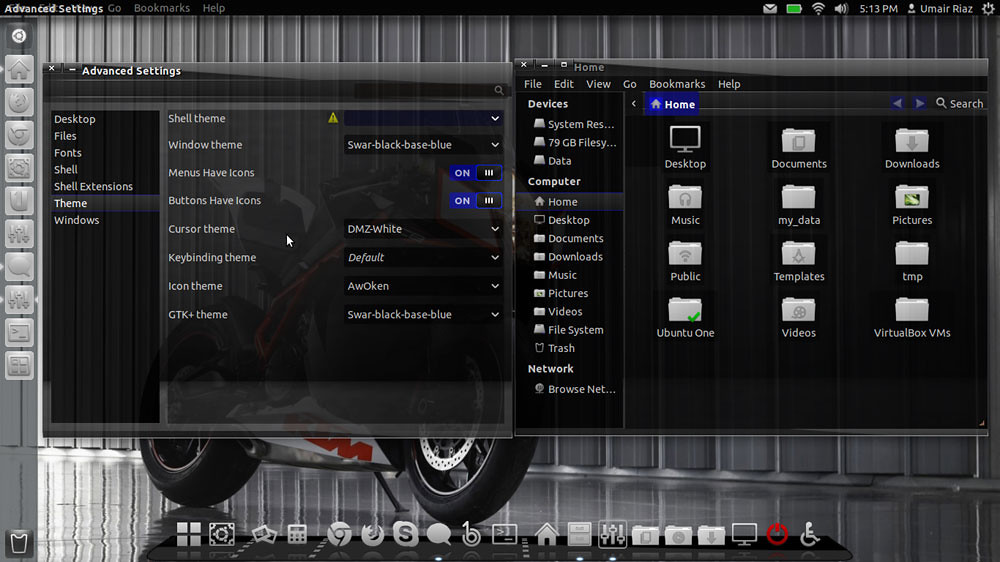
  • Swar Black-Base-Blue
ubuntu themes
Install this theme with following command:
  • sudo apt-get install swar-black-base-blue

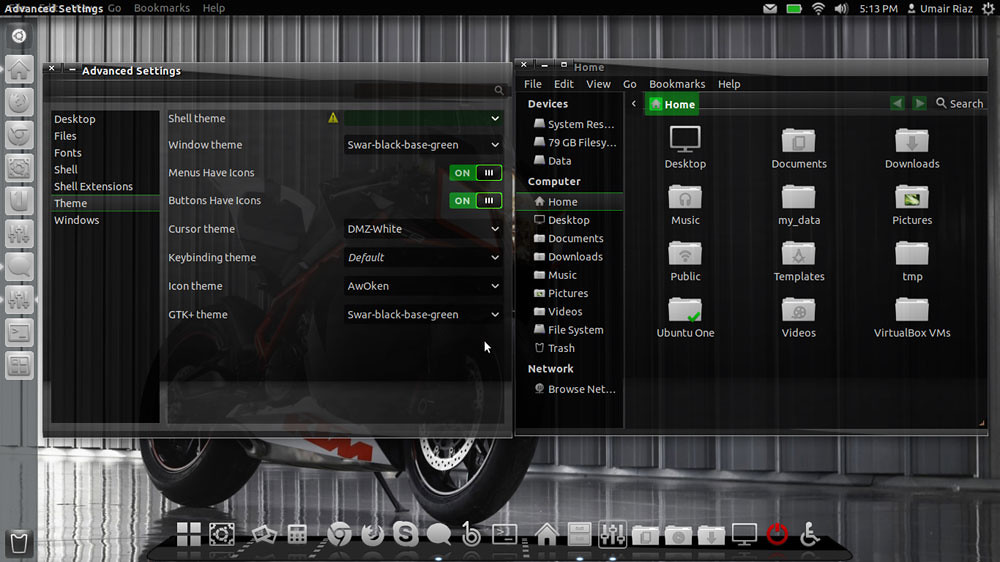
  • Swar Black-Base-Green
linux themes
Install this theme with following command:
  • sudo apt-get install swar-black-base-green

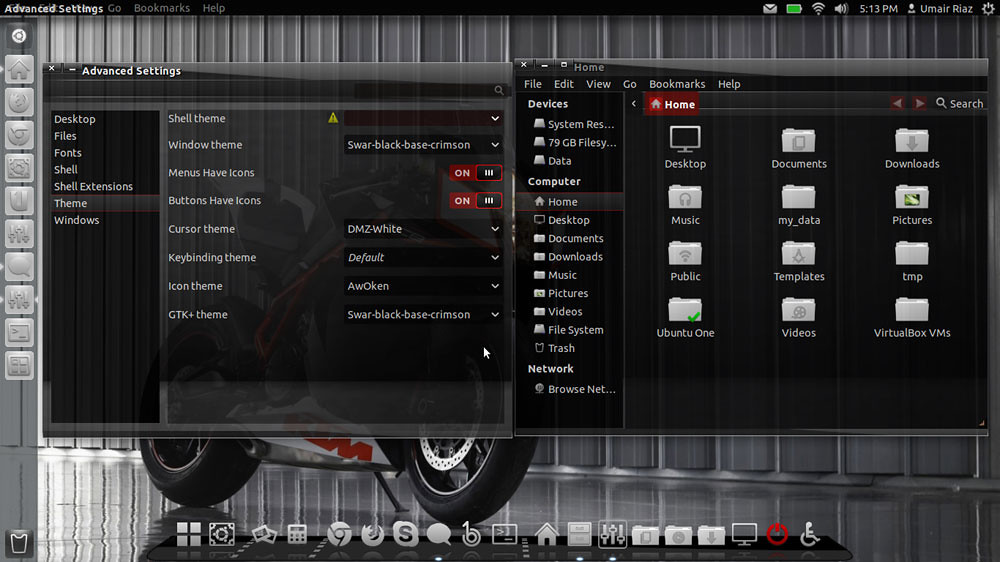
  • Swar Black-Base-Crimson
ubuntu themes
Install this theme with following command:
  • sudo apt-get install swar-black-base-crimson

  • Swar Black-Base-Orange
ubuntu themes
Install this theme with following command:
  • sudo apt-get install swar-black-base-orange

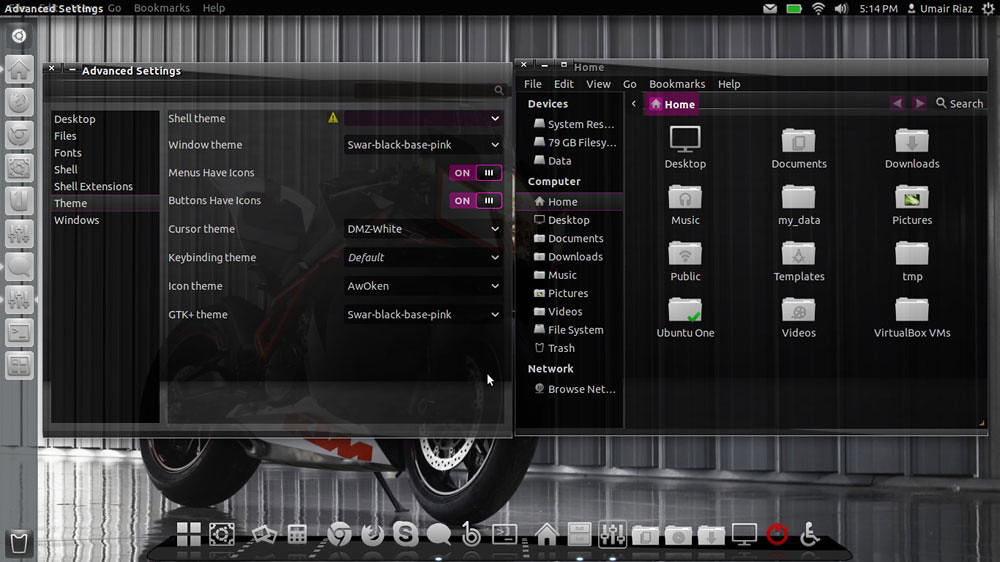
  • Swar Black-Base-Pink
ubuntu themes
Install this theme with following command:
  • sudo apt-get install swar-black-base-pink

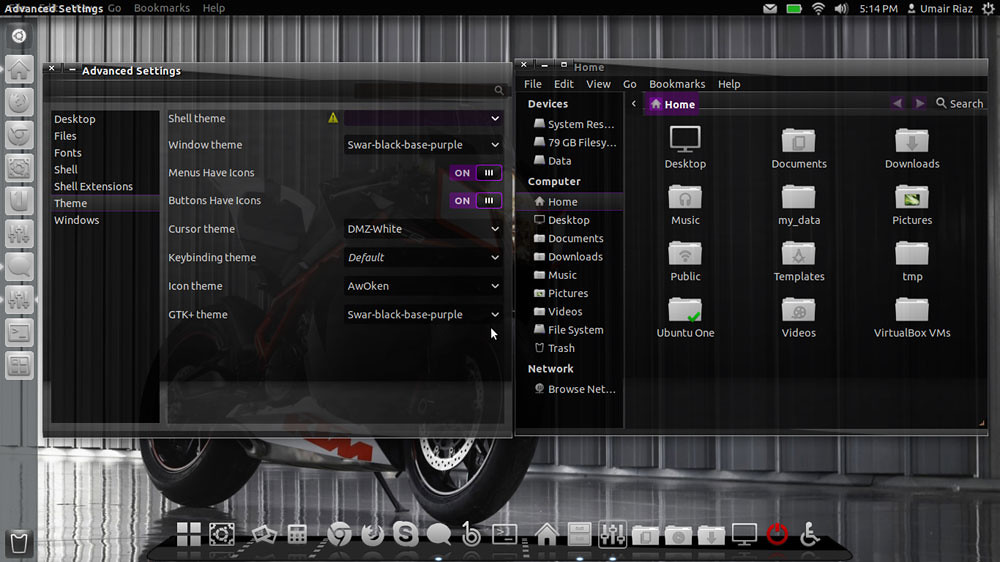
  • Swar Black-Base-Purple
ubuntu themes
Install this theme with following command:
  • sudo apt-get install swar-black-base-purple

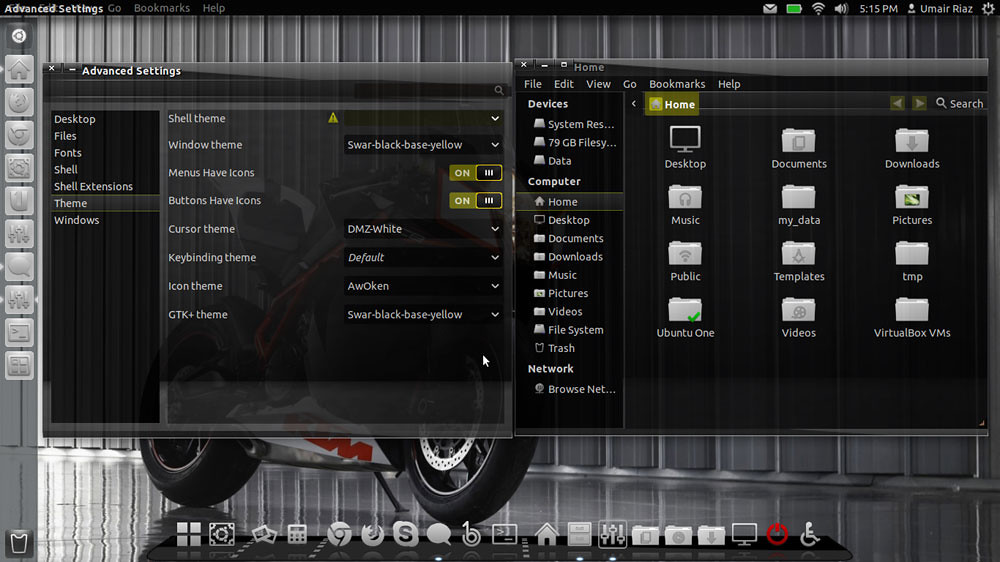
  • Swar Black-Base-Yellow
ubuntu themes
Install this theme with following command:
  • sudo apt-get install swar-black-base-yellow
That's it, Enjoy
 

Just the Life of Eddie Copyright © 2012 Best Celebrity Wallpaper -- Powered by Blogger