Warung Bebas
Showing posts with label ubuntu icons. Show all posts

Tuesday, 15 January 2013

zonColor Themes and Icons for Ubuntu 12.10/12.04/Linux Mint

zonColor Themes and Icons for Ubuntu 12.10/12.04/13.04/11.10/11.04/10.10/10.04/Linux Mint 14/13/12/11/9

zonColor Themes Pack is a complete set of simple yet beautiful, elegant themes for Ubuntu and other GTK-based Linux desktop, aimed to bring freedom in theme customization particularly color customization so that users can easily use/apply their very own color combination/color palette/color scheme for the themes.
zonColor is more than just a theme collection; the themes are more like theme templates. They have been designed with customization in mind especially their colors. zonColor themes are using flexible color definitions that can be changed and applied easily without having to modify theme codes/materials directly.
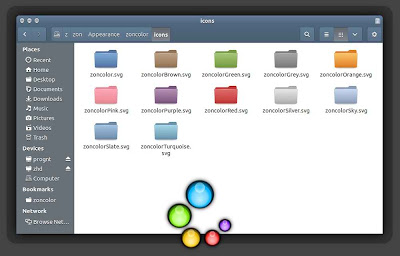
zonColor 16 Themes and 21 Icons sets available for following environments: Unity, Gnome Shell, Gnome Classic, Cinnamon, Mate, Openbox, xfwm4 (Not all Themes available for every desktop).
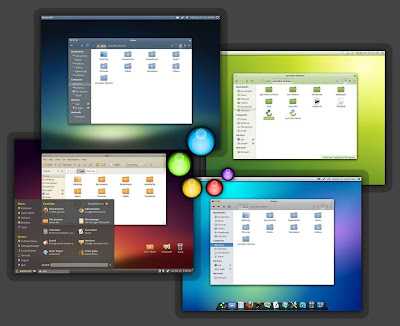
Screen Shots

Icons Colors Available


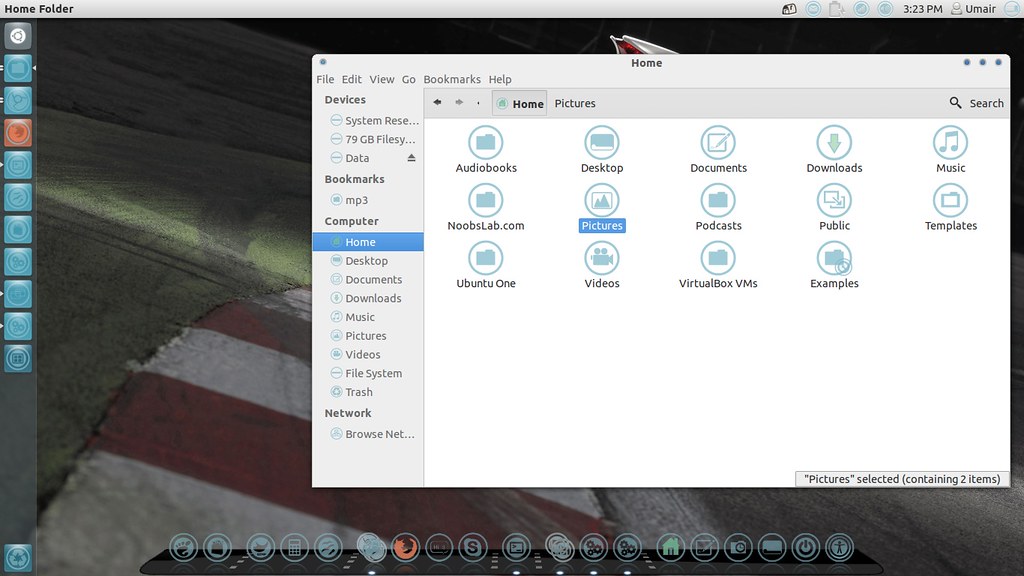
Themes tested on Ubuntu 12.10/12.04 (GTK + Gnome Shell)

Download zonColor Wallpapers

To install zonColor Themes on Ubuntu/Linux Mint open Terminal (Press Ctrl+Alt+T) and copy the following commands in the Terminal:
  • sudo add-apt-repository ppa:noobslab/themes
  • sudo apt-get update
  • sudo apt-get install zoncolor-themes
To install zonColor Icons in Ubuntu/Linux Mint open Terminal (Press Ctrl+Alt+T) and copy the following commands in the Terminal:
  • sudo add-apt-repository ppa:noobslab/icons
  • sudo apt-get update
  • sudo apt-get install zoncolor-icons
That's it
Source: fandigital
Thursday, 29 November 2012

Install Potenza-Icons in Ubuntu 12.10/12.04/Any Ubuntu or Linux Mint or Other Distro

Install Potenza-Icons in Ubuntu 12.10 Quantal/Ubuntu 12.04 Precise/Ubuntu 11.10 Oneiric/Any Ubuntu or Linux Mint or Any Linux Distribution

Poteza icons are wonderful which is made by Mystras team. They tried to create complete set of icons for Linux. These icons can fit with every theme, even theme is light or dark icons looks cool. Author mention this icon set was inspired by Faenza.
linux icons

ubuntu icons

Check icons collection
You can use Gnome-tweak-tool or Ubuntu-Tweak to change icons.

To install Potenza icons in Ubuntu/Linux Mint open Terminal (Press Ctrl+Alt+T) and copy the following commands in the Terminal:
  • mkdir ~/.icons
  • wget -O potenza.tar.gz http://goo.gl/7ToLI
  • tar -xzvf potenza.tar.gz -C ~/.icons && sudo rm potenza.tar.gz
That's it, Enjoy
Thanks AlessandroBo mpadre for tip

Saturday, 10 November 2012

Install Hi-Lights Icons on Ubuntu 12.10/12.04/11.10/Linux Mint (New Icon Set)

Install Hi-Lights Icons on Ubuntu 12.10 Quantal/Ubuntu 12.04 Precise/Ubuntu 11.10/Linux Mint  13/12 (New Icon Set)

Hi-Lights icons are fancy set of icons for Linux, which is made by Author olegvbal and available on gnome-look.org for other Linux distributions. These looks looks cool very every kind of theme, You can use these icons with dark themes and also with light themes.


ubuntu icons

Check icons collection
You can use Gnome-tweak-tool or Ubuntu-Tweak to change icons.

To install Hi-Lights icons on Ubuntu/Linux Mint open Terminal (Press Ctrl+Alt+T) and copy the following commands in the Terminal:
  • sudo add-apt-repository ppa:noobslab/icons
  • sudo apt-get update
  • sudo apt-get install hi-lights-icons
That's it, Enjoy
Source: Hi-Lights

Friday, 17 August 2012

Install Darkenza Icons in Ubuntu/Linux Mint

Install Darkenza Icons in Ubuntu 12.10/12.04/11.10/11.04/10.10/9.04/Linux Mint

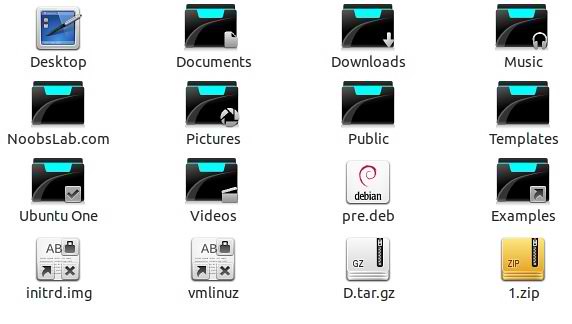
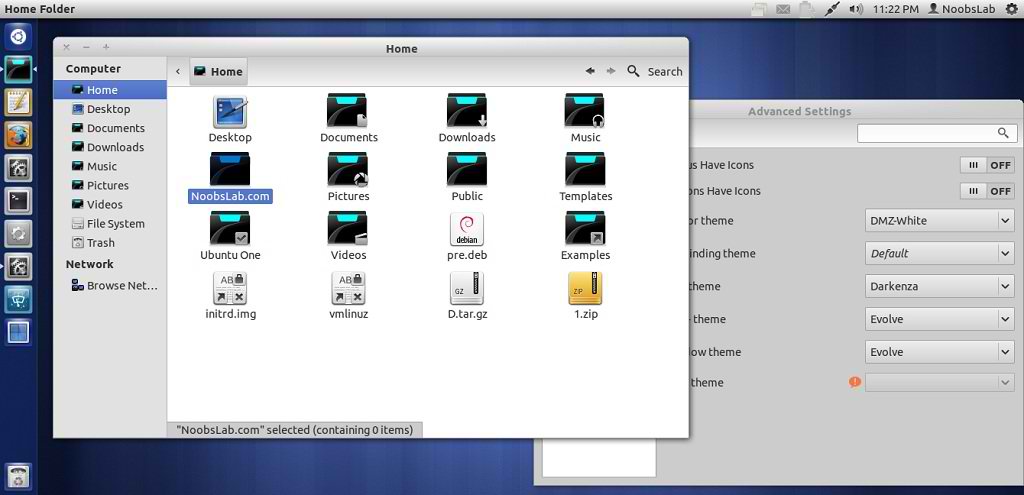
These Darkenza icons brings from faenza icons, Author made these icons for those users who like dark icons. This icon is complete pack and support all latest Ubuntu/Linux Distro's.


dark icons

To install Darkenza icons in Ubuntu/Linux Mint open Terminal (Press Ctrl+Alt+T) and copy the following commands in the Terminal:
  • sudo add-apt-repository ppa:noobslab/icons
  • sudo apt-get update
  • sudo apt-get install darkenza
That's it, Enjoy
Source: darkenza-icon

Thursday, 19 July 2012

Install Malys-Ex icons 1.1 in Ubuntu/Linux Mint (New Update)

Install Malys-Ex icons 1.1 in Ubuntu 12.10/Ubuntu 12.04/11.10/11.04/10.10/10.04/Linux Mint/Ubuntu based distro (New Update)

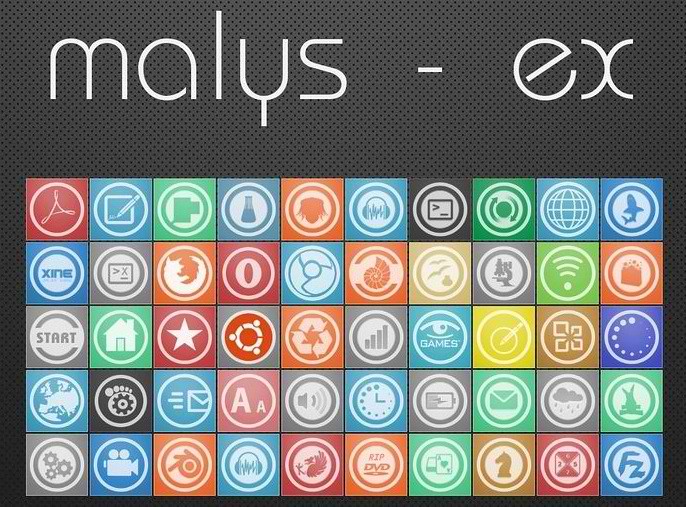
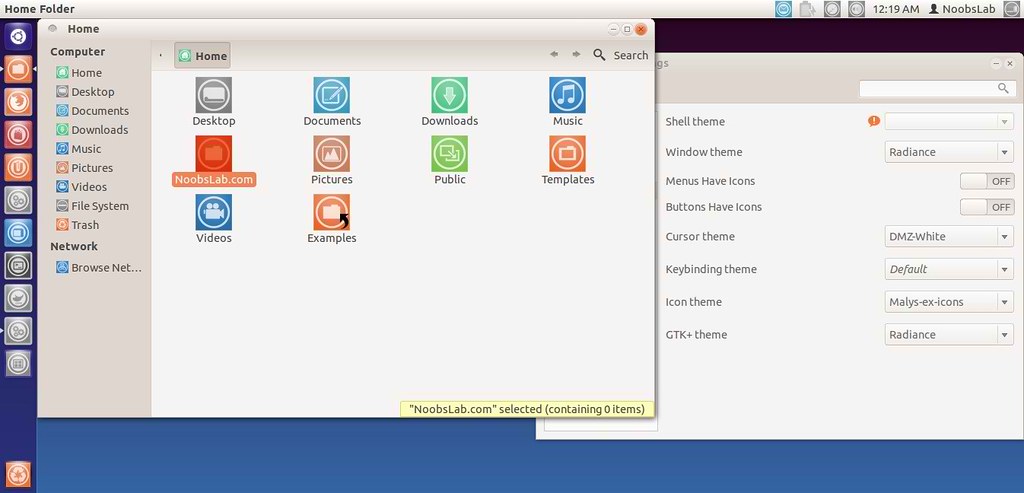
Previously shared Malys icons and themes, Malys is really nice theme and icons creator for linux. Personally I like his work and using his themes + icons personally. Hope you will like his work.

malys icons

ubuntu icons

To install Malys-ex-icons on Ubuntu/Mint open Terminal (Press Ctrl+Alt+T) and copy the following commands in the Terminal:
  • sudo add-apt-repository ppa:noobslab/icons
  • sudo apt-get update
  • sudo apt-get install malys-ex
That's it, Enjoy.
Source: Malys-ex

Sunday, 15 July 2012

Install Faience Icons in Ubuntu/Linux Mint

Install Faience Icons in Ubuntu 12.04/Ubuntu 11.10/Any Ubuntu Version/Linux Mint 13/12

Faience is a Work In Progress that include a Gnome-Shell theme and an icon theme based on Faenza. A GTK2/3 theme will be available later.

faience icon theme

faience orig

Changelog of this version:
  • New apps: Blender, Compiz Config Settings Manager, Desura, File-roller, Gajim, Gmail, Google Music Frame, Mail notification, System monitor
  • New mimetyes: Archive, Deb package, Rpm package, 7zip, Jar, Gzip, Ace, Rar, Zip
  • New icons sizes: 64x64 and 96x96
  • Symbolic weather icons reworked
  • Fixes some missing links

To install Faience icon theme open Terminal (Press Ctrl+Alt+T) and copy the following commands in the Terminal:
  • sudo add-apt-repository ppa:tiheum/equinox
  • sudo apt-get update
  • sudo apt-get install faience-icon-theme
That's it, enjoy

Tuesday, 10 July 2012

Install Azenis Dark Icons in Ubuntu/Linux Mint/Ubuntu Based Distributions

Install Azenis Dark Icons in Ubuntu 12.04/12.10/11.10/11.04/Linux Mint/Ubuntu Based Distributions

ubuntu icons

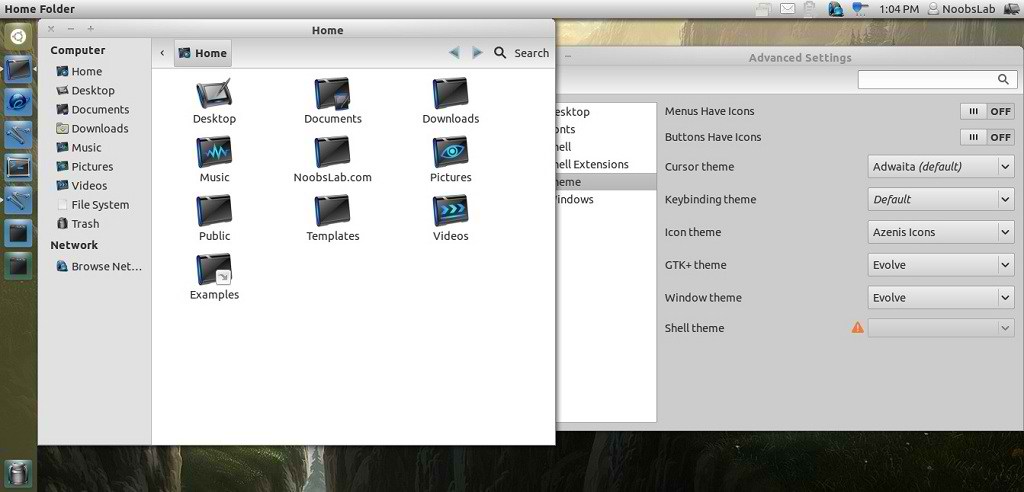
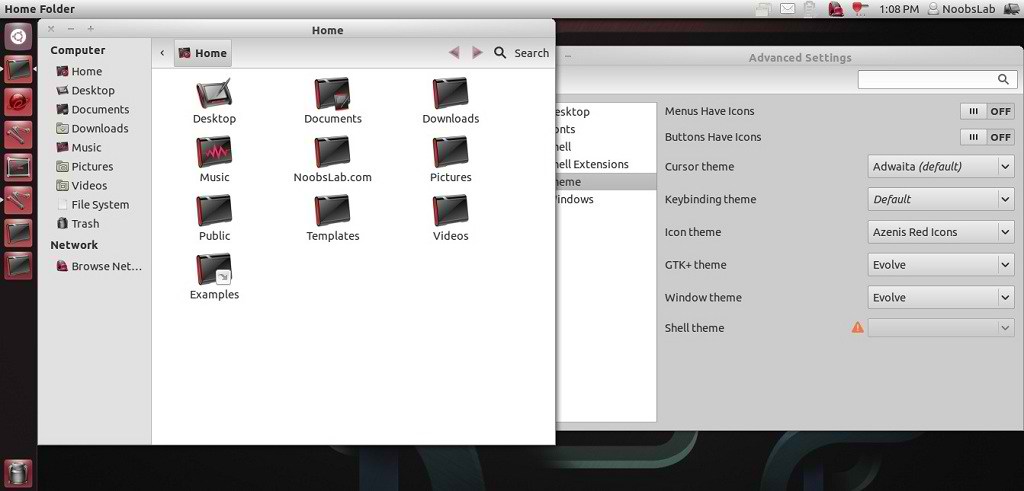
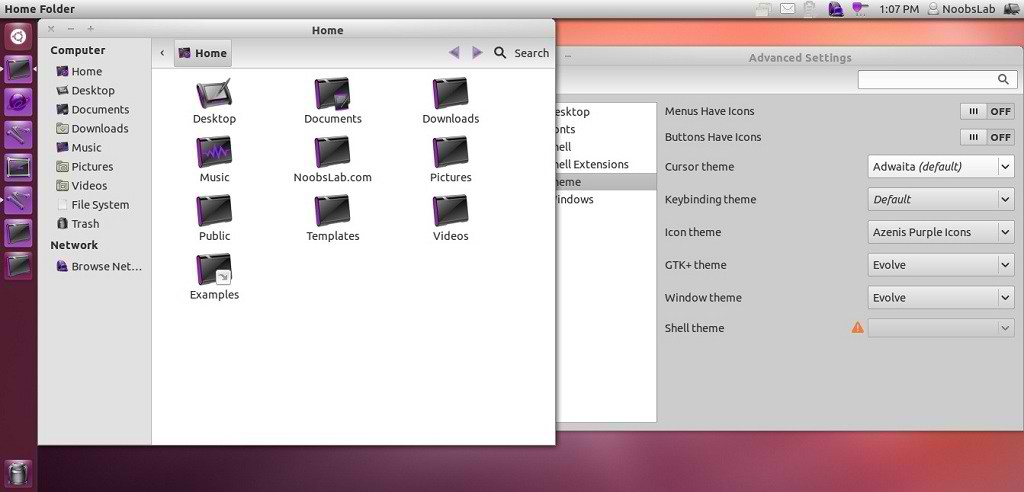
Azenis Icons are available in four different colors, Main Blue Icons, Red Icons, Orange Icons and Purple Icons. Azenis Icons are for those people who like dark icons. Author gave his last update for Azenis icons in 2010, So there is supposed to be some icons missing in new Ubuntu/other distro versions.

You can use these Tools to change icons: Gnome Tweak ToolUbuntu Tweak

1: Azenis Blue Icons

ubuntu icons

To install Azenis Blue icons in Ubuntu/Linux Mint open Terminal (Press Ctrl+Alt+T) and copy the following commands in the Terminal:
  • mkdir ~/.icons
  • wget -O azenis-blue-icons.zip http://dl.dropbox.com/u/53319850/NoobsLab.com/azenis-blue-icons.zip
  • unzip azenis-blue-icons.zip -d ~/.icons

2: Azenis Orange Icons

ubuntu dark icons

To install Azenis Orange icons in Ubuntu/Linux Mint open Terminal (Press Ctrl+Alt+T) and copy the following commands in the Terminal:
  • mkdir ~/.icons
  • wget -O azenis-orange-icons.zip http://dl.dropbox.com/u/53319850/NoobsLab.com/azenis-orange-icons.zip
  • unzip azenis-orange-icons.zip -d ~/.icons

3: Azenis Red Icons

ubuntu icons

To install Azenis Red icons in Ubuntu/Linux Mint open Terminal (Press Ctrl+Alt+T) and copy the following commands in the Terminal:
  • mkdir ~/.icons
  • wget -O azenis-red-icons.zip http://dl.dropbox.com/u/53319850/NoobsLab.com/azenis-red-icons.zip
  • unzip azenis-red-icons.zip -d ~/.icons

4: Azenis Purple Icons

linux icons

To install Azenis Purple icons in Ubuntu/Linux Mint open Terminal (Press Ctrl+Alt+T) and copy the following commands in the Terminal:
  • mkdir ~/.icons
  • wget -O azenis-purple-icons.zip http://dl.dropbox.com/u/53319850/NoobsLab.com/azenis-purple-icons.zip
  • unzip azenis-purple-icons.zip -d ~/.icons
That's it, Enjoy
Source: Azenis Icons

Saturday, 23 June 2012

Install nouveGnome icons in Ubuntu/Linux Mint/Any Distro

Install nouveGnome icons in Ubuntu 12.10/12.04/11.10/11.04/Linux Mint/Any Distro

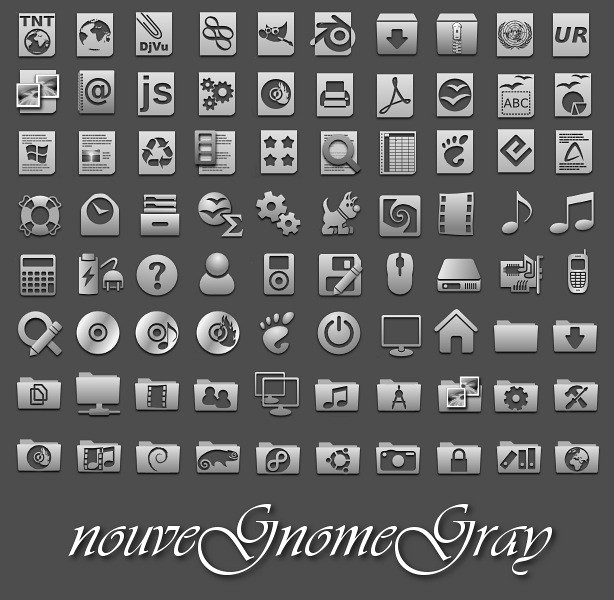
nouveGnome icons are really nice, These icons are available in two color sets. One set is colorful and the second set is grayish. It looks cool with different themes. You can install these icons on any linux distro such as Ubuntu, Mint, Arch, Fedora and Others. Here are more nice icons try them.

You can use These Tools to change icons: Gnome Tweak Tool, Ubuntu Tweak

1: nouveGnome Gray Icons

ubuntu icons

Install nouveGnome Gray icons on Ubuntu/Mint/Any distro open Terminal (Press Ctrl+Alt+T) and copy the following commands in the Terminal:
  • mkdir ~/.icons
  • wget -O nouveGnomeGray.zip http://dl.dropbox.com/u/53319850/NoobsLab.com/nouveGnomeGray.zip
  • unzip nouveGnomeGray.zip -d ~/.icons && sudo rm nouveGnomeGray.zip
Use Gnome Tweak Tool or Ubuntu Tweak to Change icons


2: nouveGnome Color Icons

linux icons

Install nouveGnome Color icons on Ubuntu/Mint
/Any distro open Terminal (Press Ctrl+Alt+T) and copy the following commands in the Terminal:
  • mkdir ~/.icons
  • wget -O nouveGnome.zip http://dl.dropbox.com/u/53319850/NoobsLab.com/nouveGnome.zip
  • unzip nouveGnome.zip -d ~/.icons && sudo rm nouveGnome.zip
Use Gnome Tweak Tool or Ubuntu Tweak to Change icons
That's it, Enjoy

Wednesday, 6 June 2012

Install Malys-ex icons in Ubuntu/Linux Mint (New Icons)

Install Malys-ex icons in Ubuntu 12.10/12.04/11.10/11.04/10.10/10.04/Linux Mint 13/12/11/10/9/other Ubuntu based distributions

Previously shared Malys icons and themes, Malys is really nice theme and icons creator for linux. Personally I like his work and using his themes + icons personally. Hope you will like his work.

malys icons

ubuntu icons

To install Malys-ex-icons on Ubuntu/Mint open Terminal (Press Ctrl+Alt+T) and copy the following commands in the Terminal:
  • sudo add-apt-repository ppa:noobslab/icons
  • sudo apt-get update
  • sudo apt-get install malys-ex
That's it, Enjoy.
Source: Malys-ex

Sunday, 3 June 2012

Malys Black/Blue Icons Updated to version 1.6 for Ubuntu/Linux Mint via PPA

Install Malys Blue/Black Icons on Ubuntu 12.10/12.04/11.10/11.04/10.10/10.04/Linux Mint/or any Ubuntu based Distribution

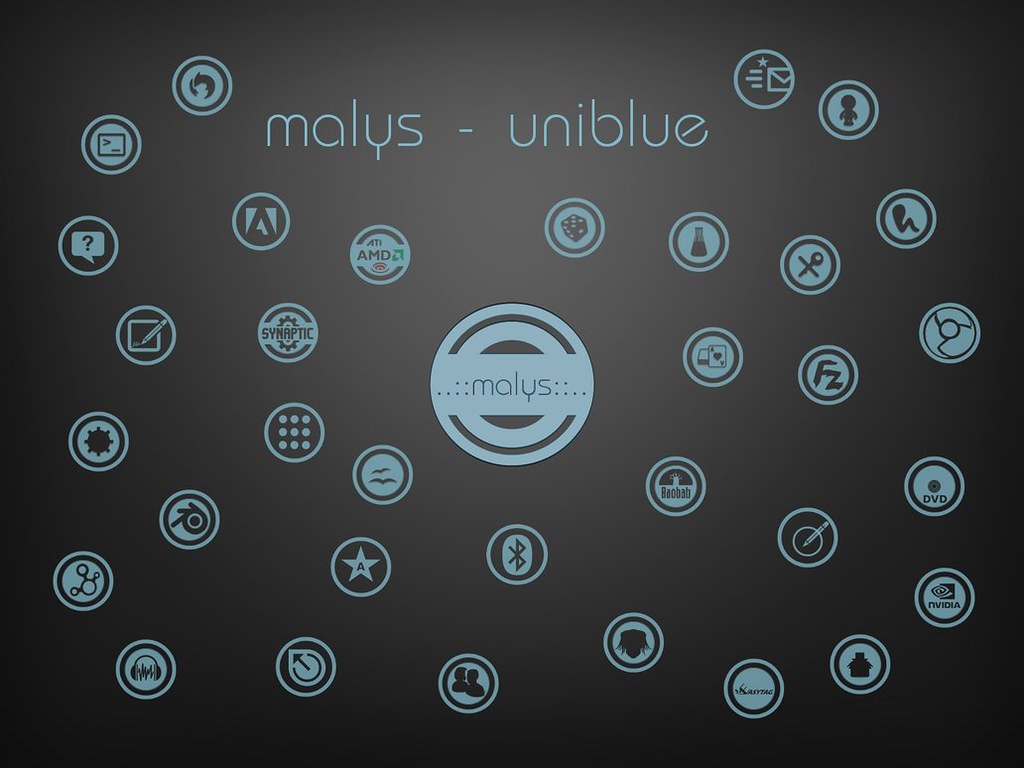
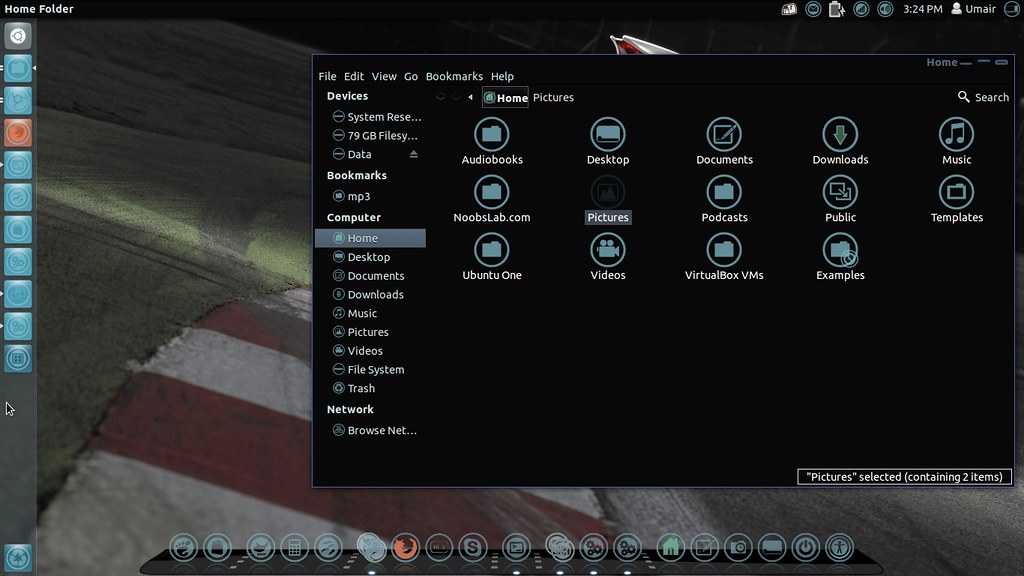
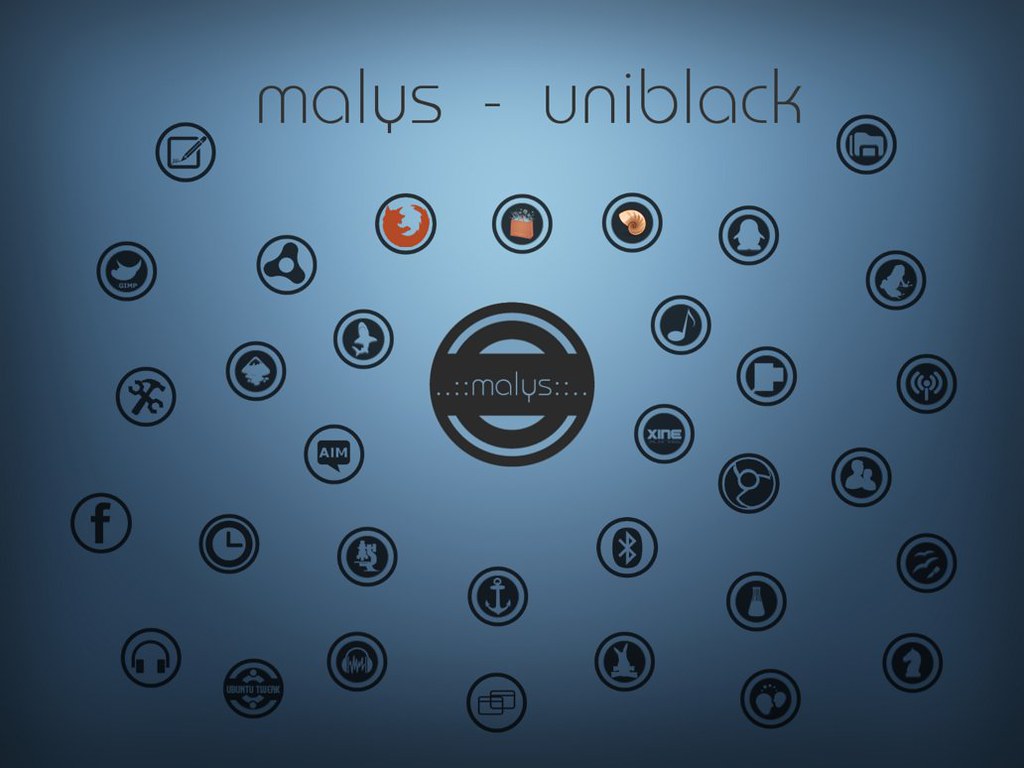
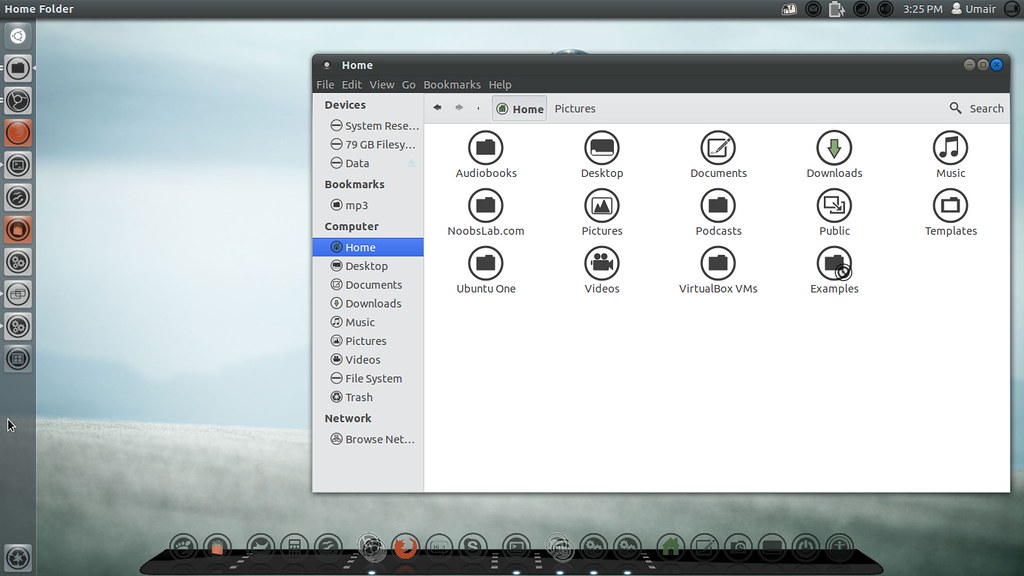
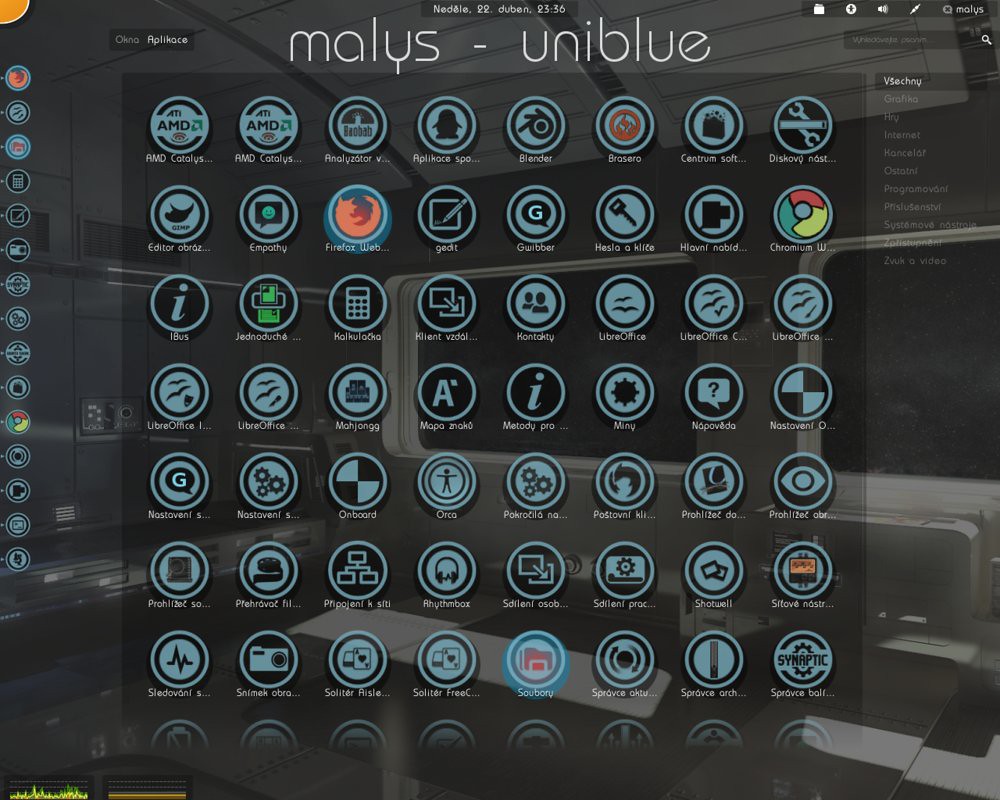
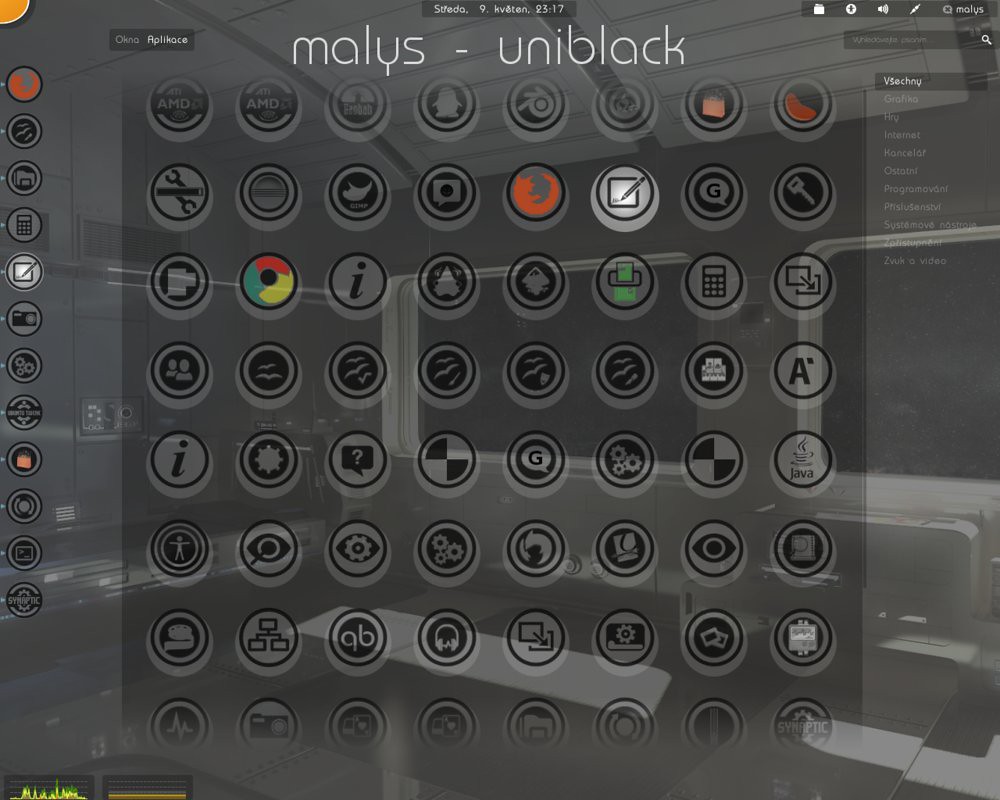
Malys UniBlue/UniBlack Icons updated to ver1.6 and added new icons in this version. For other distro's check source links.
Install Tools to change icons: Gnome-Tweak-ToolUbuntu-Tweak

Malys UniBlue Icons

ubuntu icons

linux icons

ubuntu icons

To install Malys-Uniblue-Icons on Ubuntu/Mint open Terminal (Press Ctrl+Alt+T) and copy the following commands in the Terminal:
  • sudo add-apt-repository ppa:noobslab/icons
  • sudo apt-get update
  • sudo apt-get install malys-uniblue

Malys UniBlack Icons

ubuntu icons

ubuntu blue icons

To install Malys-UniBlack-Icons on Ubuntu/Mint open Terminal (Press Ctrl+Alt+T) and copy the following commands in the Terminal:
  • sudo add-apt-repository ppa:noobslab/icons
  • sudo apt-get update
  • sudo apt-get install malys-uniblack
That's it, Enjoy

Sunday, 13 May 2012

Install Malys Blue/Black Icons on Ubuntu/Linux Mint - via PPA

Install Malys Blue/Black Icons on Ubuntu 12.10/12.04/11.10/11.04/10.10/10.04/Linux Mint/or any Ubuntu based Distribution

Install Tools to change icons: Gnome-Tweak-ToolUbuntu-Tweak

Malys UniBlue Icons

ubuntu icons

linux icons

ubuntu icons

To install Malys-Uniblue-Icons on Ubuntu/Mint open Terminal (Press Ctrl+Alt+T) and copy the following commands in the Terminal:
  • sudo add-apt-repository ppa:noobslab/icons
  • sudo apt-get update
  • sudo apt-get install malys-uniblue

Malys UniBlack Icons

ubuntu dark icons

ubuntu blue icons

ubuntu icons

To install Malys-UniBlack-Icons on Ubuntu/Mint open Terminal (Press Ctrl+Alt+T) and copy the following commands in the Terminal:
  • sudo add-apt-repository ppa:noobslab/icons
  • sudo apt-get update
  • sudo apt-get install malys-uniblack
That's it, Enjoy

Saturday, 21 April 2012

Install Awesome Theme with Icons on Ubuntu 12.04/11.10/Linux Mint

Install Ambiance-BlueBroken Theme with Malys-Uniblue Icons on Ubuntu 12.04 Precise Pangolin/Ubuntu 11.10 Oneiric/Linux Mint 12 Lisa

ubuntu themes

ubuntu 12.04

ubuntu themes

1st Download Wallpapers
2nd Install Gnome Tweak Tool

To Install Icons open Terminal (Press Ctrl+Alt+T) and copy the following commands in the Terminal:
  • sudo add-apt-repository ppa:noobslab/icons
  • sudo apt-get update
  • sudo apt-get install malys-uniblue
To Install Theme open Terminal (Press Ctrl+Alt+T) and copy the following commands in the Terminal:
  • sudo add-apt-repository ppa:noobslab/themes
  • sudo apt-get update
  • sudo apt-get install ambiance-bluebroken
Sources: Theme, Icons

Sunday, 15 April 2012

Install FS Icons on Ubuntu/Linux Mint

Install FS Icons on Ubuntu Versions/Linux Mint Versions

FS Icons:
ubuntu icons

A new look, smooth and modern, for your Linux workspace. It works in both Gnome as KDE.
Combinations:
- Gnome
- Humanity
- Humanity Dark
- Ubuntu Mono Dark
- Ubuntu Mono Light
- Oxygen

To Install FS Icons on Ubuntu/Linux Mint open Terminal (Press Ctrl+Alt+T) and copy the following commands in the Terminal:
  • mkdir ~/.icons
  • wget http://dl.dropbox.com/u/53319850/NoobsLab.com/fs_icons.tar.gz
  • tar -xzvf fs_icons.tar.gz -C ~/.icons

FS Icons Ubuntu:
icons

Based on this previous release (0.1) and being developed parallel to the main project FS Icons, FS Icons Ubuntu proposes a new look, smooth and modern icons for Ubuntu.
There are three packages for version 0.2+:
- fs-ubuntu-icons (main package)
- fs-ubuntu-icons-mono-dark (Combination)
- fs-ubuntu-icons-mono-light (Combination)

To Install FS Ubuntu Icons on Ubuntu/Linux Mint open Terminal (Press Ctrl+Alt+T) and copy the following commands in the Terminal:
  • sudo add-apt-repository ppa:kroq-gar78/ppa
  • sudo apt-get update
  • sudo apt-get install fs-icons-ubuntu fs-icons-ubuntu-mono-dark fs-icons-ubuntu-mono-light
Use Gnome Tweak Tool to Change Icons

Sunday, 18 March 2012

Install Faenza Icons 1.2 on Ubuntu/Linux Mint (New Release)

Install Faenza Icons 1.2 on Ubuntu 12.04/11.10/11.04/Linux Mint (New Release)

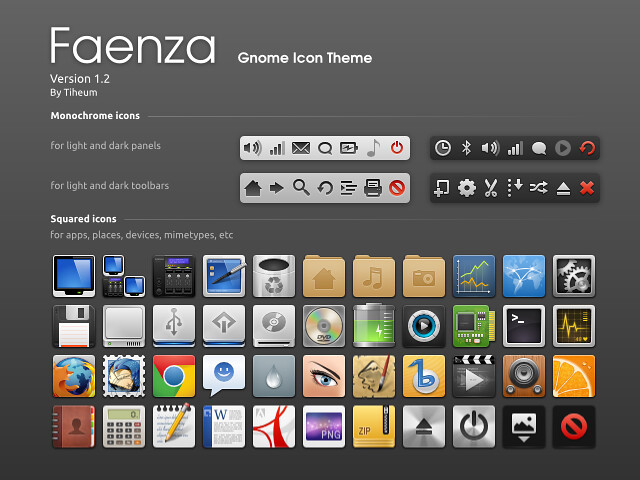
This icon theme for Gnome provides monochromatic icons for panels, toolbars and buttons and colourful squared icons for devices, applications, folder, files and Gnome menu items.
An installation script let you choose the logo of your favorite distribution and the appearance of the main menu icon (Gnome/distrib, monochrome/colour).
Several themes are included to fit with light or dark panels, menus and tool-bars.

faenza icons

New in Faenza Ver 1.2:
  • New apps: Desura, Gajim, Google Music Frame, Mail notification
  • New icons sizes: 64x64 and 96x96
  • Fixes the specific folders icons replaced by the standard one
  • Fixes some missing links

To install Faenza icons in Ubuntu/Linux Mint open Terminal (Press Ctrl+Alt+T) and copy the following commands in the Terminal:
  • sudo add-apt-repository ppa:tiheum/equinox
  • sudo apt-get update
  • sudo apt-get install faenza-icon-theme
After Installation open Gnome-Tweak-Tool to change icons, if you don't have install with following command:
  • sudo apt-get install gnome-tweak-tool
For other Distro's Download Faenza Icons from author page.

Saturday, 25 February 2012

Install Awoken Icons 2.4 on Ubuntu/Linux Mint (New Release)

New Release Install Awoken Icons 2.4 on Ubuntu 12.04 Precise Pangolin/Ubuntu 11.10 Oneiric/Ubuntu 11.04/Linux Mint 12/Linux Mint 13

awoken icons

Awoken Icons are very famous icons for Linux Distro's, It is most rated icons I have ever seen in Linux distro's. These icons are now available for Ubuntu 12.04 support and other latest & Linux flavors.

awoken icons


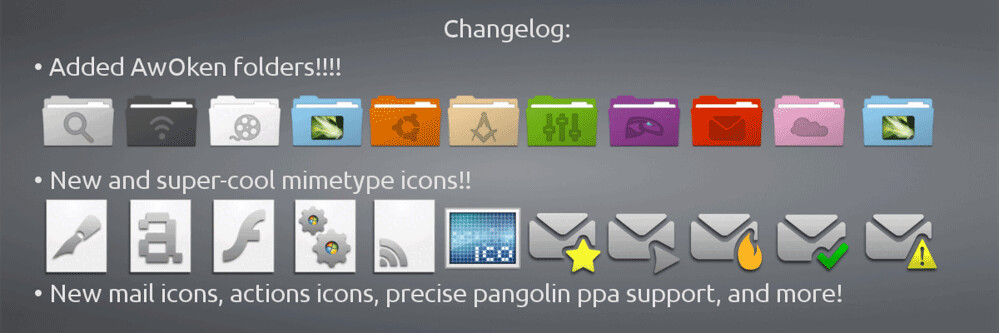
Changelog for 2.4 Version:
  • Added AWOKEN folders! Now the set is integrated with the most cool and stylish folders ever!
  • Drastic revision of mimetypes: now they use a different template icon (modified from Elementary icon set), and they're more refined in 24x24 version!
  • Most of the 22x22 actions icons that have characterized the latest versions have been brought to 24x24px and 128x128px resolutions. So the iconset become cleaner, cooler and more integrated! Consequently, also some status icons are changed.
  • Mail icons redrawed (both in bigger and in lower resolution). Now your favourite email client's toolbar (except thunderbird) works like a charm!
  • Added ppa for precise.
  • Drastic revision of the colorization script: now is faster, cleaner and supports parallel processing. This lead to a serious improvement on latest multi-core machines, but also on elder computers. Another big improvement is related to the fact that is now accepting RGB colors instead of CMY colors!
  • Revision of the Installation and Instructions PDF file.
  • Removed gedit choice from the customization script (it's useless having the possibility to change only one icon!).
  • Removed some folder sub-types, since the iconset is became too big. They are classy-yellow, classy-carboard, classy-white, classy-black. For the same reason, removed (from other folder types) folder-joomla, folder-wip, folder-science2, folder-windows, folder-apple, folder-ffw, folder-byte, folder-cd, folder-fonts, folder-linux1, folder-linux2, folder-public, folder-important.
  • Application added (or redrawed): accessories-text-editor-symbolic, document-open-symbolic, network-wired-disconnected, ubuntuone emblems, gtk-zoom-100 in 22x22px, jdownloader, gwibber, mail-message-new, mail-forward, mail-outbox, mail-mark-important (-junk, -notjunk, -unread, -spam), mail-reply, mail-reply-all, mail-move, edit-delete-mail, extract-archive, add-files-to-archive, add-folder-to-archive, gnome-pie, gelemental, luminance-hdr, application-x-mint, grooveshark, mintinstall, addressbook icons, call-start, call-stop, fillmore, gpick, gftp, batti, marlin, kompozer, preferences-desktop, preferences-system, preferences-desktop-personal, mime for video, midori, djvulibre, plank, fontforge, ffanvil, general settings icons, kupfer, acetoneiso, videoporama, beatbox, nvclock, cryptkeeper, bino, isomaster (I hope), gpixpod, graveman, gshutdown, ogmrip, billardgl, foobillard, fedora live usb, mp3-splt-gtk, yarock, scim-setup, application-fonts, mono-runtime, gnome-settings-default-applications, nitrogen, musique
  • Application added (or redrawed) specifically for KDE version: application-x-tarz, imagewriter, script-error, code-context, edit-link, view-group, edit-select, select-rectangular, zoom-select, insert-text, select\_rectangular, run-build-install-root.

To install Awoken Icons on Ubuntu/Linux Mint open Terminal (Press Ctrl+Alt+T) and copy the following commands in the Terminal:
  • sudo add-apt-repository ppa:alecive/antigone
  • sudo apt-get update
  • sudo apt-get install awoken-icon-theme
To customize icons enter following command:
  • awoken-icon-theme-customization

For Other Linux Distribution install Awoken Icons on Arch/Fedora/Suse/others
First Download Icons from DevianArt link, After Download Extract your Awoken Icons three folders in (.icons) directory.
Now open Terminal and enter following commands:
  • cd .icons
  • sudo cp -p AwOken/awoken-icon-theme-customization /usr/bin
  • sudo cp -p AwOken/awoken-icon-theme-customization-clear /usr/bin
  • sudo cp -p AwOkenDark/awoken-icon-theme-customization-dark /usr/bin
  • sudo cp -p AwOkenWhite/awoken-icon-theme-customization-white /usr/bin
To customize icons enter following command:
  • awoken-icon-theme-customization
Here is the Author Page on DevianArt. That's it
 

Just the Life of Eddie Copyright © 2012 Best Celebrity Wallpaper -- Powered by Blogger